Indicators
The indicators component does double duty: it is the legend for the colors a planner sees on the planning board, and it is the source for changing those colors. CategoriesCategoryA visual indicator (a color) applied to appointments to classify or label them., time markersTime markerA visual indicator on an appointment, separate from its category, used to flag a status or condition at a point in time., pinsPinAn indicator that lives on a task rather than an appointment and colors its marker on the map, typically by skill, vehicle type or region. It has no equivalent on the planning board., and tags all live here, grouped into a single accordion panel.
Without it, the colors on the board mean nothing to a planner who is new to the workspaceWorkspaceThe arrangement of components a user sees in the planning view. A profile saves it, and dock panels are how it is shaped., and changing the category on a handful of appointmentsAppointmentA task scheduled to a resource for a specific period - the scheduled instance you see on the planning board. means opening each appointment card in turn. The component solves both: glance at the panel to read the colors, drag from it to apply them.
A legend the planner can also use
The panel lists every indicatorIndicatorCollective term for the visual signals - categories, time markers, pins, and tags - that identify and label appointments. and its color, organized into three sections that collapse and expand. New planners use it to learn the color scheme; veteran planners use it to remember what an obscure category means.

The same panel is the fastest way to set those values on an appointment. Drag an item from the categories or time markers list and drop it on an appointment in the planning boardPlanning boardThe main graphical scheduling surface where dispatchers drag tasks onto resources across a timeline..
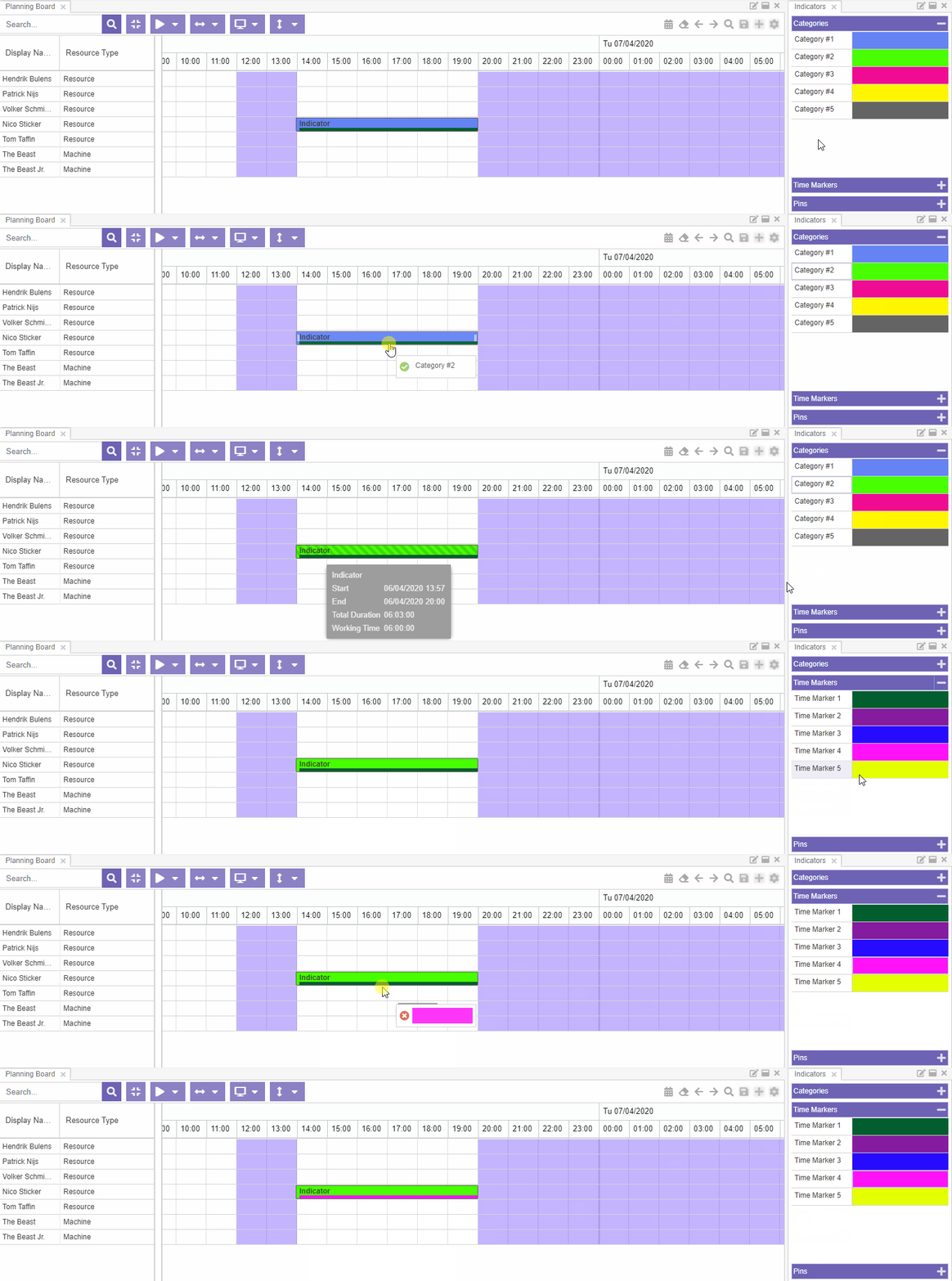
Validation runs during the drag. The drop target must be an appointment; if it is, a green check icon appears in the tooltip and the drop proceeds. A red cross means the target is invalid (a non-appointment cell, for example) and the action is cancelled.

Security still applies on top of the visual validation. Locked appointmentsLocked appointmentAn appointment that cannot be moved or edited. The lock is set in the back office, not in Dime.Scheduler, and locked appointments are drawn with shaded stripes., and records the planner does not have permission to update, refuse the drop.
Bulk update for many at once
Drag-and-drop is the right tool for one appointment, but tedious for fifty. Select multiple appointments on the planning board first, then click the bulk-update icon next to a category or time marker in the indicators panel: the value is applied to every selected appointment in a single round-trip.

Tags behave differently
TagsTagA reusable label with an icon and a color that can be applied to tasks and appointments. Unlike a category, a record can carry several tags at once. are currently in preview. Functionality and behavior may change between releases.
The panel has a Tags section that drags and bulk-updates like the rest, with one important difference: dropping a category or a time marker replaces the current value, because an appointment only has one of each. Dropping a tag adds it to the tags the appointment already carries. Drop three tags on the same appointment and it ends up with three.
Removing them again is a separate gesture: right-click the appointment and choose Remove tags to clear all of them, or open the appointment card to take off just one.
Tags marked as hidden by the administrator do not appear in this panel at all.
Other ways to set the same thing
Drag-and-drop and bulk update from this panel are the indicators-centric paths. Two others reach the same effect from elsewhere in the workspace:
- The appointment card on the planning board, useful when the planner is already editing that one appointment.
- The bulk-update actions in the planned tasks grid, useful when the planner is selecting appointments by query rather than by clicking on the board.
All four routes write the same underlying change; pick whichever fits the gesture the planner is already making.