Appointments
The transactions list is the integration's view: every call, in order, across all appointments. This page flips that around. It is the appointment's view: every appointment in the tenant, with a click-through to the transactionsTransactionThe recorded call Dime.Scheduler makes to a connected system when the planning changes. It counts as successful on an HTTP 200, which means the endpoint received it, not that the back office processed it. behind it. When a planner says "what is the state of this booking with the back officeBack officeThe ERP or business system Dime.Scheduler plans for - most often Microsoft Dynamics 365 Business Central. It owns the master data and remains authoritative over what it receives.?", this is where you answer them.
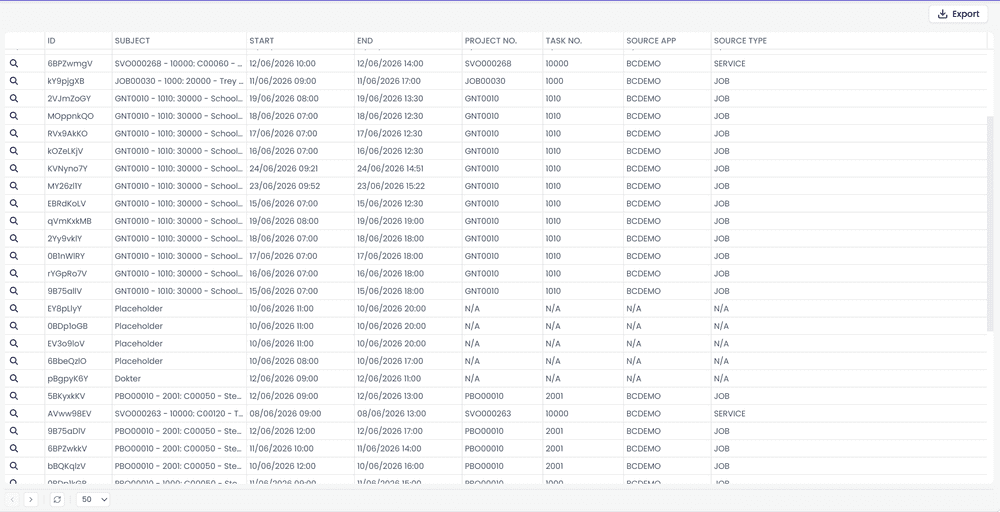
The list is sorted by most recent activity first, so the appointments most likely to need attention float to the top.
Drilling into an appointment
Click the magnifying glass icon on a row to open the appointment detail page at /appointments/<id>. This page exists to answer one question: did this appointment reach every system it is connected to, and if not, what happened and can I push it through again? It pulls together everything Dime.Scheduler knows about the booking from the integration side and puts the retry within reach, so you never have to go hunting in the global transactions list for one booking's history.
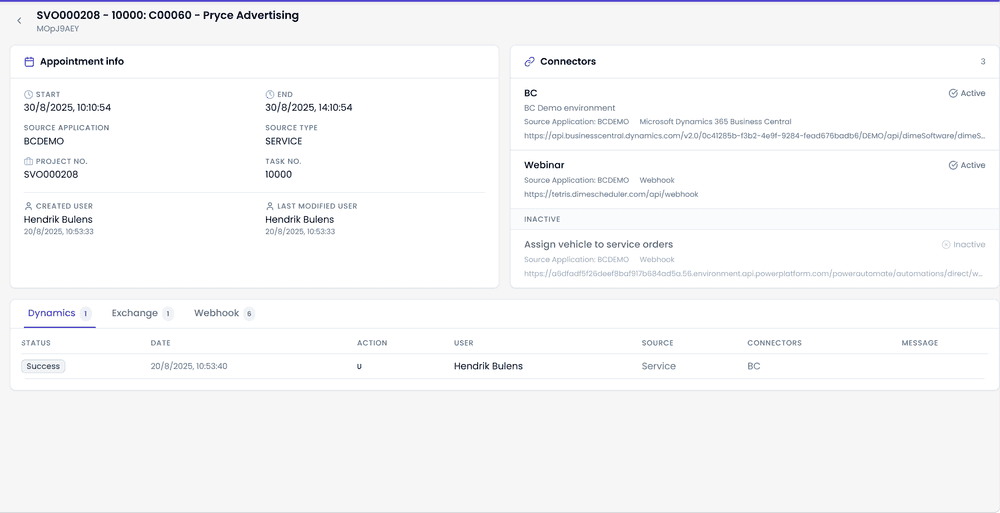
The header shows the appointment's subject and its appointment number; the back arrow returns you to the list. Below it, the page is laid out in three parts.
Appointment info
The Appointment info panel identifies the booking: Start and End, the Source Application and Source Type it came from, the Job No. and Task No. it belongs to, and who touched it last (Created By and Last Modified By, each with its timestamp). The labels follow your entity captionsCaptionThe label shown for a field or entity in the interface, translatable per language. A tenant that calls jobs "projects" changes the caption, not the data model., so a tenant that calls jobs "projects" sees Project No. here. Nothing on this panel is editable; it is there so you can confirm you are looking at the right appointment before you act on it.
Connectors
The Connectors panel lists every connectorConnectorAn integration that links Dime.Scheduler to a back-office system, routing data in and scheduling decisions back out. configured for the appointment's source application, with its name, description, source application, back-office system and web service address. Connectors are split into two groups. Those marked Active send appointments to their back office; those under the Inactive heading are configured but have sending switched off, and are dimmed. An appointment that never shows up in a back office is often explained right here: the connector that should carry it is inactive.
Transactions
The lower panel is the appointment's transaction history, split into three tabs by connector type: Dynamics, Exchange and Webhook. Each tab carries a count of the transactions it holds. When more than one connector of the same type has touched the appointment, a second row of sub-tabs appears, one per connector, with a green dot on the connectors that are active.
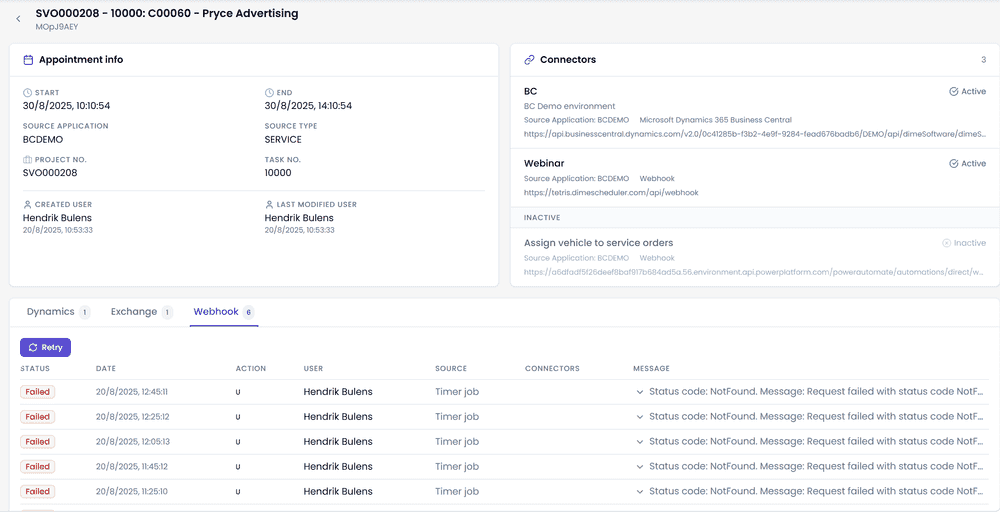
Each transaction row shows its Status, Date, Action, User, Source, Connector and Message. Long messages are truncated; click the chevron in front of one to expand the full text, which is where the back office's error detail lives.
The status badge is color-coded so a scan of the list tells you the state at a glance:
- Success (green): the back office accepted the transaction.
- Skipped, MBOC Not Provided and MBOC Publish Disabled (amber): the transaction was deliberately not sent, because there was no connector to send it to or publishing is switched off for it. Nothing failed, but nothing reached the back office either.
- Any other status (red): the call failed. The message says why.
Retrying
A Retry button appears above the table when the latest transaction on the active tab (or sub-tab) is anything other than Success, and also when there are no transactions yet. Clicking it re-queues the appointment for that connector type, scoped to the selected connector when sub-tabs are shown, and confirms with a Retry scheduled toast. The page does not reload its history on its own; refresh it to see the new transaction appear.
Use it for one-off retries when you have just fixed the underlying problem (a back-office permission, a stale credential, a temporary outage) and want to push the appointment through again without waiting for the background retry job.
Where transactions come from
The Source column on each transaction tells you what triggered it:
- Service - the regular planning flow. A planner moved or created the appointment on the board.
- Website - an administrator (probably you) clicked the retry button.
- Timer job - the background retry job picked the appointment up automatically.
For the full picture of how retries are scheduled and when they give up, see the transactions overview.