Transactions
Every time Dime.Scheduler talks to a connected backoffice system - Business Central, Exchange, or a webhook connection - it records the interaction. This page explains how those transactions work and what "successful" really means, so you can read the audit trail inside Dime.Scheduler with confidence.
What constitutes a transaction
When Dime.Scheduler posts data to a connected system, it marks the transaction as successful. What that means in practice differs per backoffice system, but the rule Dime.Scheduler applies is the same everywhere: a 200 HTTP status code.
In the connector for Business Central, a successful transaction means an item has been posted to the Dime.Scheduler Appointments table, which internal Business Central workflows then pick up. This is a robust pattern that maximizes the resilience of the solution. Other backoffice systems may not have this proxy and process the request immediately. The exact behavior depends on your setup.
To repeat: all Dime.Scheduler looks at to mark a transaction as successful is a 200 HTTP status code in the response. That does not necessarily mean the new planning information was processed successfully. It only means Dime.Scheduler reached the endpoint and the endpoint responded.
Processing the planning data in the backoffice system
A decoupled solution - like the staging 'Dime.Scheduler Appointments' table approach in BC - introduces a second layer of complexity. The backoffice can acknowledge that it received the appointment correctly by returning a 200 code, yet still fail to process that appointment internally.
The item may land in the staging table but never make it into the target tables. There are many reasons why. In the image below, for example, the assigned resource is missing a 'Unit of Measure' in Business Central:
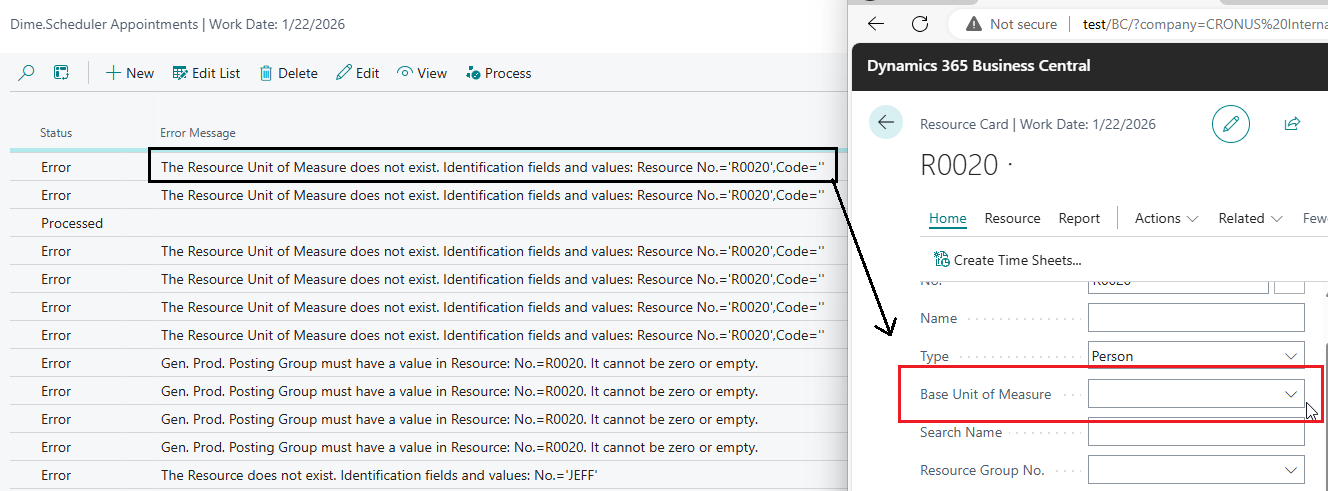
The status of this appointment in BC is therefore Error. So even when Dime.Scheduler considers the item sent successfully, the appointment may not have processed correctly in the backoffice system.
For help troubleshooting issues like this, see the Business Central Troubleshooting guide and the Business Central Transaction Errors reference.
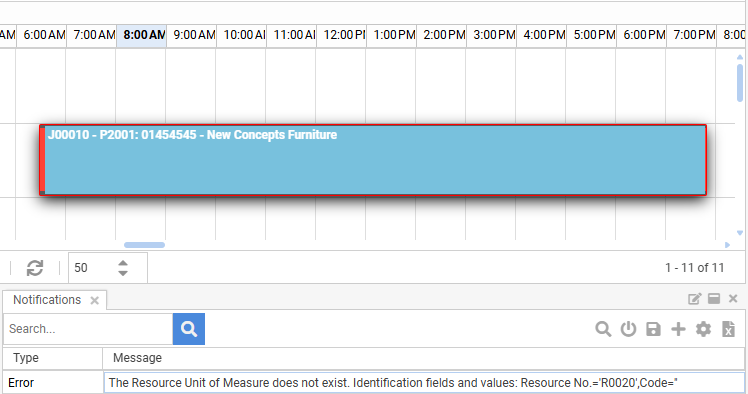
To keep planners informed when this happens, Dime.Scheduler can create notifications for appointments:
Summary
Here is how the transaction system works in Dime.Scheduler together with Business Central. Step through the happy path on the USA tenant and then the failure case on the Canadian tenant:
USA tenant sends work
The USA Business Central tenant pushes its jobs, tasks, and resources into Dime.Scheduler. Every record is tagged with a Source App so it can be routed back to the right tenant later.
Automatic retries
Dime.Scheduler's job is done once the backoffice system returns a 200 status code. When any other status code comes back, automatic retry policies may kick in and make a few more attempts to reach the backoffice system. Transient errors like request timeouts (408), throttling (429), bad gateway (502), unavailable services (503), and gateway timeouts (504) are often one-off or temporary, so a second or third attempt might succeed.
A transaction can originate from three sources:
- Service: initiated by the user in the regular flow of planning appointments on the planning board.
- Website: triggered by the retry button on the transactions page.
- Timer job: automatic retries for appointments in a failed status.
As soon as someone changes the planning, Dime.Scheduler calls the connected systems. If that transaction fails, the automatic retry job runs in the background and retries every appointment in a state that could still return a successful response. It makes 5 attempts, then suspends further retries on the assumption that a sixth attempt would not change the outcome.
If all attempts fail, or if the administrator changed the connector or the backoffice system itself, they can also manually retry from the detail page of the appointment. The transaction source reads 'website' for this action.