Installing the Zapier connector
Setting up the connectorConnectorAn integration that links Dime.Scheduler to a back-office system, routing data in and scheduling decisions back out. is mostly a matter of authenticating once. After that, Dime.Scheduler behaves like any other app in a Zap. This page covers finding the connector, connecting it to your instance, and getting the first Zap running.
Find the connector
The connector is publicly listed, so there is nothing to request or install. Log in to zapier.com and search for Dime.Scheduler, either in the app directory or while building a Zap. It is also at zapier.com/apps/dime-scheduler/integrations.
Create the Zap
Click Create Zap, pick a trigger from whichever app should start the workflow, then add an action and search for Dime.Scheduler.
The connector offers three actions: create or update an item, set an attribute on an existing item, or remove an item. Which one you want depends on whether the record already exists, which is worth settling before you start mapping fields.

Authenticate
The first time you use the connector, Zapier asks you to sign in.

Two values are needed.
| Field | Description |
|---|---|
| API key | A Dime.Scheduler API key |
| Environment | sandbox or production |

Create the key under Administration → API Keys. Remember that the full key is displayed only once, at the moment you generate it, so copy it into your secret store straight away. See API keys.
The environment is part of the connection rather than a per-Zap setting, so a Zap inherits whichever environment its connection was created with. Build and test against sandboxSandboxThe separate Dime.Scheduler environment where upcoming features arrive before the production release. It has its own API host, sandbox.api.dimescheduler.com, so API clients target it explicitly. first: a Zap that duplicates records or loops is far cheaper to find there than in a live tenant. When you are ready to go live, create a second connection pointed at production rather than editing the first, so the tested one stays intact.
Once the credentials are accepted, the authentication window closes and you continue building.

Configure the action
Pick the item type, then map the fields from your trigger onto the Dime.Scheduler fields.
Pay attention to source appSource appAn identifier Dime.Scheduler attaches to data so it can route a change back to the correct back-office system. and source typeSource typeAn identifier that, together with the source app, tells Dime.Scheduler which back-office table a record belongs to. here. They identify where a record came from and how it routes, and getting them wrong is the most common reason a Zap reports success while the record never turns up where a planner would look for it. See actions.
Test, then enable
Run the test and check the result before switching the Zap on.
Test with data that resembles reality rather than Zapier's sample payload. Samples arrive with every field populated; real records often do not, and a Zap that depends on an optional field being present will only fail once it is live.
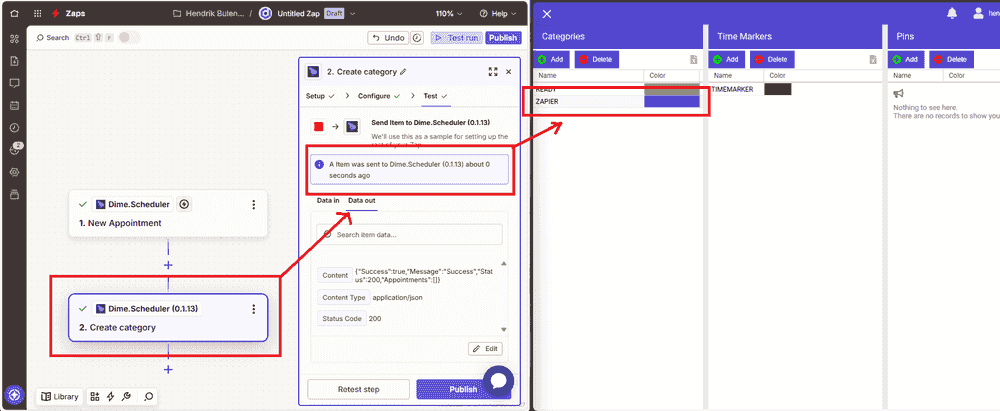
When the test does what you expect, enable the Zap.
If something does not work, troubleshooting covers the common failures.