Solver runs
Most planning is done by hand: a planner looks at the work, looks at the resourcesResourceAn entity that can carry out work - a person, vehicle, tool, or room - that you schedule on the planning board., and decides who does what. The solverSolverThe optimizer that assigns and sequences a set of tasks across a set of resources automatically, weighing skills, travel time and availability. It is a licensed module and produces a proposal, not a change. does that job automatically. Give it a set of work and a set of resources and it assigns and sequences the whole lot, weighing skillsSkillA qualification a resource holds and a task can require, typically modeled as a filter group. Skills drive resource filtering, the project team view and the solver’s choice of who can do what., travel time and availability against each other in ways nobody has time to do by hand for fifty stops.
What it produces is a proposal, not a change. It never rearranges your schedule behind your back, and that is the point of this page: every run lands here with its scores and the before-and-after of every appointmentAppointmentA task scheduled to a resource for a specific period - the scheduled instance you see on the planning board. it touched, so you read what it decided before any of it reaches the board.
That ordering matters more than it sounds. An optimizer you cannot inspect is an optimizer you end up not using, because the first time it produces something surprising you have no way to tell a good surprise from a bad one.
The solvers are optional modules, so this page is available only to tenants licensed for them. See license for the modules, and Application Setup > Preview for the settings that enable them.
Starting a run
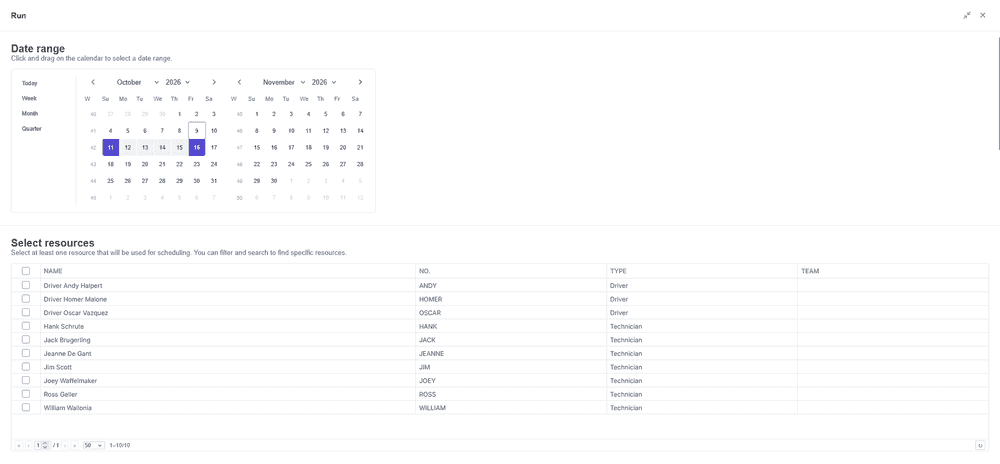
The solver is started from the context menu of the open tasks grid, or of the route sequence grid, with Run field service solver or Run professional services solver for the tasksTaskA unit of work that belongs to a job. It appears in the open task list until it is scheduled to a resource. you selected. The dialog that opens asks for three things.
 Picking the window and the resources
- Date range - the window the solver may plan into. Drag across the calendar, or use the Today, Week, Month and Quarter shortcuts.
- Resources - who it may plan onto. At least one, and the list can be filtered and searched when the roster is long.
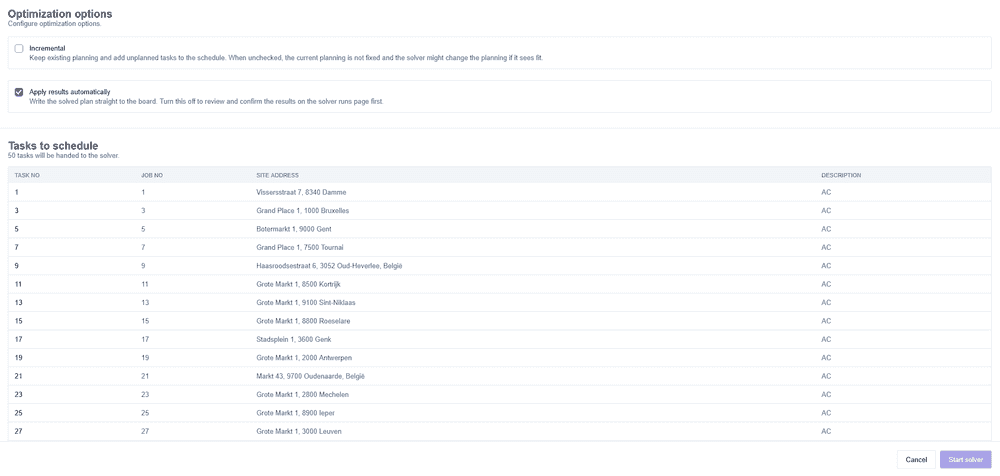
- Tasks to schedule - the work it will be handed. The dialog lists them so you can see what is in scope before anything runs.
Two options change what the run does with what it finds.
 Optimization options
Incremental mode keeps the existing planning as it is and only adds unplanned tasksOpen taskA task that has not been scheduled yet. It waits in the open task list to be placed on the planning board. around it. Leave it off and the solver treats the current planning as movable, and may rearrange it if that makes a better plan. Incremental is the setting for a Tuesday afternoon with half the week already promised to customers. The other is for planning a week from scratch.
Optimization options
Incremental mode keeps the existing planning as it is and only adds unplanned tasksOpen taskA task that has not been scheduled yet. It waits in the open task list to be placed on the planning board. around it. Leave it off and the solver treats the current planning as movable, and may rearrange it if that makes a better plan. Incremental is the setting for a Tuesday afternoon with half the week already promised to customers. The other is for planning a week from scratch.
Apply results automatically writes the solved plan straight to the board as soon as the run finishes. It is on by default. Turn it off and the run waits on this page for you to review and confirm it first. The rest of this page assumes you did.
What a run tells you
Every run is listed here with its type and status, who started it, the window it covered, and how many changes it made across how many resources. A run that finished but is still waiting on you is marked Needs review, which the run itself shows as Awaiting confirmation. That covers succeeded and infeasible runs alike, as long as they proposed a change and have not been applied.
 The solver runs page
| Status | Meaning |
|---|---|
| Succeeded | The solver found a plan. |
| Infeasible | No plan satisfies the constraints as given. |
| Failed | The run itself did not complete. |
Infeasible is a result, not an error. It means the constraints as stated cannot all hold at once, and the answer is to relax one of them rather than to retry. It is usually more informative than a mediocre plan would have been.
Scores
The scores sit behind the Solver data button on a run, together with the request and response the solver exchanged.
A run is scored on three levels rather than one, because "better" means different things at different levels of seriousness.
| Score | What it measures |
|---|---|
| Hard | Rules that must not break. Below zero means the plan cannot work. |
| Medium | Strong preferences the solver tries to honor. |
| Soft | Overall quality. Closer to zero is better. |
Read them in that order. A plan with a negative hard score is not a plan, no matter how good its soft score looks, and comparing soft scores between two runs is only meaningful once both are feasible.
Reviewing a run
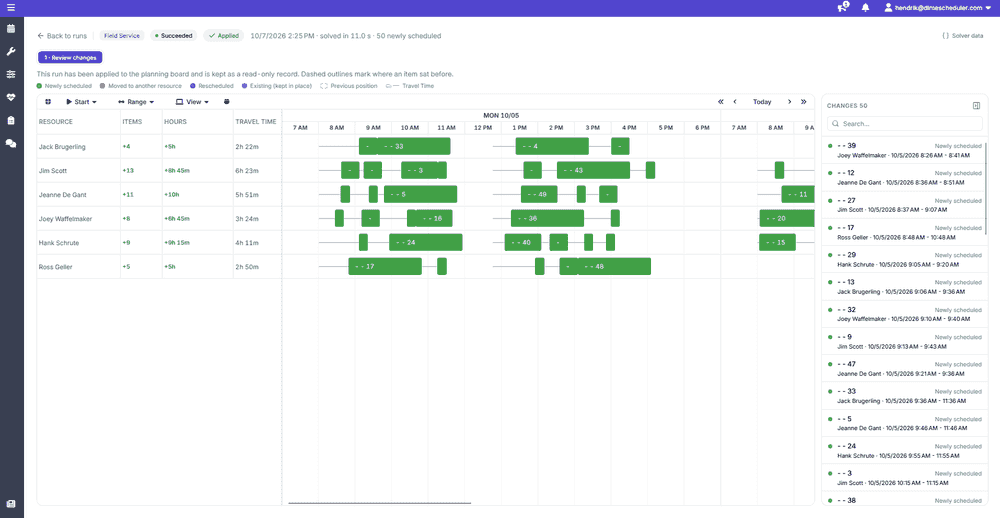
Opening a run shows the proposal as a planning board of its own, one lane per resource, with the number of items, the hours and the travel time the run adds to each. The color of a bar says what kind of change it is: newly scheduled, moved to another resource, rescheduled on the same one, or existing and kept in place. A dashed outline marks where an item sat before, since "moved" and "planned for the first time" are different kinds of change and it matters which one you are looking at. The Changes panel lists every one of them and is searchable.
 Reviewing an applied run
Comparing against the live plan
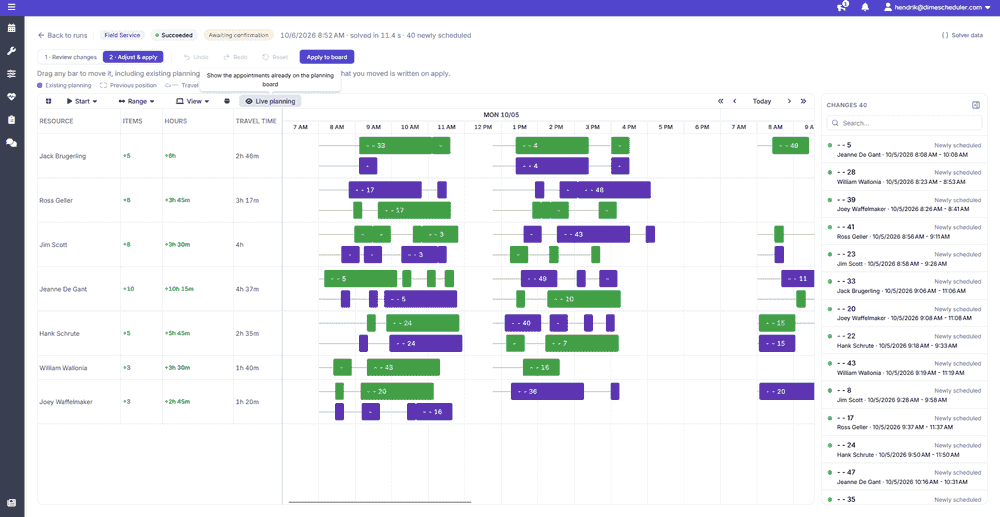
Somebody may have been planning by hand since the solver ran, and a proposal that made sense against Monday's board may not fit Wednesday's. Live planning draws the appointments already on the planning boardPlanning boardThe main graphical scheduling surface where dispatchers drag tasks onto resources across a timeline. underneath the proposal, so you compare the solver's answer against the board as it stands rather than as it was.
 Live planning shown under the proposal
Adjusting before you apply
A run that is awaiting confirmation has a second step, Adjust & apply. Any bar can be dragged, including existing planning, and the dashed outline shows where it came from. Undo, redo and reset are there for when a change does not work out. Only what you moved is written when you apply, so a nudge to one appointment does not rewrite the rest.
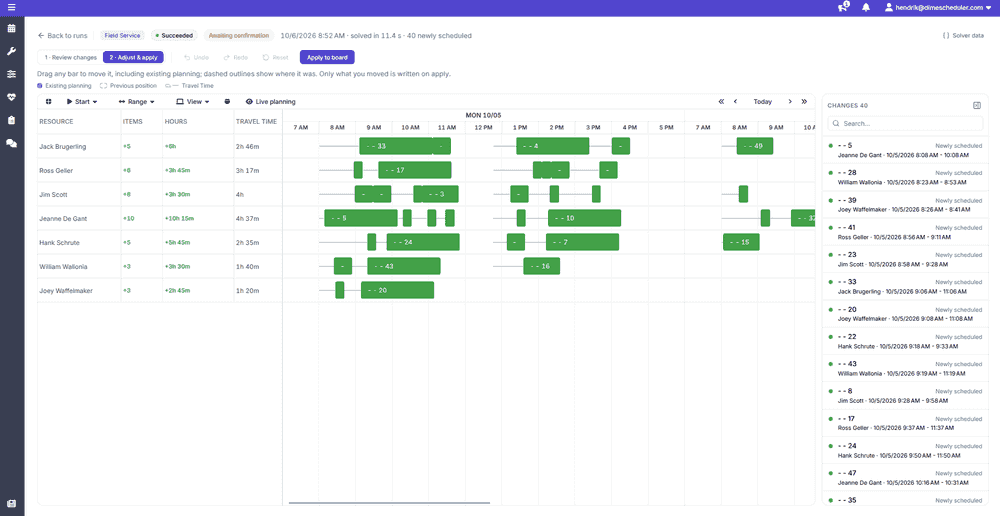 Adjusting a proposal before applying it
This step is what makes the solver usable in practice. A plan that is 95% right is worth keeping, and without it the choice would be between accepting the 5% you disagree with and throwing the whole run away.
Adjusting a proposal before applying it
This step is what makes the solver usable in practice. A plan that is 95% right is worth keeping, and without it the choice would be between accepting the 5% you disagree with and throwing the whole run away.
Applying a run
A run is a proposal until you accept it. Apply to board, which needs the Optimize user actionUser actionA single protected capability, such as 'edit appointment', that a role can grant. The building block of role-based access control., writes its placements onto the planning board, and the run is then kept as a read-only record marked Applied, so it stays clear which proposals were acted on and which were only considered. Runs started with Apply results automatically arrive here already applied and read the same way.
Unless you asked for that, nothing reaches the board without a planner deciding it should. The solver suggests, a planner decides.
Related
- Route sequence - optimizing the order of one resource's day.
- Optimization MCP tools - invoking the field service solver from an AI client.