Export to PDF and Excel
When you need a static copy of the planning - to print it, attach it to an email, or hand it to someone without app access - export it to a file. Dime.Scheduler supports two formats: PDF for the visual planning surfaces (planning boardPlanning boardThe main graphical scheduling surface where dispatchers drag tasks onto resources across a timeline. and Gantt chartGantt chartA timeline view for long-term project planning, showing tasks, durations, dependencies and milestones.) and Excel for the tabular grids.
Export to PDF
The planning board and the Gantt chart both export to PDF. Click the PDF export button and Dime.Scheduler takes a snapshot of the component and renders it as a PDF.
A settings window lets you tweak the output:

- Schedule range: the complete schedule, a date range, or just the visible schedule.
- Row range: everything, or just the visible range.
- Resource fields: add or remove the resourceResourceAn entity that can carry out work - a person, vehicle, tool, or room - that you schedule on the planning board. fields shown in the export.
- Print settings: page format, orientation, pagination control, and whether to add a header to the page.
The export runs on an export server. Once the document is ready, a modal window prompts you to save the file. The output closely matches what you see on screen.
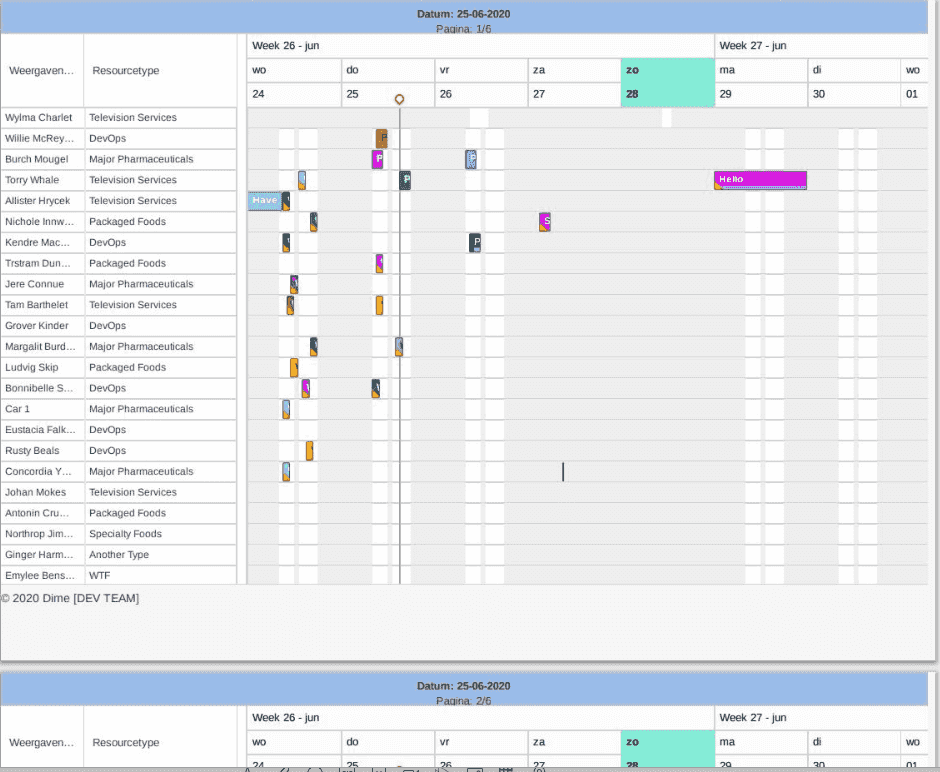
Because the export is tightly integrated with the component it captures, we recommend creating a dedicated planning board or Gantt chart layoutLayoutA saved arrangement of the planning board - visible resources, columns, and settings - that can be reused. optimized for printing.
Export to Excel
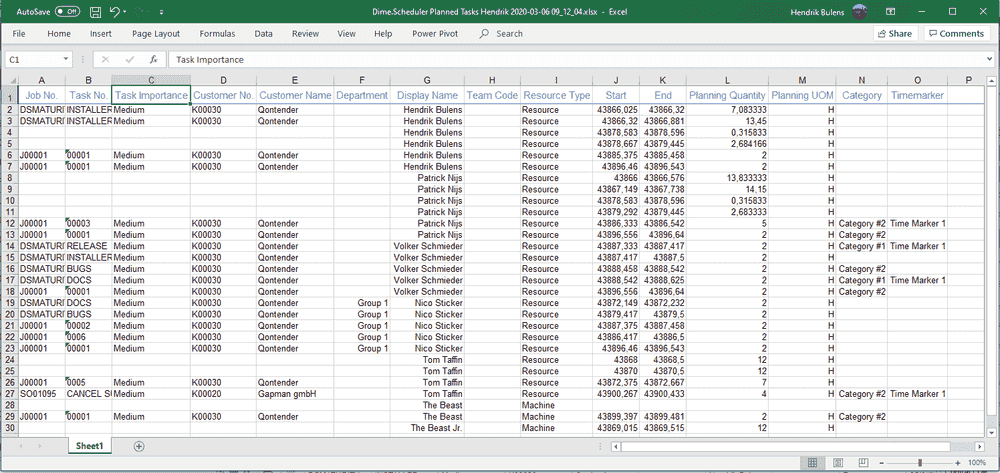
The grids export to Excel. Click the icon and the file downloads right away. The visible columns and their order are carried over to the file, so the export reflects exactly what you have on screen.
The file name follows the format Dime.Scheduler [Grid type] [User Name] [Date].xlsx.