My Work
Most of Dime.Scheduler is built for the planner: somebody looking at forty people and two hundred jobs. My Work is built for one of those forty. It is the signed-in person's own page: their schedule, the tasks they can move along, the projects they are on, and the time they have logged. Nothing on it widens beyond that person, and that is the point. A technician does not need the board. They need to know where they are going today, what they are expected to do there, and how to write down what they did.
My Work appears in the main menu only once it has been switched on for your organization, and only for users who hold at least one of the two user actions below.
Who the page belongs to
The page shows the resourceResourceAn entity that can carry out work - a person, vehicle, tool, or room - that you schedule on the planning board. linked to your user account, and the link is made by e-mail address: a resource whose e-mail matches the one you sign in with is yours. If no resource matches, the page says so and shows nothing else. Ask your administrator to put your e-mail on your resource record.
If the same e-mail sits on more than one resource, My Work shows them together. Time is always logged on the first one.
Two user actionsUser actionA single protected capability, such as 'edit appointment', that a role can grant. The building block of role-based access control. decide what you get, and neither depends on being a planner:
| User action | What it unlocks |
|---|---|
| Progress own tasks | The boards on the Work tab, and dragging cards on them |
| Log own time | The Timesheet and Insights tabs |
The Schedule tab and the project list on the Work tab need no action beyond the resource link. See roles and user actions.
Schedule
The landing tab. On the right, a read-only calendar of your own appointments in day, week, month or list view, with a settings popover for the zoom level, whether weekends show, and the hours of the day to draw. On the left, three short lists: Today, This week and Up next. They are reckoned from now rather than from whatever day the calendar is showing, so browsing to next month does not move today's list.
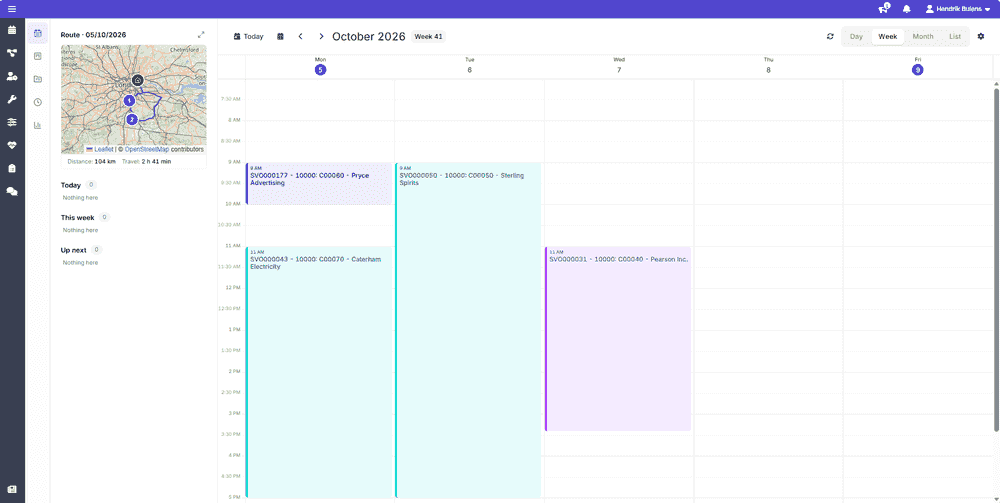 The schedule, with the day's route beside it
Above the lists sits the day's routeRouteThe path between a set of stops drawn on the map, with travel time and distance per leg. The route sequence grid lists the same stops as rows.: a small map with the stops numbered in schedule order, the distance between them and the travel timeTravel timeThe time needed to get from one appointment to the next, calculated from their locations. The planning board can show it in front of each appointment and fold it into the schedule.. It follows the day the calendar is on, so stepping to Thursday shows Thursday's route. The map needs the map license, and a stop without an address is counted rather than drawn.
The schedule, with the day's route beside it
Above the lists sits the day's routeRouteThe path between a set of stops drawn on the map, with travel time and distance per leg. The route sequence grid lists the same stops as rows.: a small map with the stops numbered in schedule order, the distance between them and the travel timeTravel timeThe time needed to get from one appointment to the next, calculated from their locations. The planning board can show it in front of each appointment and fold it into the schedule.. It follows the day the calendar is on, so stepping to Thursday shows Thursday's route. The map needs the map license, and a stop without an address is counted rather than drawn.
Work
Your projects and your tasks, for moving work along without opening anything. The tab has two views, picked at the top: Projects, one project at a time, and All work, every card across all of them. Without Progress own tasks there are no boards and the tab only lists your projects.
Projects
The projects you are a team member of, whether or not any of your work on them is scheduled yet. That is deliberately a different list from the one the board draws from: membership is a decision somebody made about you, and it should be visible before the first appointment lands.
 A project as its team member sees it
Each project in the list shows how much of your work on it is open and overdue, and when you are next due on it. Projects that have been closed fold away under Past projects below the open ones. They stay there for looking things up, the site, the contact, the time you logged, without crowding the list you work from every day.
A project as its team member sees it
Each project in the list shows how much of your work on it is open and overdue, and when you are next due on it. Projects that have been closed fold away under Past projects below the open ones. They stay there for looking things up, the site, the contact, the time you logged, without crowding the list you work from every day.
Opening a project shows its back-office status, with a Closed badge once it is closed, and your standing on it: how many of your tasks are open and overdue, when you are next due, and the time you logged on it in the last thirty days. Below that come its Details, such as the description, type, responsible and customer, left out when the back office sends none; the Site and contact of the job so you can call ahead; and the project's Note. Users with access to the projects module get an Open project link to the full project page.
Underneath sits your work on the project. With Progress own tasks, that is the project's own board: the same board as All work, pinned to this one project. Without it, it is My open work, a plain list of what you still have open on the project across all time. A closed project has no work left to move, so it shows its details only.
All work
Your tasks across every project as cards in columns.
 The board
The columns are the work statesWork stateA lane on the task or project Kanban board, defined by an administrator. Statuses arriving from the back office are mapped onto work states so the board speaks your organization’s vocabulary. your administrator defines for the task board, the same ones the project Kanban uses, with an Unmapped column at the front for tasks whose status no column claims yet. If no work states exist, the board has nothing to draw and says so. How the columns are set up is described on the work states page.
The board
The columns are the work statesWork stateA lane on the task or project Kanban board, defined by an administrator. Statuses arriving from the back office are mapped onto work states so the board speaks your organization’s vocabulary. your administrator defines for the task board, the same ones the project Kanban uses, with an Unmapped column at the front for tasks whose status no column claims yet. If no work states exist, the board has nothing to draw and says so. How the columns are set up is described on the work states page.
The board shows every task you still have open, and the finished ones only when you have an appointmentAppointmentA task scheduled to a resource for a specific period - the scheduled instance you see on the planning board. for them inside the date range at the top, which starts as the current week. Finished work from further back would only flood the done column. The Filters panel on the left lists the projects on the board with how many of your tasks each holds. Picking one or more narrows the board to them, Clear filter brings everything back, and the panel collapses when you need the room. The search box looks through titles, descriptions and task and job numbers.
Group by category splits the board into a band per task category, each with its color and a count, and the tasks without a category in a band at the bottom. Comfortable and Compact set how much room each card takes. A card shows the task, its number, the status the back office holds for it, and when it is due, in red once that date has passed. A task with a category carries the category's color down its left edge.
 Dragging a card to another column
Dragging a card to a column sets the task's status to the one that column stands for in the task's back office. Dropping on Unmapped, or on the column the card is already in, changes nothing. When the column has no status for the task's back office yet, the drop is refused and the card stays where it was. Users with the Settings module user action are offered the fix instead: they can give the column a status on the spot, and a card in Unmapped carries a button to put its status on the board. The work states page explains what both do.
Dragging a card to another column
Dragging a card to a column sets the task's status to the one that column stands for in the task's back office. Dropping on Unmapped, or on the column the card is already in, changes nothing. When the column has no status for the task's back office yet, the drop is refused and the card stays where it was. Users with the Settings module user action are offered the fix instead: they can give the column a status on the spot, and a card in Unmapped carries a button to put its status on the board. The work states page explains what both do.
Clicking a card jumps to the Schedule tab on the day of its earliest appointment. The card menu has Open project for users with access to the projects module.
Timesheet
Where your time is recorded. The tab has two surfaces, and it always opens on the first.
Tracked time is what the timer measured. Start a timer against a task and stop it when you are done, or use Log tracked time beside it for a stretch the timer never saw. Three tiles at the top add the week up: what was tracked, what is already on a timesheet, and what is not yet. The running timer is in none of them, because a clock still moving is not a measurement.
The week's stretches read as a List or on a Calendar. The list can be headed by Date, Project, Task or Status, and the search box narrows it as you type. The settings button switches on the Day timeline, a strip per day above the list that shows when you were measured against what was planned, including the days nothing was tracked at all. The calendar already shows the week's shape, so it does without the strips.
 Tracked time
Timesheet is the week as a grid, one row per task and description, one column per day. Cells drawn as a dashed outline are suggestions: what your schedule planned for that day, or what the timer tracked and you have not yet confirmed. Confirming a tracked suggestion at its own figure keeps the measured times behind the line. Typing a different number is a plain entry that stands on its own. The List icon in the toolbar draws the same week as a list of lines per day, kept in the order the work happened or headed per project or per task.
Tracked time
Timesheet is the week as a grid, one row per task and description, one column per day. Cells drawn as a dashed outline are suggestions: what your schedule planned for that day, or what the timer tracked and you have not yet confirmed. Confirming a tracked suggestion at its own figure keeps the measured times behind the line. Typing a different number is a plain entry that stands on its own. The List icon in the toolbar draws the same week as a list of lines per day, kept in the order the work happened or headed per project or per task.
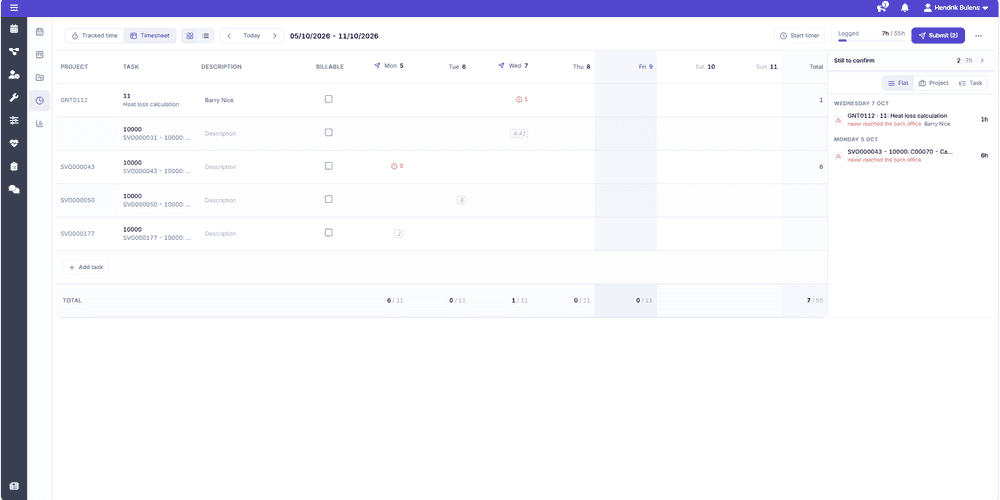 The timesheet grid with the Still to confirm panel
The Still to confirm panel beside the grid is the queue of what still needs you: tracked time that never became a line, and lines that came back from the back officeBack officeThe ERP or business system Dime.Scheduler plans for - most often Microsoft Dynamics 365 Business Central. It owns the master data and remains authoritative over what it receives. refused or that never reached it. It reads most recent day first, because what is owed is read backwards from now. A line marked never reached the back office failed on the way out and can simply be sent again. A refused one needs a person to read the reason first.
The timesheet grid with the Still to confirm panel
The Still to confirm panel beside the grid is the queue of what still needs you: tracked time that never became a line, and lines that came back from the back officeBack officeThe ERP or business system Dime.Scheduler plans for - most often Microsoft Dynamics 365 Business Central. It owns the master data and remains authoritative over what it receives. refused or that never reached it. It reads most recent day first, because what is owed is read backwards from now. A line marked never reached the back office failed on the way out and can simply be sent again. A refused one needs a person to read the reason first.
The panel can be collapsed when the grid needs the width, and it opens again by itself when you pick a cell to work on.
Whenever you pick a task, for the timer, a stretch or a line, the picker starts with suggestions before you type anything: what is Scheduled for you that day, then under Recent the tasks you logged or tracked lately, followed by your Projects, which you can step into to pick one of their tasks. Typing searches the tasks of every project at once. Tasks of a closed project are not offered, because a closed project takes no more time.
Submit releases the week's lines to the back office. From then on they are locked, and whether they are approved is decided there, not here. For what the statuses mean once a line has left, see timesheets. For the thinking behind sessionsTime sessionAn observation that a resource was working, travelling or waiting on a task between two moments. Sessions support a time entry and never reach the back office on their own. and claims, which is the same on the mobile app, see time tracking.
Layouts
How the tab is drawn stays the way you left it: grid or list, how the list and the Still to confirm panel are headed, whether the panel is open, and how tracked time is laid out and grouped. The Layouts button at the foot of the tab rail saves that arrangement under a name, so you can switch between, say, a week checked on the grid and a week read per project, and reset to the defaults. A search you typed is not part of a layout.
Insights
How your logged time compares with what was planned and what you were available for, by Week or by Month.
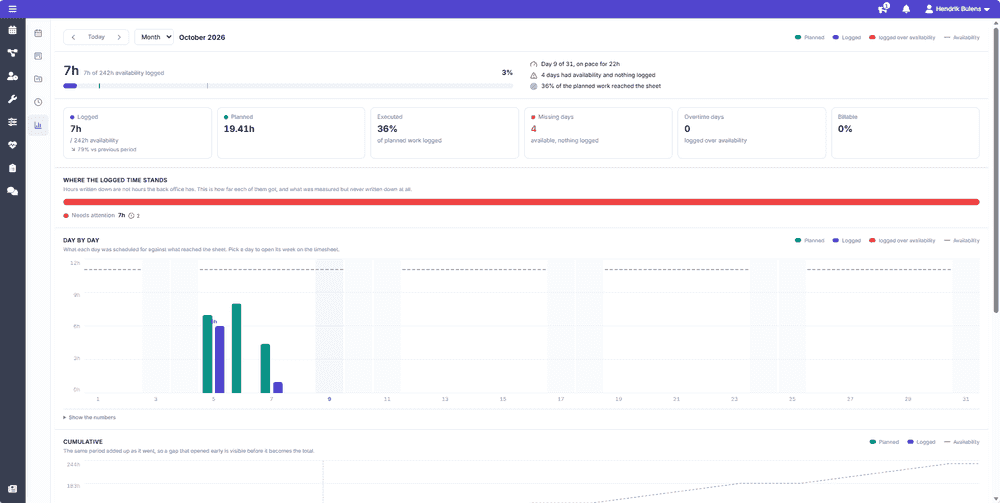 Insights for a month
The top of the tab says what the period came to before any chart does: the hours you logged against your availability, as a figure, a percentage and a bar. On the bar, the fill is what you logged, a tick marks what was planned, and while the period is still running a second marker shows how much should be logged by today. Beside it, a short list of findings: mid-period, which day of the period it is and what you are on pace for, then the days you were available but logged nothing and the days you logged more than you were available for. A period with neither says Nothing outstanding for this period rather than printing two zeroes.
Insights for a month
The top of the tab says what the period came to before any chart does: the hours you logged against your availability, as a figure, a percentage and a bar. On the bar, the fill is what you logged, a tick marks what was planned, and while the period is still running a second marker shows how much should be logged by today. Beside it, a short list of findings: mid-period, which day of the period it is and what you are on pace for, then the days you were available but logged nothing and the days you logged more than you were available for. A period with neither says Nothing outstanding for this period rather than printing two zeroes.
Where the logged time stands splits the logged hours by how far they got: approved in the back office, held there awaiting approval, still submitting, still draft, or needing attention because they failed or were refused. Tracked time that never made it onto a timesheet is counted underneath rather than in the bar, because a bar that included it would state a total the back office will never see.
Day by day draws planned against logged for each day of the period, and Show the numbers underneath gives the same days as a table. Picking a day opens its week on the Timesheet tab.
By project shows where the logged time went. The donut gives each project's share, and the rows beside it set each project's logged hours against what was planned for it, for the eight largest projects.
Availability comes from your resource's capacity. If your organization does not maintain capacities, the availability figures disappear and the comparisons fall back to planned hours. Planned work whose planning unit has no known length in time is left out of the comparison, and the tab says so.
Related
- Timesheets - the oversight page where a team lead reviews everybody's time.
- Time - sessions, claims and why they are kept apart.
- Mobile app - the same timer and claims, on the phone.
- Project planning - the projects whose team you are on.