Tags
A categoryCategoryA visual indicator (a color) applied to appointments to classify or label them. tells the planner what kind of work an appointmentAppointmentA task scheduled to a resource for a specific period - the scheduled instance you see on the planning board. is. A time markerTime markerA visual indicator on an appointment, separate from its category, used to flag a status or condition at a point in time. flags a moment in it. Both answer exactly one question, because an appointment has exactly one of each. Real work is rarely that tidy: a job can be urgent and need a night shift and require the customer to be called the day before. Tags are how the planning says all three at once.
A tag is a small reusable label with a code, a name, an icon, and a color. A taskTaskA unit of work that belongs to a job. It appears in the open task list until it is scheduled to a resource. or an appointment can carry as many of them as it needs, and they show up as icon badges on the appointment bar so the planner reads the whole story without opening anything.
What tags solve
Before tags, extra context about a job had nowhere to live. Planners squeezed it into the subject line, invented category values like "Urgent - installation" that combined two unrelated ideas, or kept it in their heads. Each of those has the same problem: the information is not structured, so nothing else in the application can use it.
Tags separate the two axes. The category keeps answering what kind of work is this, and tags carry everything else: priority, required certification, customer sensitivity, whether parts still need to ship. Because a tag is a real record with a stable code, the back officeBack officeThe ERP or business system Dime.Scheduler plans for - most often Microsoft Dynamics 365 Business Central. It owns the master data and remains authoritative over what it receives. can send it along with the task, and the planner can add or remove tags on the board without the two getting confused.
Where tags come from
Tags are defined once by an administrator on the indicators page, alongside categories, time markers, and pinsPinAn indicator that lives on a task rather than an appointment and colors its marker on the map, typically by skill, vehicle type or region. It has no equivalent on the planning board.. Each tag has:
- A code, the stable identifier that tasks and appointments reference. It is fixed once the tag is created, so renaming a tag never breaks the records that use it.
- A name, which is what the planner sees.
- An icon and a color, which is what the planner sees on the board.
Tags can also be created and maintained from the back office through the API, which is the right approach when the tag list mirrors something that already exists in the ERP.
Applying tags to appointments
There are three ways to put a tag on an appointment, and they all write the same thing.
From the appointment card
Open an appointment on the planning board. The Tags field is a multi-select: pick one or more tags, and save. This is the natural route when you are already editing that appointment. The field is disabled on locked appointmentsLocked appointmentAn appointment that cannot be moved or edited. The lock is set in the back office, not in Dime.Scheduler, and locked appointments are drawn with shaded stripes..
By dragging from the indicators panel
The indicators panel lists the tags in their own section. Drag one onto an appointment on the board to apply it.
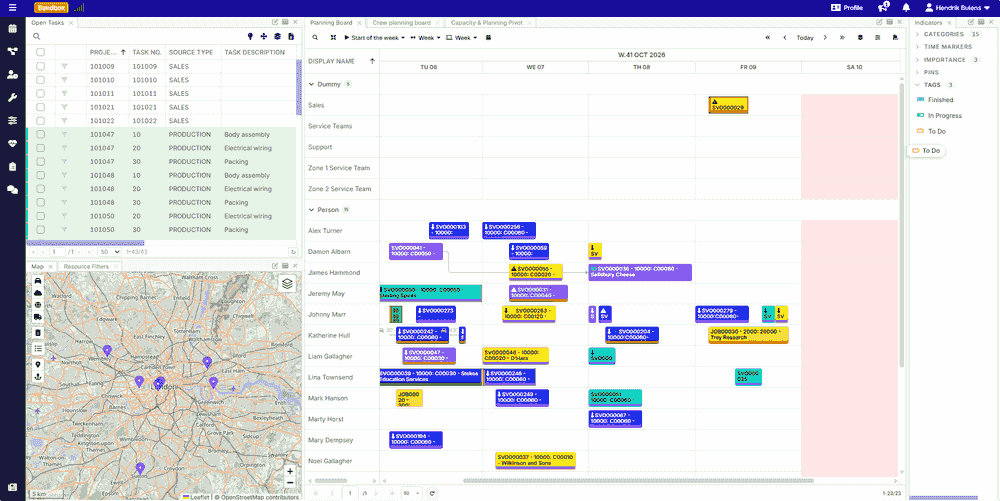 Tags in the indicators panel
Note the difference with categories and time markers: dropping a category replaces the appointment's category, because there can only be one. Dropping a tag adds it to whatever the appointment already carries. That is what makes it fast to build up a combination of tags without losing the previous ones.
Tags in the indicators panel
Note the difference with categories and time markers: dropping a category replaces the appointment's category, because there can only be one. Dropping a tag adds it to whatever the appointment already carries. That is what makes it fast to build up a combination of tags without losing the previous ones.
To apply a tag to many appointments at once, select them on the board first, then click the bulk-update icon next to the tag in the panel.
From the back office
Both tasks and appointments accept a list of tag codes over the API. A connectorConnectorAn integration that links Dime.Scheduler to a back-office system, routing data in and scheduling decisions back out. that sends URGENT;NIGHTSHIFT on a task sets both tags on it.
A connector that says nothing about tags changes nothing. This matters: an older back office that has never heard of tags keeps sending updates for its tasks, and the tags a planner set by hand survive those updates untouched. Clearing tags from the back office is a deliberate act, done by sending an empty value rather than by omitting the field.
Removing tags
Right-click one or more appointments on the planning board and choose Remove tags. This clears every tag from the selection in one go. Locked appointments are skipped.
To remove a single tag while keeping the others, open the appointment card and deselect it there.
Tags on tasks, and what happens when you plan them
A task carries its own tags, and they are visible in the open tasksOpen taskA task that has not been scheduled yet. It waits in the open task list to be placed on the planning board. list. When you plan that task by dragging it onto the board, the new appointment inherits the task's tags, the same way it inherits the subject.
From that moment the two are independent. Tagging the appointment does not tag the task, and a later update to the task's tags from the back office does not reach back into appointments that were already planned. This is deliberate: the task describes the work that was requested, the appointment describes the visit that was scheduled, and the two legitimately diverge.
Reading tags in the workspace
On the planning board. Tags render as a row of small icons at the top of the appointment bar, above the subject, each in its own color. Hovering an icon shows the tag's name, so an unfamiliar icon is never a dead end.
 The icons stay legible on a dense board precisely because they are icons: five tags cost a single line of pixels, where five words of subject text would not fit at all.
In the grids. The open tasks, planned tasks, and route sequence grids all have a Tags column that renders the tags as colored chips. The column is hidden by default: switch it on through the column picker if your team leans on tags.
In the details pane. Tags is available as a field on both tasks and appointments in the details component, so it can be added to whatever field layout you use.
If a tag is deleted after it was applied, the records that still reference its code simply render nothing for it. Nothing breaks, and no error is shown.
Preview limitations
Tags are usable today, but the feature is still growing. Two things to be aware of while it is in preview:
- You cannot filter, sort, or group by tag. The Tags column is a read-only visual in the grids. Codes are stored as a single delimited value, so sorting on the raw string would be meaningless, and a proper tag filter has not shipped yet.
- Only tasks and appointments can be tagged. ResourcesResourceAn entity that can carry out work - a person, vehicle, tool, or room - that you schedule on the planning board., jobsJobA high-level container, comparable to a project, that bundles related tasks together with common information such as customer, billing, and address., and projectsProjectA job seen as a whole in project planning: a body of work with a budget, a team, dependencies and a deadline. Its tasks are still planned as ordinary appointments on the board. cannot.