How it works
What Dime.Scheduler is designed to do
If you look at the visual diagram below, you'll notice that Dime.Scheduler hinges on the data input of other systems. These systems - typically centralized and mission-critical - provide the necessary data to allow planners to schedule the organization's resources and work.
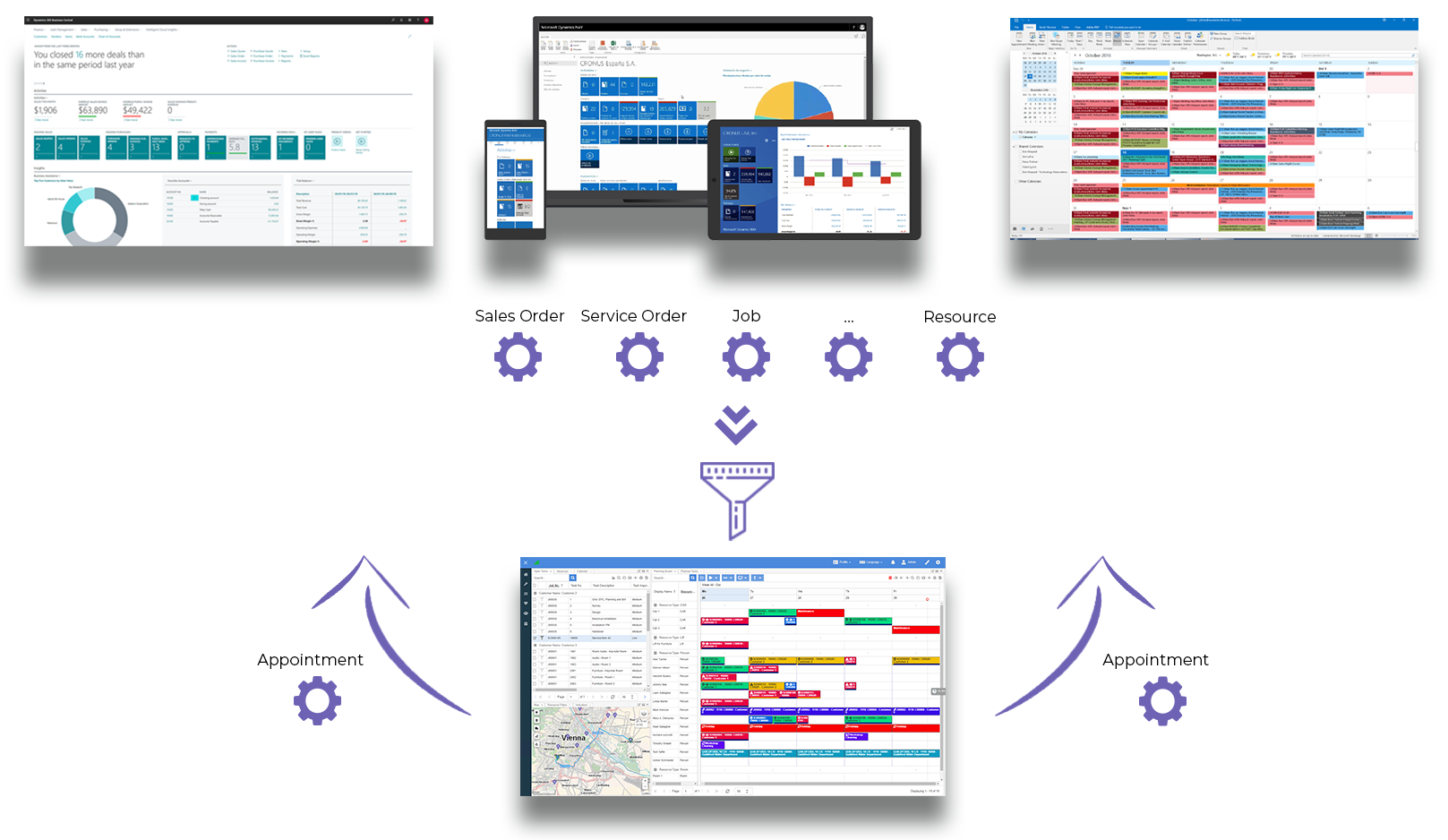
While Dime.Scheduler is technically able to run without those systems, its power is truly unleashed when it is combined and integrated with the existing technological landscape. As a result, Dime.Scheduler is only concerned with planning, nothing else. The main artifact that is produced are appointments, which merely represent what work will be done (the task), by whom (the resource) and when. However, as simple as that may be, it can be tremendously powerful when that information is used by the connected systems, because it can yet another level of automation in the company, providing heaps of benefits.
How it is designed
Dime.Scheduler is built with performance and scalability in mind. Therefore, it is based on a loosely coupled architecture that separates the main planning application from the connected plugins, which are responsible for interacting with external applications.
As far as the user is concerned, the application consists of nothing more than an application accessible via a web browser. Real-time updates are sent to and from the back-office systems, which means users can keep on working on the latest state of the system - eliminating the need to refresh components or pages manually.
As soon as the user has been authenticated, the application will retrieve the profiles and (defaults) layouts and will apply the security filters so the user gets to see a tailored version of Dime.Scheduler. Users and administrators have tremendous amounts of configurable elements at their disposal so it is possible that users will get to see vastly different sets of components and data.
The previous paragraph brings us to a key tenet: it's all up to the users (and administrators for that matter). Dime.Scheduler is used in a wide array of industries where planning processes can vary greatly. Even within an industry it is likely that organizations will have different requirements and planning methods. That is why Dime.Scheduler offers a heap of components - with their own distinct feature set - and lets the users handle the rest by themselves. In that regard Dime.Scheduler is more like a framework than it is an application that defines the way of working.
The story continues when data is synchronized from and to the back-office systems: organizations may implement their own business logic and their own (vertical) solutions. Dime.Scheduler ultimately provides the framework and the building blocks for the planning process, it is up to the users to decide how they wish to work.
Key terms
The gist of the above is that Dime.Scheduler extends ERP, CRM or LoB systems with a graphical solution for the planning of tasks and resources. All the features Dime.Scheduler offers are tools for the planner to create and maintain an accurate schedule for the resources who need to carry out those tasks.
The concepts below introduce you to Dime.Scheduler's lingo and how they relate to each other. More detail follows further on in the manuals.
Resources, types and filters
A resourceResourceAn entity that can carry out work - a person, vehicle, tool, or room - that you schedule on the planning board. is a representation of an entity that is able to perform tasks and is subjected to a schedule. As explained in the last section, a resource can be anything like a consultant or a moving lift.
A resource typeResource typeA logical grouping of resources, such as "excavator" or "consultant", used to organize and filter them on the planning board. arranges resources in logical groups. An example of a resource type in the construction business could be "excavator" or "bulldozer". Just as with the resources, a resource type can be anything, which gives you tremendous flexibility in the planning process.
Task and resource filtersFilter groupA configurable set of fields used to filter resources and tasks on the planning board. allow you to define requirements for the resource(s) to carry out a task. For example, in order to execute the "Translate user manual to Spanish" task, a resource would for instance need to possess a C2 CEFR level for Spanish.
Change the task's requirements below and watch which resources still qualify:
Matching is per filter group, AND across groups. A resource with no values in a required group is not blocked by it: an empty group is ignored, so it matches everything there.
From job to appointment
Traditionally, back-office systems are used to create the work orders and the subsequent tasks that must be completed. Using the bidirectional synchronizationBidirectional synchronizationTwo-way data flow between Dime.Scheduler and a back-office system: work comes in, scheduling decisions go back out. mechanism, the data is fed into Dime.Scheduler and made available to the user. All the planner needs to do is to find a resource and an appropriate time to carry out the task.
The tasks that are yet to be scheduled are called open tasksOpen taskA task that has not been scheduled yet. It waits in the open task list to be placed on the planning board.. Some tasks may be related to the same work order, which is called a jobJobA high-level container, comparable to a project, that bundles related tasks together with common information such as customer, billing, and address.. For instance, a job could be to service the HVAC of a large government building. When you break down the assignment, you could identify smaller units of work (i.e. tasks) such as replacing filters, cleaning the coils, inspecting the settings, etc.
As soon as a task is scheduled (i.e. the task has been assigned to a resource on a given date), then it is converted to an appointmentAppointmentA task scheduled to a resource for a specific period - the scheduled instance you see on the planning board.. This conversion will always be synchronized with the back office using the connectors, just like every subsequent transaction. An appointment contains the data for a particular event, whereas a planned taskPlanned taskAn appointment together with the resources assigned to it - the full picture of what will be done, by whom, and when. also contains information about the resources that are assigned to the appointment.
Categories and time markers
Categories and time markers are part of the indicatorIndicatorCollective term for the visual signals - categories, time markers, pins, and tags - that identify and label appointments. set that identify and label appointments. They can be considered as a reflection of the status of an appointment on a given point in time. Such a status can be easily leveraged to enforce business logic in the back-office systems.
Profiles and layouts
Profiles and layouts are not fundamental to the planning process but they are fundamental for Dime.Scheduler. In fact, they are part of what makes Dime.Scheduler so flexible. As will be covered in depth in the components section, profiles and layouts enable the user to create personalized workspaces, which introduces a whole new level of flexibility as profiles and layouts can be reused and shared with other profiles, layouts and user groups.
Users and user groups
Dime.Scheduler has a granular and data-driven security system. Needless to say, users are the basic entities that represent physical users. Users can log in with their Windows or Azure credentials, or they can use the forms authentication that Dime.Scheduler provides.
User groups are containers that coalesce users and then acts as a proxy, which makes security management much smoother. It also allows users to collaborate with other users of the group by sharing profiles and layouts.
Roles and user actions
Dime.Scheduler applies Role Based Access Control (RBAC). Users needs to have security clearance to be able to use protected features. A (static) list of security rules - also named user actions - is enforced in the application. An example of a user action is the 'edit appointment' action which protects all editing appointment capabilities.
A user roleUser roleA named bundle of user actions assigned to users and user groups. Permissions flow through roles, never directly to a user. is a group of user actionsUser actionA single protected capability, such as 'edit appointment', that a role can grant. The building block of role-based access control. and can be assigned to users and user groups. Administrators can create user roles as they like and assign user actions. This implies that user actions are not directly assigned to users. Instead, actions are assigned to user roles, and user roles are assigned to users and user groups.
Assign roles to a user below and watch which actions they unlock:
User actions are grouped into roles; roles are assigned to users and user groups. A user gets the union of actions from every role they hold. Roles are configurable - these are examples.
Links and Action URIs
In contrast to an action URI, links are static and not contextual. They are good old links to other resources accessible via the internet.
An action URIAction URIA dynamic link, populated with fields from a task, job or appointment, that opens an external system in one click. is a dynamic link with placeholders that is populated by properties of tasks, jobs and appointments. For example, this allows you to view the details of a job in Microsoft Dynamics NAV or Microsoft Dynamics 365 Business Central in just one click from Dime.Scheduler.