Part 1: Setting up tasks
This guide walks you through making a Microsoft To Do item available for planning in Dime.Scheduler the moment a user creates it.
This is the first post in the guide on how to integrate Dime.Scheduler with Microsoft To Do through the Power Platform:
- Part 1: Tasks
- Part 2: Processing appointments
By the end, you will know how to:
- Set up a Power Automate flow
- Convert a To Do item into a Dime.Scheduler task
This tutorial assumes you have already created a Power Platform connection for Dime.Scheduler. If you haven't, start with the Excel tutorial.
Step 1: What constitutes a task
Dime.Scheduler is all about planning resources and tasks. Both concepts can refer to anyone or anything: a resource is an entity that can carry out work, while a task is the unit of work a resource needs to execute.
In this tutorial, you plan the To Do items that employees create in their Outlook calendars. Salespeople and consultants often use this workflow to keep an overview of the work that comes out of emails from customers and coworkers. Like the other tutorials in this area, the example is simple and unstructured, but the task data model in Dime.Scheduler can handle far more complicated business scenarios because it works on two levels: jobs and tasks. A job is the high-level entity, best compared to a project: a collection of activities (or tasks) that need to be completed to reach an outcome. It bundles the common information that applies to all underlying tasks, such as customer info, billing details, and address. For a complete overview of a job's properties, see the API reference.
A task is the actual unit of work that needs to be carried out. A task always belongs to a job and uniquely identifies an item of work that ends up in the open task list and, once scheduled, on the planning board. For a complete overview of a task's properties, see the API reference.
This data model gives you many ways to organize your work. For simplicity, we use a 1:1 relationship between jobs and tasks: each To Do item produces one job and one task, so every To Do item is treated independently from the others in Dime.Scheduler. You may instead want to group tasks if you need to know how many hours your consultants have worked on a given project, or to report how much budget is left on a fixed-budget project.
Step 2: Create a new flow
Create a new flow in Power Automate and choose the 'When a new to-do in a specific folder is created' trigger. To make the example usable for multiple users, listen to a specific folder that those users can access. A single Power Automate flow then gathers all new To Do items:
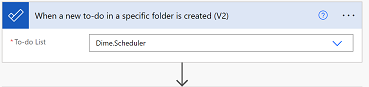
Create the To Do list before you build the flow.
Step 3: Inserting tasks
As noted above, a plannable task in Dime.Scheduler has two levels: jobs and tasks. A job holds the high-level properties such as customer and billing info, while a task is only concerned with the work to be performed. To make a To Do item available in Dime.Scheduler, the flow needs to invoke two actions: create a job, then create a single task for that job. Expand either action and you'll find an extensive list of fields you can use to shape how Dime.Scheduler behaves. For the full picture, see the Job API reference and Task API reference.
For most actions in the Dime.Scheduler connector for the Power Platform, the first field is a Yes/No field that asks whether to append the record or remove it. To append is to create or update a record, and it is idempotent: if a record already exists with that external identifier, it is updated. When set to false, Dime.Scheduler attempts to remove the record with the external identifier (JobNo or TaskNo) you provide in the action. For this tutorial, set append to true.
The Power Platform lets you click your workflows together. Inside an action, Power Automate shows you which fields are in scope. You just look for the right field in Dime.Scheduler and populate it with the info a To Do entry provides:
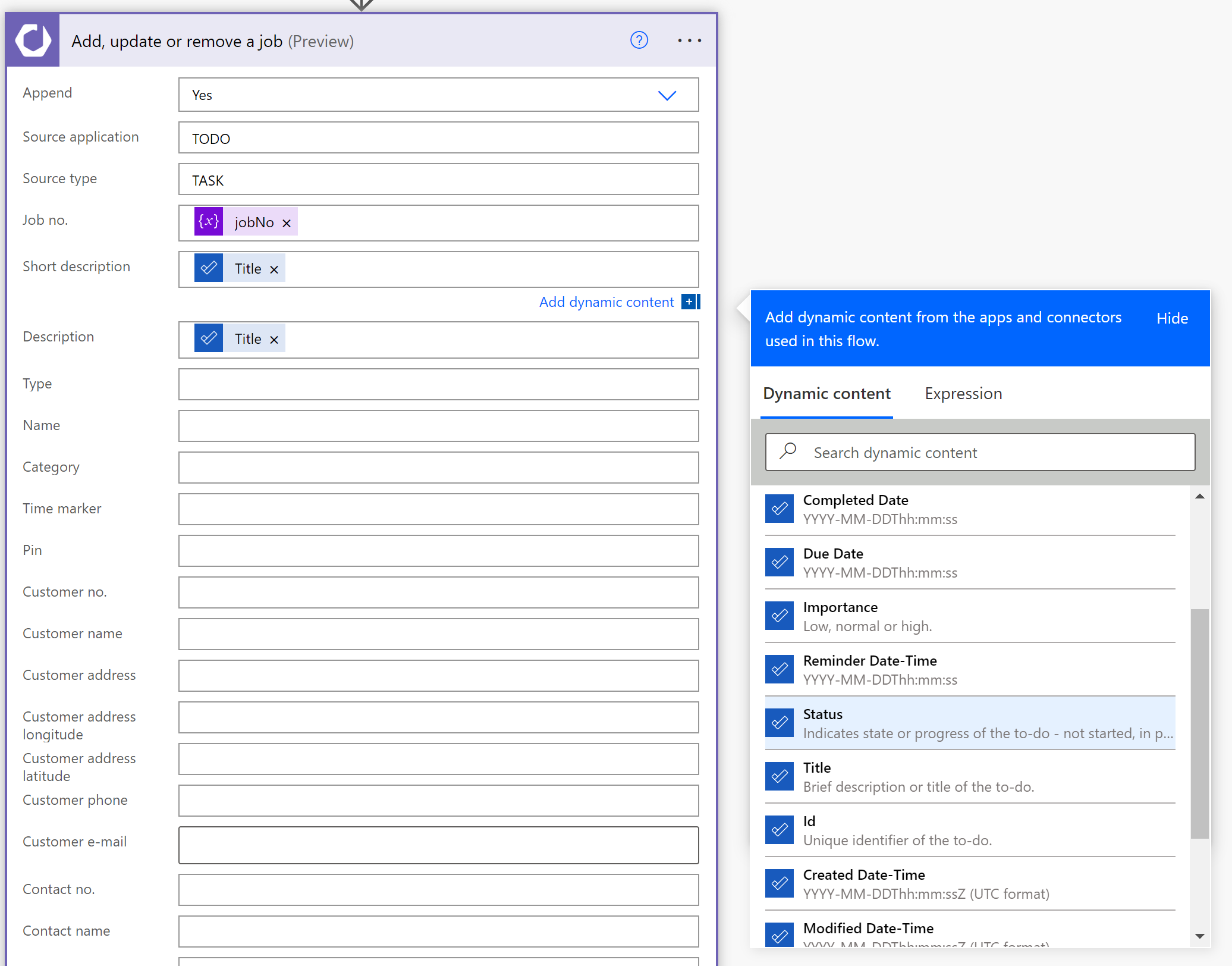
For the source app and source type fields, we set static values that apply to all data passing through this flow. For every To Do item, you then know its original data source is a To Do list and that it uses a generic 'Task' type. You could use the source type to distinguish between departments, for example referring to a To Do item from sales as SALES, consulting services as SERVICE, and so on. You're not obliged to do it this way, but it's a handy way to organize your work and add flexibility to your solution, which helps when you want to process appointments differently once they are planned in Dime.Scheduler.
When creating a task, you need to provide a unique external identifier in the TaskNo field, and you also need to reference a job using that job's unique external identifier in the JobNo field. So the value of the Job No field must be the same in both actions (and so must the Source App and Source Type fields).
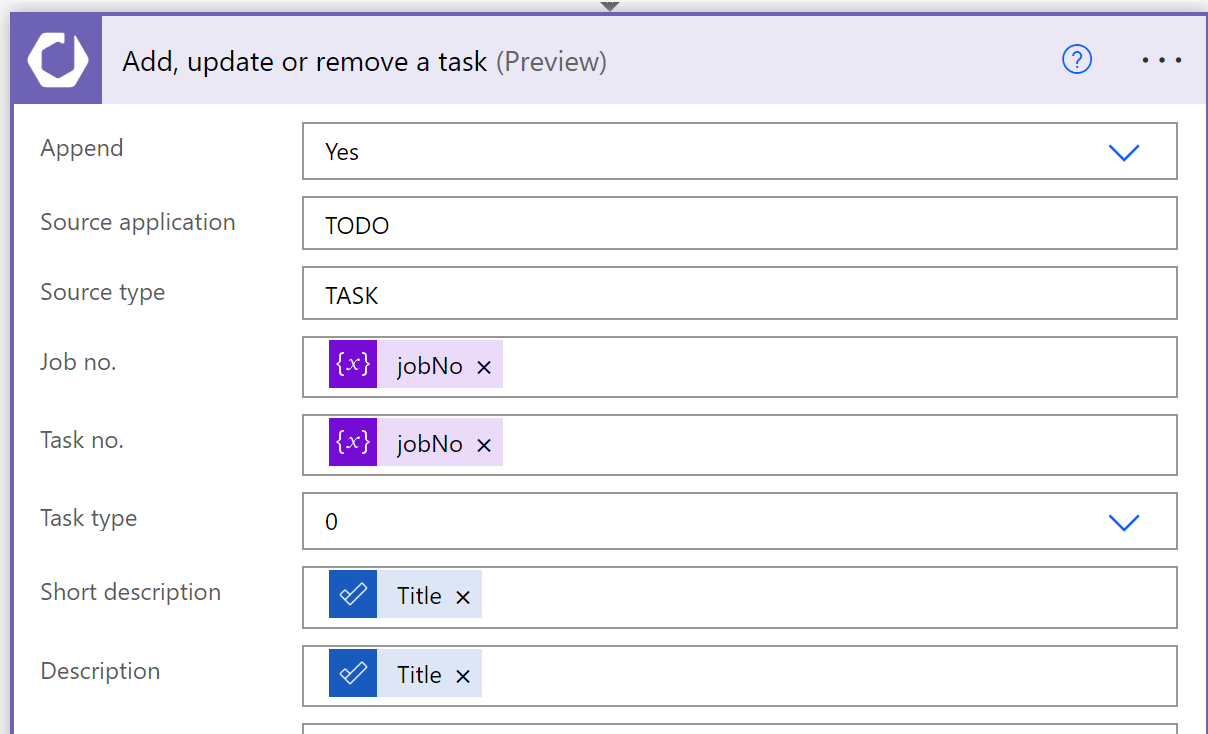
To keep this flow simple, we set up the following conversion:
| To Do | Dime.Scheduler |
|---|---|
| Title | Description (Job/Task) |
| Title | Short Description (Job/Task) |
| Status | Status (Task) |
| Due Date | Expected Response Date (Task) |
| Body | Body (Task) |
| Id | Free text field #1 |
The jobNo variable truncates the To Do item's Id value, which is longer than the character count allowed for the Job No field in Dime.Scheduler. That's why we store the full To Do item Id in a Free Text field. We'll use this value in the next part to write appointment information back to the original To Do item.
If you're following along, this is how the jobNo variable is set: TODO_ + if(greater(length(triggerOutputs()?['body/title']),45),substring(triggerOutputs()?['body/title'], 0, 45), triggerOutputs()?['body/title']).
Save the flow and test it by creating a new To Do item in the specified folder.
To check the status of this flow, go to the 'Run history' section of the flow and click the last run:

When you open the open task list, a new record referring to the To Do item should appear. If nothing shows up, check the status of the step in the Power Platform, or the logs in Dime.Scheduler.
Congratulations, you've added tasks to Dime.Scheduler and you're ready to plan them. Take any task, find an available resource, and drag and drop it onto the right date and time. Done.