Part 2: Processing appointments
In this part, you'll push scheduling changes back to Planner: when an appointmentAppointmentA task scheduled to a resource for a specific period - the scheduled instance you see on the planning board. is (re)scheduled in Dime.Scheduler, the matching Planner task gets updated. You'll do this with the webhook connectorWebhookThe generic connector that POSTs every appointment change as JSON to a URL you choose. It delivers the message and leaves interpretation to the receiving system. and an HTTP-triggered Power Automate flow.
This is the second post in the guide on how to integrate Dime.Scheduler with Microsoft Planner through the Power Platform:
- Part 1: Tasks
- Part 2: Processing appointments
You will learn how to:
- Post appointment changes back to a Power Automate flow
- Update the Planner task with the appointment info
This tutorial assumes a Power Platform connection for the Dime.Scheduler has already been created. If you haven't done so, make sure to check out the Excel tutorial.
Step 1: What happens when you schedule an appointment
Unlike the standard connectors that Dime Software provides, a Power Platform solution does nothing by default when you modify an appointment on the planning boardPlanning boardThe main graphical scheduling surface where dispatchers drag tasks onto resources across a timeline.. To act on appointment information, you build that part yourself.
That's where the webhook connector comes in. As soon as you change the planning, the webhook connector makes an HTTP POST request to the endpoint of your choice with the entire appointment data graph. From the request body, you can read the details you need, such as who is assigned, and when and where the work takes place. For a complete overview of what's in the graph, see the API reference.
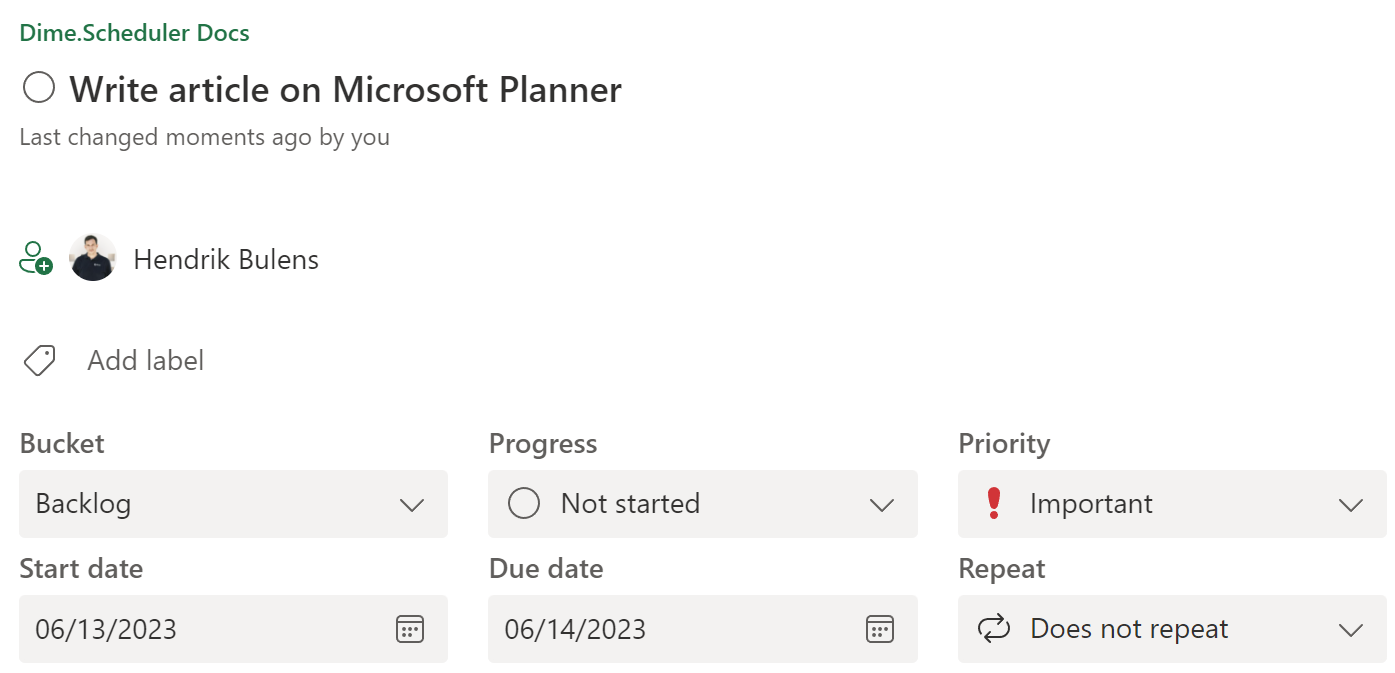
Because a Power Automate flow can be triggered by an incoming HTTP request, you can point the webhook straight at a flow. In this example, the flow goes back to the Planner task and updates its start and end times along with the assigned people:
Step 2: Create a flow
You should also consider the triggers that ship out of the box in Dime.Scheduler's connector.
Create another Power Automate flow, this time with a different trigger. Select "When a HTTP request is received" and paste the following JSON in the text area:
{
    "type": "object",
    "properties": {
        "Task": {
            "type": "object",
            "properties": {
                "FreeText1": {
                    "type": "string"
                }
   }
        },
        "Assignments": {
            "type": "array",
            "items": {
                "type": "object",
                "properties": {
                    "Resource": {
                        "type": "object",
                        "properties": {
                            "Email": {
                                "type": "string"
                            }
                        }
                    }
                }
            }
        },
        "StartDate": {
            "type": "string"
        },
        "EndDate": {
            "type": "string"
        }
    }
}
The Power Platform will parse this JSON and generate variables for you to use in subsequent steps.
The JSON that is actually posted is much larger. We trimmed it here to keep the example readable. To see the entire data graph, use a network monitor or a testing tool such as webhook.site.
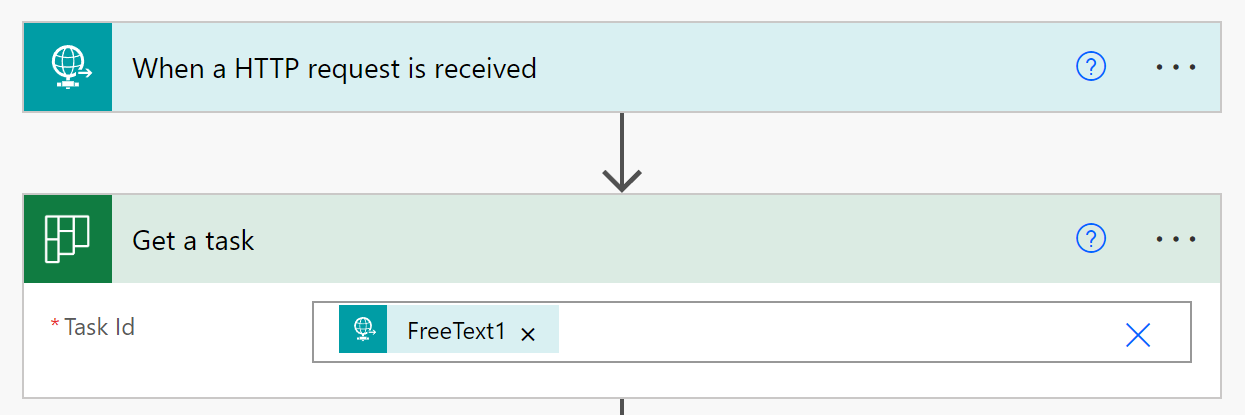
To update the Planner task, first retrieve it. Add the 'Get a task' action, select the targeted list, and use the FreeText1 variable in the to-do task field. Recall that you stored the Planner task's identifier in this free text fieldFree fieldOne of the unmapped fields on jobs, tasks and appointments that a back office can fill with its own data, each with a localizable caption. in Part 1, so you use it here to fetch the original item in the plan.
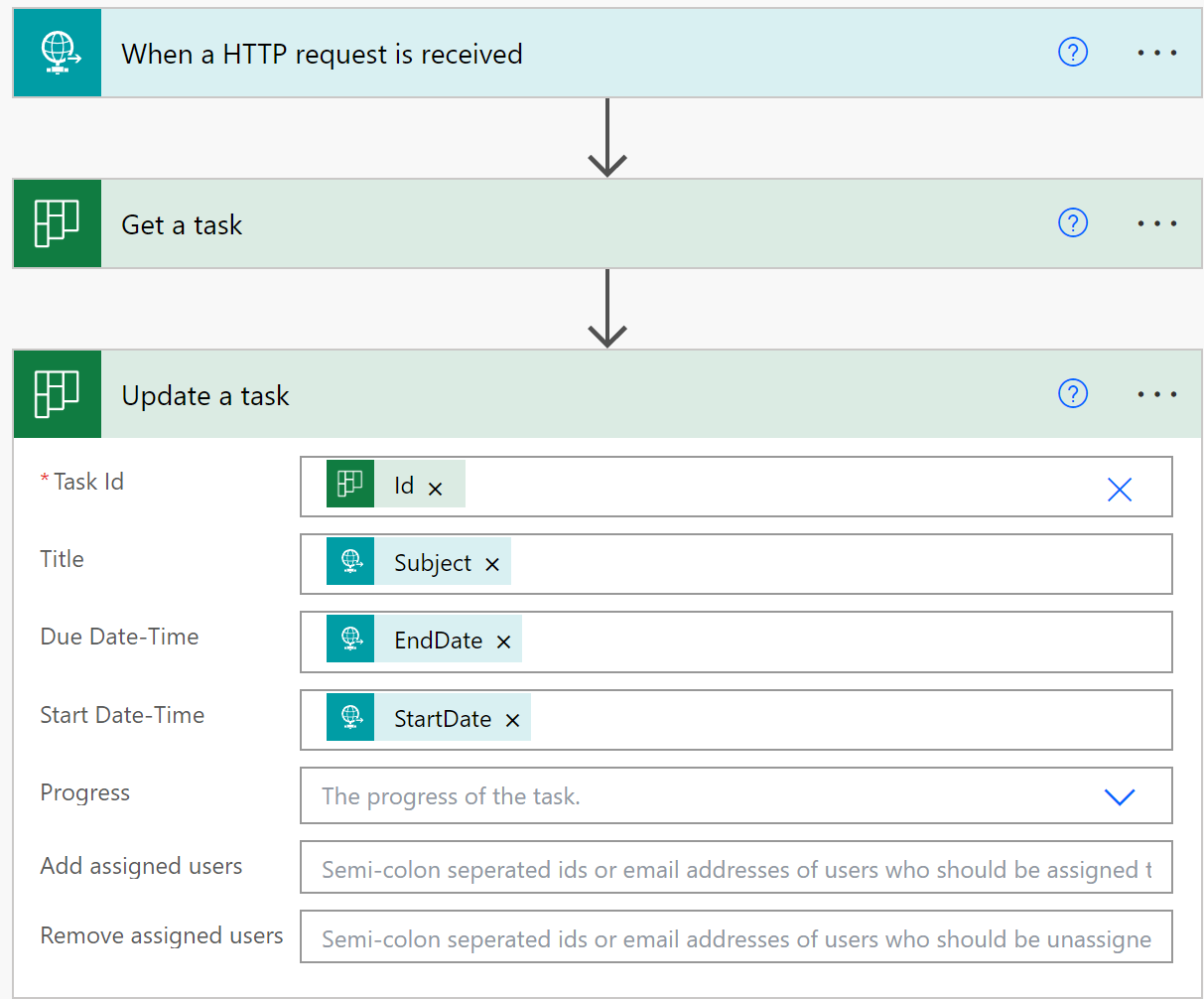
Now add the 'Update a task' action and fill out the fields you want to update. The first two fields identify the item to update, so fill out the list and the Id of the item you fetched in the previous action. We use the appointment's end date as the task's due date, so set that field as well.
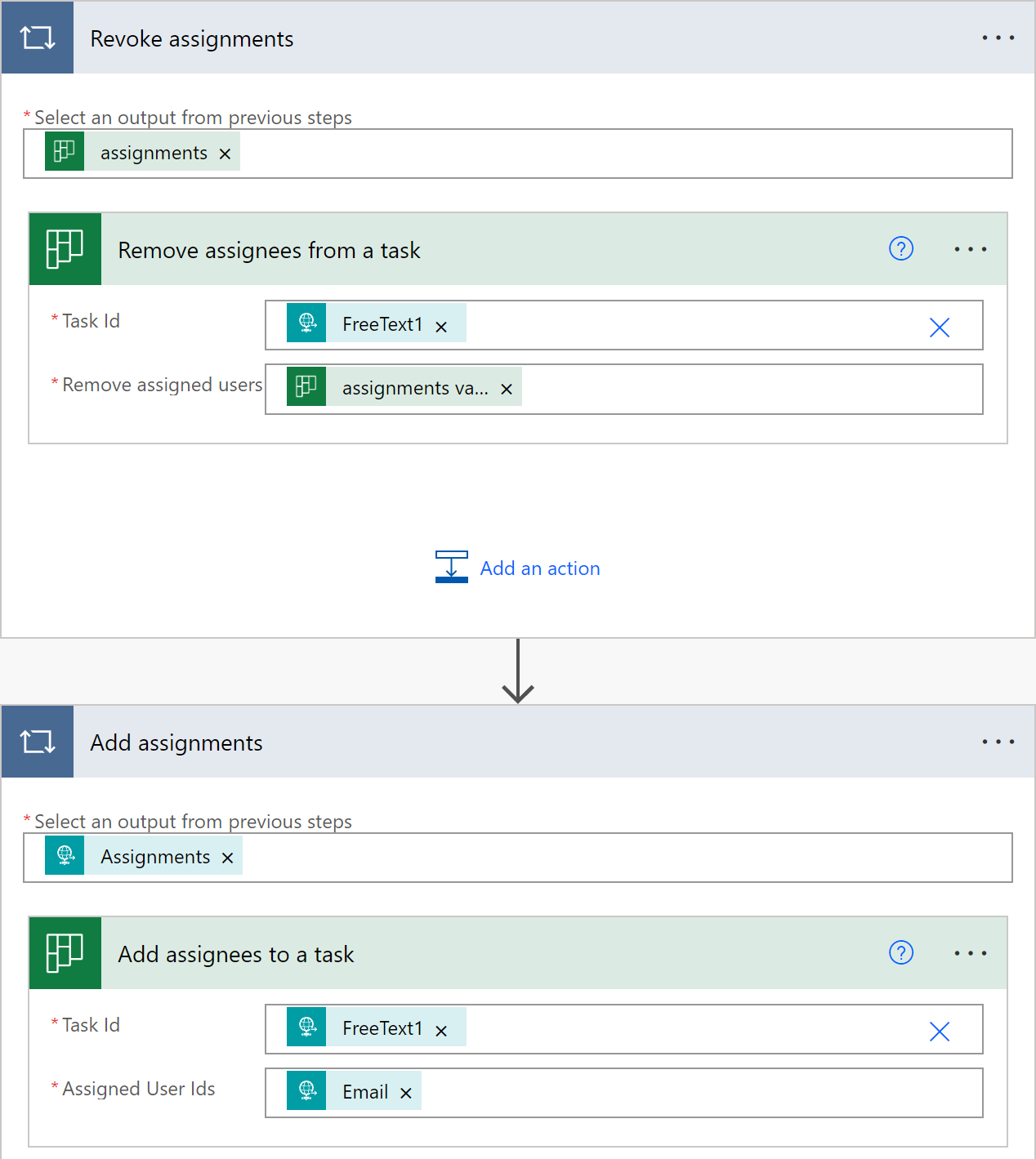
The next two steps could be refined further, but this approach is simple and gets the job done: it synchronizes the resources that the planner has (un)assigned in Dime.Scheduler. Add two loops. The first loop iterates through each assignment of the current Planner task and removes them. The second loop iterates through the assigned resources in Dime.Scheduler and assigns them to the Planner task.
Save the flow and copy the value in the HTTP POST URL field of the HTTP trigger at the top of this flow.
Step 3: Set up the connector
When you schedule an appointment, Dime.Scheduler works out which back-officeBack officeThe ERP or business system Dime.Scheduler plans for - most often Microsoft Dynamics 365 Business Central. It owns the master data and remains authoritative over what it receives. system to notify. Recall that you set a SourceApp value of 'PLANNER' in all of your flows. When such a task is scheduled, Dime.Scheduler looks for a connectorConnectorAn integration that links Dime.Scheduler to a back-office system, routing data in and scheduling decisions back out. with the same value.
On the connector setup page, make sure a record exists with that same value and a valid URI pointing to the back-office system. In this scenario, you want to invoke the Power Automate flow you just created. Create a new record, specify the same source application as the jobs and tasks you created, tick the checkbox, select 'Webhook' as the back-office system, and paste the URL of the Power Automate flow trigger:

To test this connector, you can also use a testing site such as webhook.site, which shows you all the fields and values that Dime.Scheduler publishes.
Step 4: Test
With the Power Automate flow and Dime.Scheduler connector in place, it's time to test. Pick any task, drop it on the planning board, and check the Power Automate flow history. If all went well, the flow has updated the Planner task successfully:
Congratulations, you've now set up a two-way message flow between Dime.Scheduler and the Power Platform. From here, the possibilities are wide open. The appointment graph carries all the information about the scheduled work, along with references to the original items, so you can build rich and powerful solutions on top of it.