Troubleshooting
The most common questions about the two-way message flow between Dime.Scheduler and NAV, grouped by what you're seeing.
Find your symptom
NAV to Dime.Scheduler
The first thing you do on a new Dime.Scheduler instance is run the FastTrack Wizard in NAV. Work through every step carefully.
The first step is also the most common place to get stuck: it's where you set up the flow to Dime.Scheduler, with the environment and the credentials of a Dime.Scheduler Forms user.
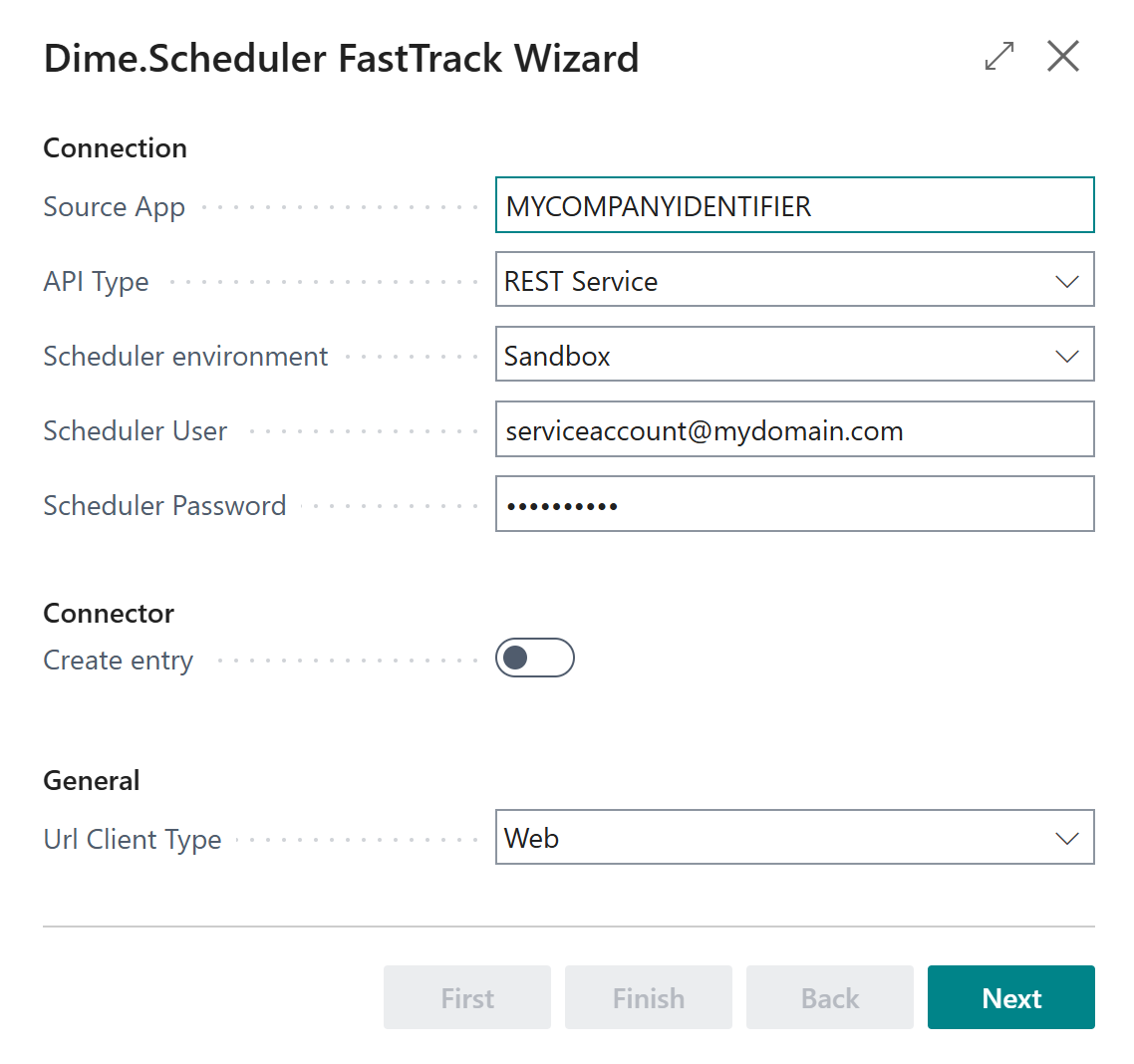
Watch out for these:
- An account used in more than one tenant.
- A real person's account instead of a service account. The day that person resets
their password, the integration breaks. Use a service account like
[email protected]. - Don't use any domain managed by Dime Software, either: that's a security risk.
- It must be a Forms account on a domain your customer controls. MS Entra ID accounts aren't supported by the API.
- Pick the right environment (sandboxSandboxThe separate Dime.Scheduler environment where upcoming features arrive before the production release. It has its own API host, sandbox.api.dimescheduler.com, so API clients target it explicitly. or production), and make sure the user exists in the instance on that environment.
Dime.Scheduler to NAV
The flow from NAV to Dime.Scheduler is easy to set up, thanks to the FastTrack Wizard and the connectorConnectorAn integration that links Dime.Scheduler to a back-office system, routing data in and scheduling decisions back out.. The return flow is trickier, because it depends on how that particular NAV is set up. Two things can fail: Dime.Scheduler can't reach NAV, or NAV receives the appointmentAppointmentA task scheduled to a resource for a specific period - the scheduled instance you see on the planning board. but can't process it.
Appointments don't show up in NAV
Start at the transactions. Open them from the sidebar, or right-click the appointment on the planning boardPlanning boardThe main graphical scheduling surface where dispatchers drag tasks onto resources across a timeline. and choose View transactions.
That opens the appointment's detail page: basic info, the associated connector (if any), and every transactionTransactionThe recorded call Dime.Scheduler makes to a connected system when the planning changes. It counts as successful on an HTTP 200, which means the endpoint received it, not that the back office processed it. that tried to write back to NAV, Exchange, or a webhook.
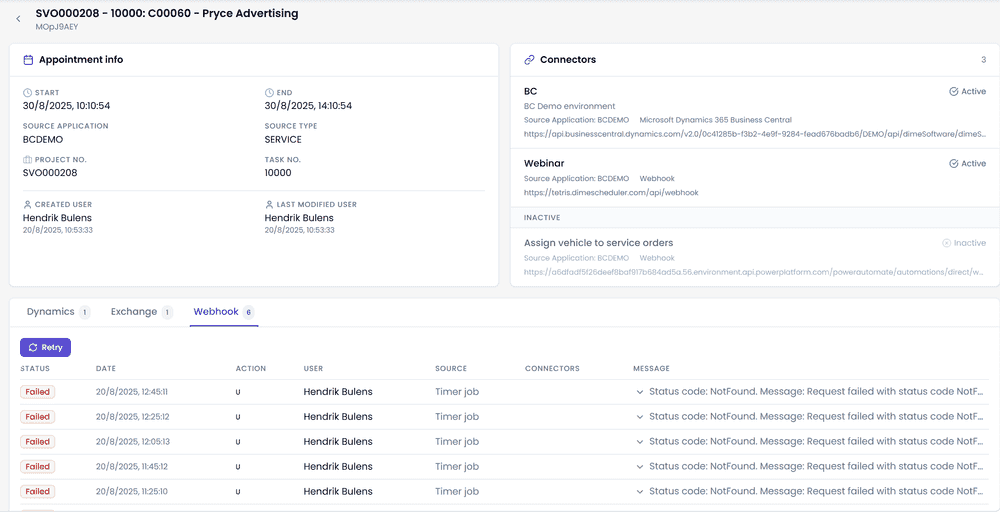
The transactions usually tell you exactly what went wrong. Common causes:
- No connector for this item. Data sent from NAV carries a Source AppSource appAn identifier Dime.Scheduler attaches to data so it can route a change back to the correct back-office system. identifier. To send a planned appointment back, Dime.Scheduler looks for a connector with the same Source App. No match, nothing sent.
- Invalid or incomplete connector. Usually the wrong URL or credentials.
- Back-officeBack officeThe ERP or business system Dime.Scheduler plans for - most often Microsoft Dynamics 365 Business Central. It owns the master data and remains authoritative over what it receives. unavailable: the administrators need to make the NAV SOAP URL reachable from Dime.Scheduler.
Appointments couldn't be processed in NAV
When Dime.Scheduler drops the appointment into NAV, the transaction is marked successful on the Dime.Scheduler side. That doesn't guarantee NAV processed it.
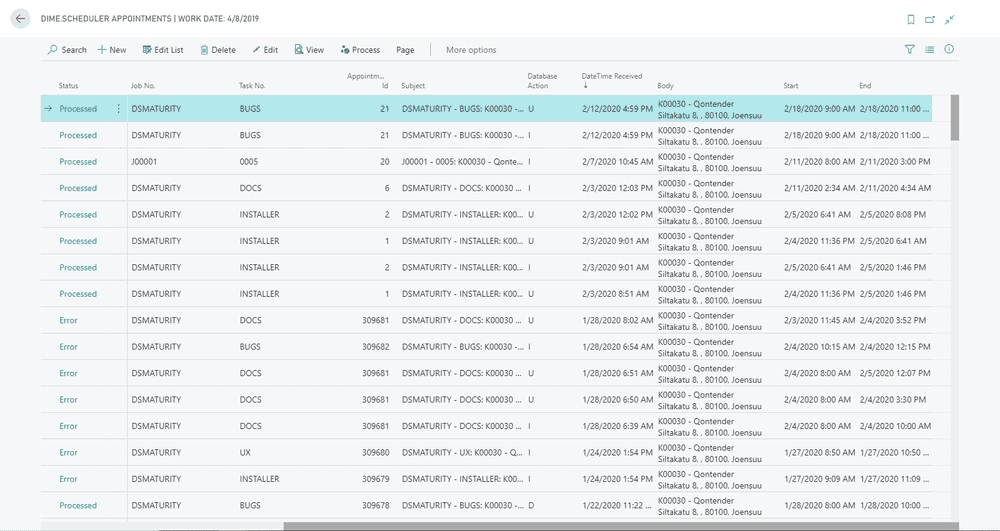
In NAV, open the Dime.Scheduler AppointmentsStaging tableThe Dime.Scheduler Appointments table in Business Central where incoming appointments land first. Business Central processes rows from there, so a row can be received and still fail processing. table. It lists the transactions and their status. Anything not marked Processed went wrong: click the status column for details.