Resources
Description
Dime.Scheduler builds its resources from the standard NAV Resource list. On top of the usual fields like name, unique number, type and address, two new fields are added specifically for Dime.Scheduler:
- Enable Gps Tracking
- Enable Exchange Synchronisation
You'll find these fields at the bottom of the resource card:

For more on what these fields do, see the resource settings manual.
Send resource to Dime.Scheduler
You can send a resource to Dime.Scheduler at any time. If the resource doesn't exist yet, it's created; otherwise it's updated. As in NAV, the No field is used for that check.
On the resource card, open the 'Actions' menu and expand the Dime.Scheduler submenu:
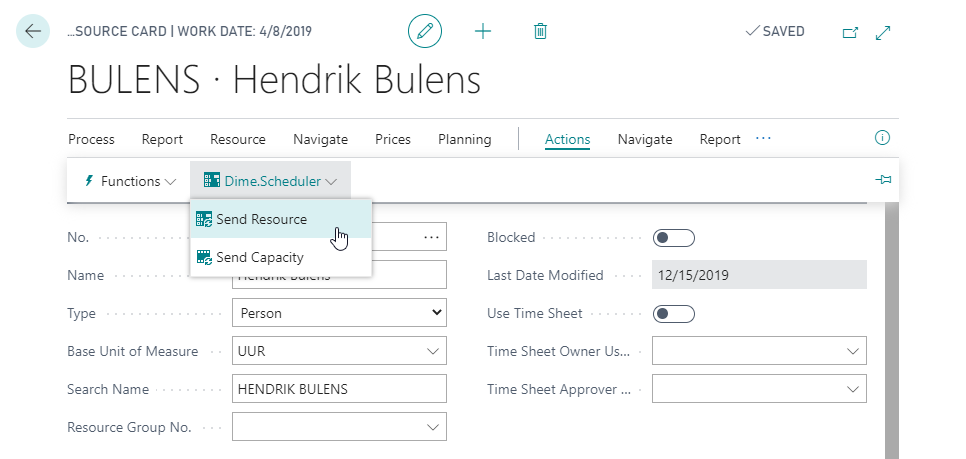
Choose 'Send resource' to transfer the resource to Dime.Scheduler right away.
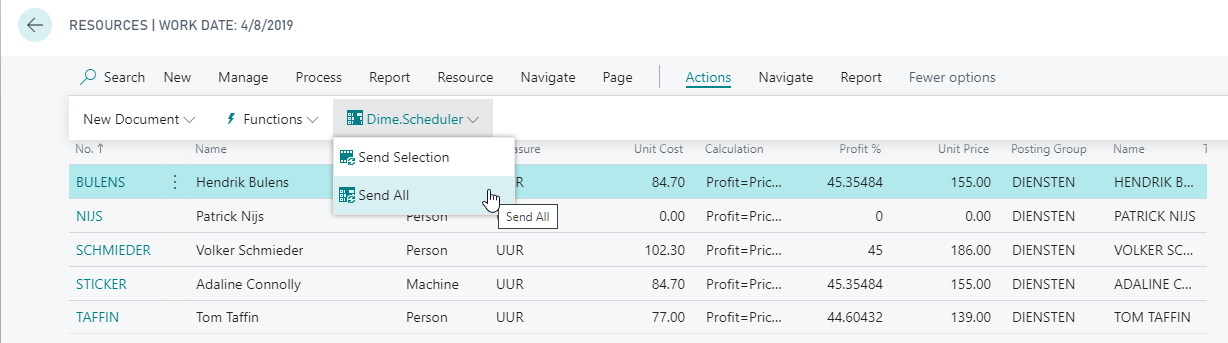
Send resources to Dime.Scheduler
To send resources in bulk, open the resource list. Click 'More Options', then 'Actions'. The Dime.Scheduler menu lets you send the selected records or send all of them: