Doc filter value sources
Document filter value sources tell NAV where and how to find the filter valuesFilter valueA single value inside a filter group, used as a qualification on a resource or a requirement on a task. for each taskTaskA unit of work that belongs to a job. It appears in the open task list until it is scheduled to a resource. or resourceResourceAn entity that can carry out work - a person, vehicle, tool, or room - that you schedule on the planning board. it sends to Dime.Scheduler.
You can set default values and override them when data is retrieved from tables further down in the hierarchy. This lets you supply a value when nothing is defined in NAV, or use different values depending on whether data is present. For example, you could set "No" as the default when no skillsSkillA qualification a resource holds and a task can require, typically modeled as a filter group. Skills drive resource filtering, the project team view and the solver’s choice of who can do what. are found and "Yes" when skills are found for a given task or resource.
Keep in mind that tasks and resources are generic terms within Dime.Scheduler and do not map to any specific NAV table. You can define multiple sources for both resources and tasks.
To manage the document filter value sources, navigate to Departments -> Dime.Studio -> Dime.Scheduler -> Filter Groups/Filter Values.
| Field, tab or group | Description |
|---|---|
| Table No. | Enter or select the table number that is the source of the task or resource. |
| Comment | Free text for internal use. |
| Entity Type | Specifies whether the table is a source for resources or for tasks in Dime.Scheduler |
| Resource Key Field | Enter or select the field that identifies the resource when entity type = resource. This is the field sent to Dime.Scheduler as ResourceNo |
| Job Key Field | Enter or select the field that identifies the job when entity type = task. This is the field sent to Dime.Scheduler as JobNo |
| Task Key Field | Enter or select the field that identifies the task when entity type = task. This is the field sent to Dime.Scheduler as TaskNo |
The example below shows the setup of 1 resource and 2 task entities:
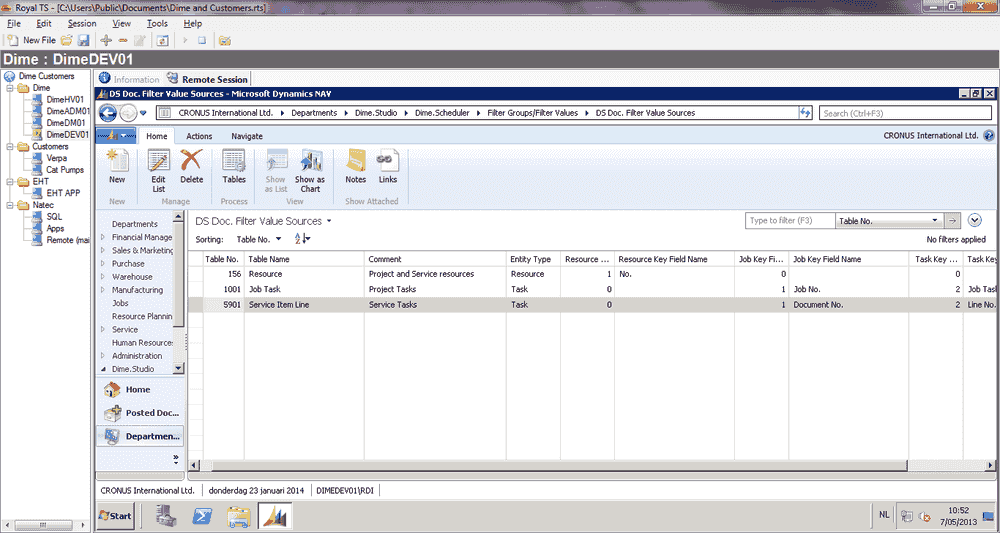 docfiltervaluesources
Once the document filter value source is declared, specify the source(s) and rules for every filter groupFilter groupA configurable set of fields used to filter resources and tasks on the planning board. the entity has filter values for. You can link to any number of tables at any hierarchical depth. For each table link, define how records are retrieved and which filters and conditions apply.
Go to General -> Tables (page) or Tables (form).
The hierarchy starts from the entity's base table, which you specified above and which is created automatically in the Tables page or form.
| Field, tab or group | Description |
|---|---|
| Link to Table No. | Enter or select the table number of the next table in the hierarchy. |
| Method | Specify how the table is to be read: |
|
For each table you can specify:
- Links: the field or fields that link the selected table with the parent table, for instance linking the document no. field of a line with the no. field of a header.
- Filters: filters that apply on the selected table to limit the number of records, for instance only retrieving records that are not blocked.
- Conditions: filters on the parent table that determine whether the link applies, for instance only linking the line table (the parent) with the item table (the child) when the line type of the line table is item.
- Fields: the fields that are the source of a filter value. You can also specify default values and override behavior.
Links
Go to Home -> Links (page) or Relationship -> Links (form)
| Field, tab or group | Description |
|---|---|
| Link from Field No. | Enter or select the field from the parent table. |
| Link to Field No. | Enter or select the field from the child table to connect it with the field from the parent table (link from field no.). |
You can link any number of fields between the parent and child table.
Filter
Go to Home -> Filters (page) or Relationship -> Filters (form)
| Field, tab or group | Description |
|---|---|
| Link from Field No. | Enter or select the field from the selected table, the child table, on which to apply the filter. |
| Value | Enter the filter value; this can be any value which is recognized as a filter by NAV. Option values are recognized and autocompleted. |
You can apply any number of filters on the child table. Note that all filters are applied at once.
Conditions
Go to Home -> Conditions (page) or Relationship -> Conditions (form)
| Field, tab or group | Description |
|---|---|
| Link from Field No. | Enter or select the field from the parent table on which to apply the filter. |
| Value | Enter the filter value; this can be any value which is recognised as a filter by NAV. Option values are recognised and auto-completed. |
You can apply any number of filters on the parent table. Note that all filters are applied at once.
Fields
Go to Home -> Conditions (page) or Relationship -> Conditions (form)
Filter group
Enter or select the filter group for which to set a filter value.
Field number
Enter or select the field that contains the filter value. This is not a mandatory field.
Fixed value
A free text field where you can enter a fixed or default value (see also the related fields below).
Fixed value behavior
The behavior options relate to the field number above and determine if and how the fixed value is used as the filter value.
- None: The fixed value is used as the filter value if no field number is set.
- Overrule: The fixed value always overrules the value from field number; use this to set a specific value when a record exists for field number, regardless of the value of the field number
- Overrule when Empty: The fixed value overrules the value from field number only when the field number is empty.
Fixed value when not found
A free text field where you can specify a value for the filter value if no record exists for the field number. Combined with the overrule behavior of the fixed value, you can set a Yes/No or true/false (or any other value pair) depending on whether a record exists.
Hierarchy behavior
If you have set a value for the same filter group on a higher level in the hierarchy, the hierarchy behavior options determine whether the current level overrides that value. The options below apply only if the current level returns a filter value. In other words, if a field number is defined but none of the fixed values are entered and no record is found for the current level, then the current level returns no filter value and the options below are ignored.
- None: The current level does not override a filter value that was set at a higher level in the hierarchy. The current level does set the filter value if no filter value was set for the filter group.
- Overrule: The current level always overrules a filter value that was set at a higher level in the hierarchy.
- Overrule when Empty: The current level overrules an empty filter value that was set at a higher level in the hierarchy.
Filter group (form)
Enter or select the filter group for which to set a filter value.
Filter group field number
Enter or select the field that contains the filter value. This is not a mandatory field.
Fixed Value
A free text field where you can enter a fixed or default value (see also the related fields below)
Fixed Value behavior
The behavior options relate to the field number above and determine if and how the fixed value is used as the filter value.
- None: The fixed value is used as the filter value if no field number is set.
- Overrule: The fixed value always overrules the value from field number; use this to set a specific value when a record exists for field number, regardless of the value of field number.
- Overrule when empty: The fixed value overrules the value from field number only when field number is empty.
Fixed value when not found (form)
A free text field where you can specify a value for the filter value if no record exists for field number. Combined with the overrule behavior of the fixed Value, you can set a Yes/No or true/false (or any other value pair) depending on whether a record exists.
Hierarchy behavior (form)
If you have set a value for the same filter group on a higher level in the hierarchy, the hierarchy behavior options determine whether the current level overrides that value. The options below apply only if the current level returns a filter value. In other words, if a Field No. is defined but none of the fixed values are entered and no record is found for the current level, then the current level returns no filter value and the options below are ignored.
- None: The current level does not override a filter value that was set at a higher level in the hierarchy. The current level does set the filter value if no filter value was set for the Filter Group.
- Overrule: The current level always overrules a filter value that was set at a higher level in the hierarchy.
- Overrule when empty: The current level overrules an empty filter value that was set at a higher level in the hierarchy.