Common actions
Pushing data to Dime.Scheduler is the heart of the integration. In Microsoft Dynamics NAV, you do this through actions, which are added to both entity cards and lists.
The common list actions are:
- Send selection
- Send all
You'll find both list actions on these pages:
The common card actions are:
- Send entity
- Delete entity
Send record
You can send a record to Dime.Scheduler at any time. If the record doesn't exist yet, it is created; if it does, it is updated.
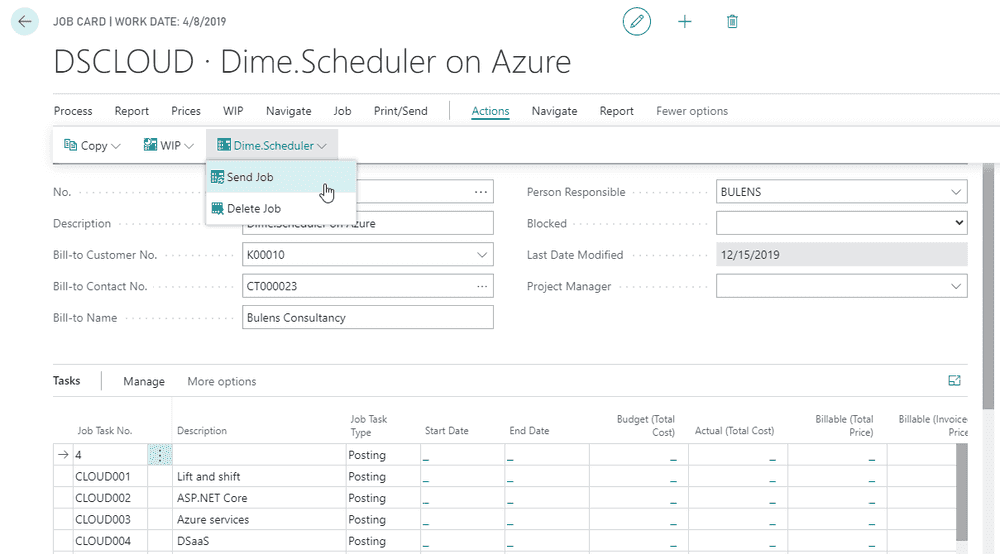
With the default behavior, each record in the tasks grid becomes a taskTaskA unit of work that belongs to a job. It appears in the open task list until it is scheduled to a resource. in Dime.Scheduler.
Send selected or all records
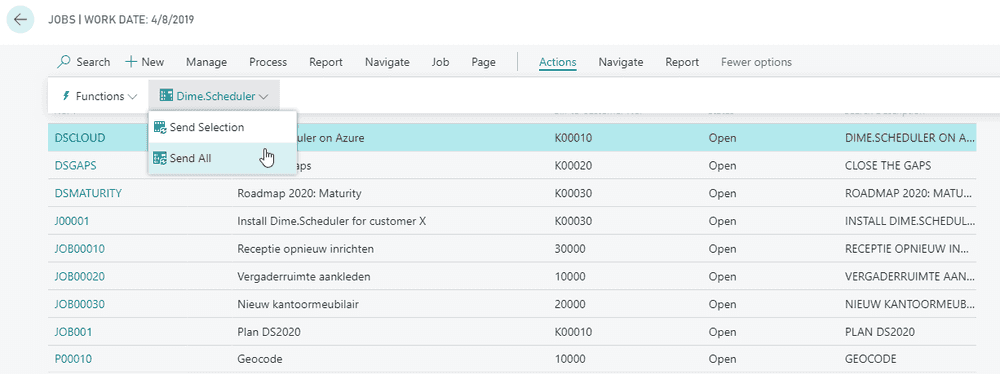
To send records in bulk, open the list, click the 'More Options' button, then 'Actions'. In the Dime.Scheduler menu, choose to send the selected records or send all of them:
Delete record
You can remove an item from Dime.Scheduler even after it has been sent. The combination of SourceApp, SourceType, and the entity's No. field lets the integration trace which item is stored in Dime.Scheduler.
When no appointmentsAppointmentA task scheduled to a resource for a specific period - the scheduled instance you see on the planning board. have been planned, this action runs safely and removes the item, along with its associated tasks, from Dime.Scheduler. If appointments have been planned, you may get an error message about the existing planning. To override this, switch off the Check Appointment on Delete flag on the Dime.Scheduler SetupDS SetupThe connector’s setup page in the back office (DS Setup in NAV, DS Connector Setup in Business Central). It holds the same settings as the FastTrack wizard, plus actions to send data manually. page in NAV.

Keep in mind that removing an item from Dime.Scheduler does not remove it from NAV.
The reverse is also true: removing an item in NAV does not remove the corresponding item in Dime.Scheduler. Deleting an item in NAV without deleting it in Dime.Scheduler creates phantom jobsJobA high-level container, comparable to a project, that bundles related tasks together with common information such as customer, billing, and address., and Dime.Scheduler will be unable to write back planning data for jobs that no longer exist in NAV.