Configuration
Every organization-wide Exchange setting lives on one page, split into three tabs. General holds the credentials and the things that keep them healthy. Dime.Scheduler → Exchange decides how planned work looks in people's Outlook calendars. Exchange → Dime.Scheduler switches on the way back and sets its defaults. Each tab has its own Save button at the top right, and a tab with unsaved changes is not saved by switching away from it.
What is not on this page is anything about an individual resourceResourceAn entity that can carry out work - a person, vehicle, tool, or room - that you schedule on the planning board.. Whether a resource takes part at all is decided on their resource record, and the filters a resource applies to their own calendar live on their preferences page.
General
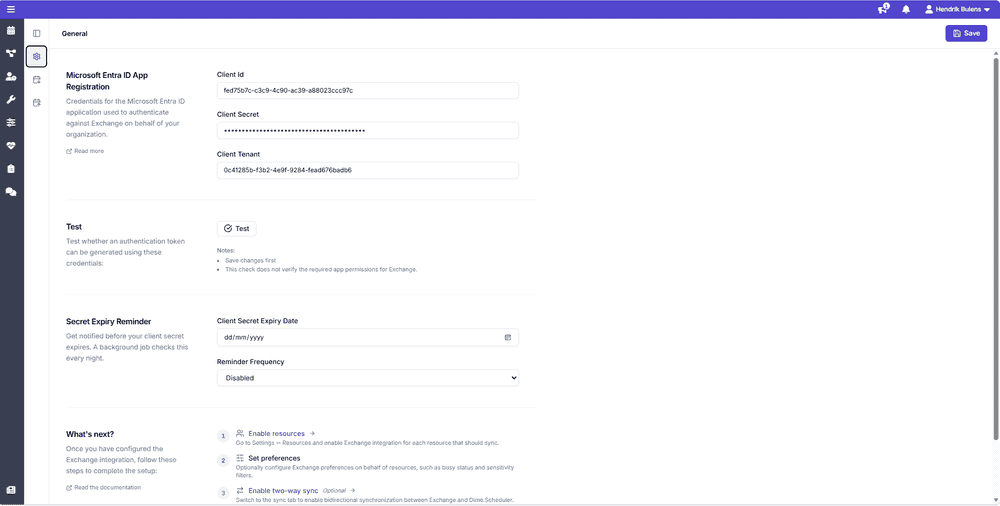 The General tab
Microsoft Entra ID App Registration
Dime.Scheduler talks to Exchange through Microsoft Graph, as an application rather than as a person. The three values here identify that application: the Client Id, the Client Secret and the Client Tenant of the app registration you created in Microsoft Entra ID. Paste them in exactly as the Azure portal shows them. The secret is masked once saved.
Test
Test asks Microsoft Entra ID for an authentication token with the saved credentials and tells you whether it got one. It is the fastest way to find a typo in a client ID or a secret that was copied from the wrong app registration.
Two things the page itself reminds you of are worth repeating. The test uses what is saved, not what is typed, so save first. And a token proves the credentials are valid, not that the application has been granted the Graph permissions Exchange needs. If the test passes and nothing syncs, permissions are the next thing to check.
Secret Expiry Reminder
A client secret has an expiry date, and when it passes the integration stops without warning: appointmentsAppointmentA task scheduled to a resource for a specific period - the scheduled instance you see on the planning board. silently stop reaching Outlook until somebody notices. This section exists so that somebody is you, in advance.
Enter the Client Secret Expiry Date from the app registration and pick a Reminder Frequency: one month, two weeks, one week, three days or one day before expiry, or Disabled. A background job checks every night and sends an email on the day the reminder falls due, and again on the day the secret expires. The email goes to the organization's notification email address from the application setup, so make sure that address is set and read.
What's next?
The bottom of the tab is a short checklist for a fresh setup, and each step links to where it happens:
- Enable resources. Switch on the Exchange integration for every resource that should sync, and make sure each has an email address Exchange knows.
- Set preferences. Optionally configure busy statusShow asThe Outlook free/busy status of a calendar event: Free, Tentative, Busy, Out of office and so on. The Exchange settings pick which statuses are allowed back into the planning. and sensitivitySensitivityThe Outlook sensitivity level of an event: Normal, Personal, Private or Confidential. Together with show as, it filters which Outlook events reach the planning board. filters on behalf of resources, on the Exchange preferences page.
- Enable two-way sync. Optional. Switch to the Exchange → Dime.Scheduler tab, described below.
Dime.Scheduler → Exchange
 The Dime.Scheduler to Exchange tab
When Dime.Scheduler pushes an appointment into a resource's calendar, it has to decide how that appointment presents itself to everybody else looking at their availability. Busy status of pushed appointments sets that, and it applies to every appointment Dime.Scheduler creates or updates in Exchange.
The choices are the Outlook free/busy states: Free, Tentative, Busy, Out of office, Working elsewhere and Unknown. The default is Free.
The default is deliberate but worth a thought. Leaving pushed appointments as Free means a planned job does not block the resource's calendar, so colleagues can still invite them to meetings. That is the right behavior when Dime.Scheduler is the authority on their day and Outlook is a convenience copy. If instead you want planned work to defend itself against meeting invitations, set this to Busy so a scheduled job shows the resource as occupied.
Exchange → Dime.Scheduler
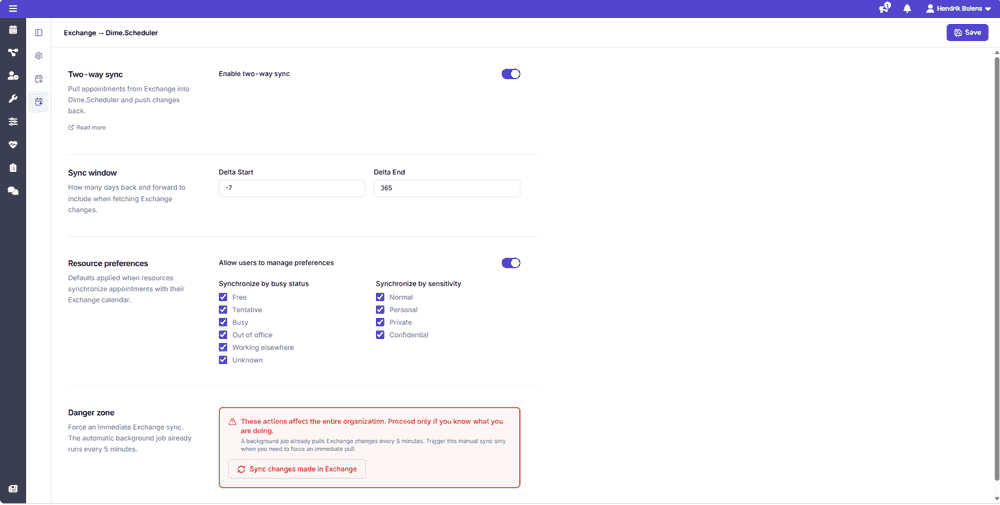 The Exchange to Dime.Scheduler tab
Two-way sync
Enable two-way sync is the switch for the way back: appointments made or changed in Exchange are pulled into Dime.Scheduler, and changes made in Dime.Scheduler are pushed back to them. What that means for the planning, and the rules that decide which Exchange appointments count, are on the two-way sync pages. While the switch is off, the rest of this tab is inactive and the page says so.
Sync window
Dime.Scheduler fetches changes from Exchange as event deltas, and a deltaResource event deltaThe change set the Exchange connector received from a resource’s mailbox for one sync window. The Deltas page lists them so you can see what Exchange actually sent. needs a window. Delta Start and Delta End are that window in days relative to today: a start of -7 and an end of 365 means a week back and a year ahead. An appointment outside the window is not seen, however relevant it is, so widen the start if people routinely edit last week's calendar and narrow the end if a year of future meetings is more than the planning needs.
Resource preferences
Not every Exchange appointment belongs in the planning. A private dentist appointment is a reason the resource is unavailable; it is not something a planner should read. Two filters decide what flows back: the appointment's busy status (Synchronize by busy status) and its sensitivity (Synchronize by sensitivity). An appointment is pulled in only when both match.
The ticked values here are the defaults. Allow users to manage preferences decides whether they are also the final word. Switched off, every resource syncs with exactly these filters. Switched on, each resource can override them for their own calendar on the preferences page, and an administrator can do it on their behalf. To use their own page, a resource needs a user account whose email address matches the one on their resource record.
Danger zone
A background job pulls Exchange changes every five minutes, so under normal circumstances nothing here is needed. Sync changes made in Exchange queues an immediate pull for the whole organization, for the moment you have just fixed a credential or a permission and do not want to wait to see whether it worked. The button asks for confirmation first, and manual triggers are limited to one every fifteen minutes.
Related
- Entra ID app registration - where the credentials and permissions come from.
- Resources - switching the integration on per resource.
- Preferences - the filters a resource sets for their own calendar.
- Deltas - inspecting what the sync window actually fetched.