Source Types
Every record that flows between Business Central and Dime.Scheduler carries two strings: Source App and Source Type. Together they answer a single question that the integration cannot work without: when a planner schedules something on the board, which system and which table does that appointment belong back in? You've almost certainly set up Source App already, since it's required just to establish the connection between BC and Dime.Scheduler. Source Type is the field that does the actual routing, and this page is about how that routing works. First, a quick recap of what both fields mean.
Definitions
Dime.Scheduler is a centralized planning application. One of its key tenets is the ability to accommodate data from different origins. For instance, it is perfectly acceptable to plan work orders from Business Central, CRM, imported Excel sheets, etc., and Dime.Scheduler won't break a sweat because of the existence of the Source App and Source Type fields in the data model.
Source App
When the planner creates an appointment for a resource or task, Dime.Scheduler knows which system to notify. Through the connector setup, Dime.Scheduler will find a matching SourceApp and subsequently send the appointment to the corresponding URI.
The source appSource appAn identifier Dime.Scheduler attaches to data so it can route a change back to the correct back-office system. field is a unique identifier that identifies a back-officeBack officeThe ERP or business system Dime.Scheduler plans for - most often Microsoft Dynamics 365 Business Central. It owns the master data and remains authoritative over what it receives. instance such as a tenant of Business Central, a test environment, an instance of CRM cloud, or any other application you wish to use to feed data into Dime.Scheduler.
The back office is bound to a connector
Each back-office instance - a Business Central tenant, a CRM environment, an Excel sheet - is identified by a Source App. The connector is configured for that one Source App and nothing else, so Dime.Scheduler always knows which system any record came from.
Source Type
The SourceType is used inside the back-office system itself. A source typeSource typeAn identifier that, together with the source app, tells Dime.Scheduler which back-office table a record belongs to. represents a distinct entity such as a service orderService orderA Business Central service management document. The service order solution plans it as one task or as one task per service item line, and writes the assignment back as a resource allocation., production orderProduction orderA Business Central manufacturing order with routing lines. The production routing solution puts those lines on the planning board against work and machine centers while BC’s own rules still hold., assembly orderAssembly orderA Business Central document that says what to build. The assembly order solution schedules the resources that build it and keeps the order’s dates in sync., etc.
The standard connectorsConnectorAn integration that links Dime.Scheduler to a back-office system, routing data in and scheduling decisions back out. that Dime Software provides make it possible to plan different types of resources and tasks. When Dime.Scheduler posts an appointment to a standard connector, it ends up in a staging tableStaging tableThe Dime.Scheduler Appointments table in Business Central where incoming appointments land first. Business Central processes rows from there, so a row can be received and still fail processing., which is then processed by the connector to ensure the appointment produced in Dime.Scheduler is traced back to the original record using the externally identifiable fields (JobNo, TaskNo, ResourceNo) that identify the record.
How it works
In the standard connector for Dime.Scheduler in Business Central, you don't create source types by hand. The FastTrack wizardFastTrack wizardThe setup wizard inside Business Central or NAV that connects it to Dime.Scheduler and switches on the modules to plan from. It writes the source app and creates the source types for each enabled module. or the Dime.Scheduler setup pageDS SetupThe connector’s setup page in the back office (DS Setup in NAV, DS Connector Setup in Business Central). It holds the same settings as the FastTrack wizard, plus actions to send data manually. does it for you: whenever you enable a module, a new entry appears in the Dime.Scheduler Source Types list.
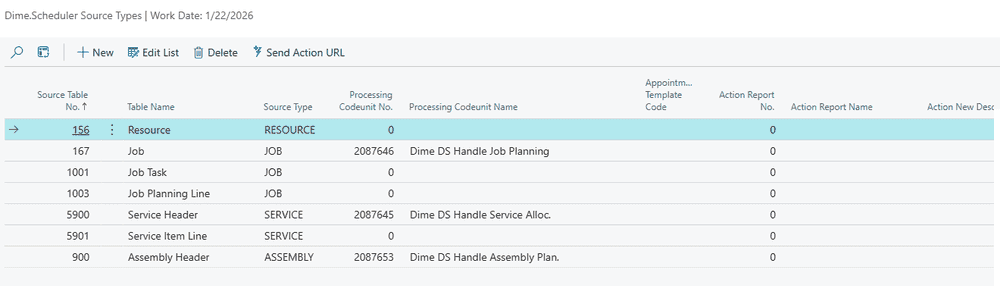
Hit ALT + Q and look for Dime.Scheduler Source Types in the search bar to locate this table.
A source typeSource typeAn identifier that, together with the source app, tells Dime.Scheduler which back-office table a record belongs to. identifies a coherent area in Business Central. The standard connector defines the following types and associates each with the corresponding BC tables:
| Source Type | Table(s) used |
|---|---|
| Resource | 156 |
| Service | 5900, 5901 |
| Job | 167, 1001, 1003 |
| Assembly | 900 |
| Production | 99000754, 99000758, 5405, 5409, 99000754, 99000758 |
| Sales | 36, 37 |
| HR | 5206, 5207 |
These types ship out of the box together with the code units that handle the appointment information coming back in. Note that a single source type can map to several tables: a 'Job', for instance, spans the job header, a job task, job planning linesJob planning lineThe Business Central record that books a resource on a project (job) task. Planning a project task in Dime.Scheduler creates or updates one., and any other level you need. You're free to add your own source types too and link them to a custom table. Underneath, a source type is just a string, and that string is what drives the routing the moment a new appointmentAppointmentA task scheduled to a resource for a specific period - the scheduled instance you see on the planning board. lands in the Dime.Scheduler Appointments tableStaging tableThe Dime.Scheduler Appointments table in Business Central where incoming appointments land first. Business Central processes rows from there, so a row can be received and still fail processing..
Every taskTaskA unit of work that belongs to a job. It appears in the open task list until it is scheduled to a resource. that needs planning is pinned down by four pieces of identity:
- Source AppSource appAn identifier Dime.Scheduler attaches to data so it can route a change back to the correct back-office system.: a unique string describing which administration or system owns the record. Dime.Scheduler uses it to find the matching backoffice systems to send appointment information back to. A single source app can have multiple connectorsConnectorAn integration that links Dime.Scheduler to a back-office system, routing data in and scheduling decisions back out.. A common pattern is to write data back to BC and also invoke a webhookWebhookThe generic connector that POSTs every appointment change as JSON to a URL you choose. It delivers the message and leaves interpretation to the receiving system. to send emails, run Power Automate flows, and so on.
- Source Type: a unique string indicating which table the record came from. This is what prevents duplicate numbers from colliding. 'ORDER002' might exist in several tables; decorating a task with a source type lets the system tell them apart, so SALES ORDER002 and SERVICE ORDER002 can happily coexist.
- Job No: typically the
No.field at the header level of the order. - Task No: the
No.field of the level the customer actually wants to plan. When planning at the header level,Task Nois identical toJob No.in Dime.Scheduler.
To the planner, this is mostly invisible metadata, right up until the moment they schedule a task on the planning boardPlanning boardThe main graphical scheduling surface where dispatchers drag tasks onto resources across a timeline.. That's when it earns its keep: Dime.Scheduler reaches out to the systems that asked to be notified, specifically the connectors that match the job's 'Source App', and hands them the planning data.
Not every system cares about the 'Source Type'. The standard Exchange connector, for example, ignores it entirely, since the appointment only needs to land in the resource's Outlook calendar. The Business Central integration is the opposite case: without the source type it has no way of knowing which table to write back to. Consider a task tied to a...
- ...service item lineService item lineA line on a Business Central service order for one item to service. The connector can send each line as its own task, and its repair status can drive the task’s category or time marker., which you may want to process as a resource allocation.
- ...job task, which you may want to process as a job planning line.
- ...cause of absence, which you may want to process as an employee absence registration.
- ...custom table, which you'll probably want to process into a custom table as well.
The standard extension ships workflows for every supported source type listed above. For each entry in the source types table you specify a code unit to run for every incoming appointment with that source type; when Dime.Scheduler finds a match, it executes that code unit. That single hook is what leaves the door wide open for customization. You can override the handling logic while keeping the default source types, or replace both with your own source types and your own handling code units.
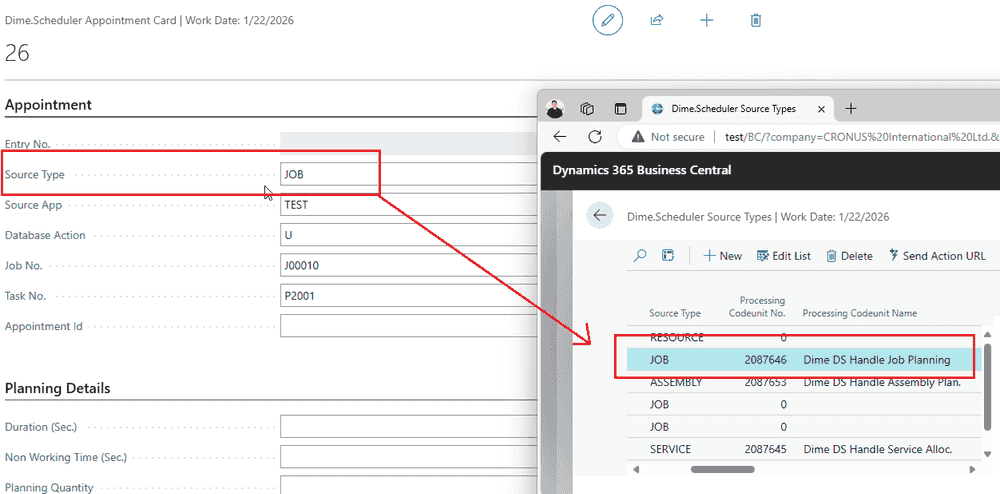
In the example above, the incoming appointment is routed to code unit no. 2087646, which writes the appointment information back to the job using the default functionality shipped in our standard extension.
Source Types table
The table itself is small, but what you put in it decides exactly how planning data from Dime.Scheduler is processed in Business Central.
| Field, tab or group | Description |
|---|---|
| Source Table No. | Enter the table number or select it from the list for each table that is sent to Dime.Scheduler (e.g., 5901, Service Item Line or 1001, Job Task). |
| Source Type | Define the identifier of the source type. Use a concise and descriptive value (max. 10 characters) like 'SERVICE', 'JOB', 'TRANSPORT', etc. |
| Processing Codeunit No. | Enter the number of the codeunit that processes planning data coming from Dime.Scheduler into Business Central. |
| Appointment Template Code | In Dime.Scheduler, you can define custom fields on an appointment card. You can have different fields based on the type of task using an appointment template. Specify the appointment template code for the task, based on the source type. For more information about appointment templates refer to this doc. |
| Action Report No. | The report to run when the user selects an action URI for this source type. Leave 0 (zero) to use the standard report DS Action Launch. The report parses the parameters passed by Dime.Scheduler as field filters and then launches the defined codeunit (see below) |
| Action New Description | Action new is the URI shown when the user opens the context menu in the planning board. The description or caption is shown to the user. |
| Action New Codeunit No. | The codeunit executed by the report defined in Action Report No. |
| Action Edit Description | Action Edit is the URI shown when the user opens the context menu of an appointment with matching source app and source type fields. The description or caption is shown to the user. |
| Action Edit Codeunit No. | The codeunit executed by the report defined in Action Report No. |
The "Send Action URI" command button generates and sends the ActionURI to Dime.Scheduler for both 'Action New' and 'Action Edit', as long as a value is entered in the respective description field.
Diagram
The diagram below summarizes how the integration framework between Dime.Scheduler and Business Central fits together.
It starts in Business Central, where users create orders that need to be planned in Dime.Scheduler. Each record sent from BC carries a Source App and Source Type field. The Source App is always the same and comes from the configuration item in the FastTrack wizard, while the Source Type typically differs across the various tables in play.
When an appointment is planned, Dime.Scheduler sends that information back to whichever systems want to be notified, which you configure on the Connectors page in Dime.Scheduler. Once Dime.Scheduler has deposited the appointment info in the backoffice system, processing it is that system's job. You can lean on the standard connectors that Dime Software has developed, or supply your own logic.
The standard connector for Dime.Scheduler in Business Central supports multiple tables, and that's exactly where the Source Type comes in. Dime.Scheduler posts all planning lines to the Dime.Scheduler Appointments table in Business Central and triggers a workflow that looks up the matching source type and invokes the corresponding code unit to write back to the right table.
A service appointment is routed to the Service Item Line
The appointment carries the SERVICE source type, so the workflow looks up the matching row in the Dime.Scheduler Source Types table and invokes the code unit configured there. The result lands on the service item line as a resource allocation.