Service Orders
Service is where scheduling earns its keep: a backlog of repairs, the right technician, and a customer waiting. The service ordersService orderA Business Central service management document. The service order solution plans it as one task or as one task per service item line, and writes the assignment back as a resource allocation. module wires Business Central's service orders into Dime.Scheduler so a dispatcher plans them visually on the board while Business Central stays the system of record. The link is bidirectional, so what the planner does on the board and what happens on the order in BC stay in sync without anyone retyping it. This page walks you through the FastTrack configuration and shows how service orders are sent, planned, and kept aligned.
Setup

Enable service orders solution
Turn the solution on with Enable Service Order Planning. Everything below configures how the flow behaves once it is enabled.
Creating tasks
The first decision is what a planner actually sees in the open tasks listOpen taskA task that has not been scheduled yet. It waits in the open task list to be placed on the planning board.: the whole order as one item, or every service item lineService item lineA line on a Business Central service order for one item to service. The connector can send each line as its own task, and its repair status can drive the task’s category or time marker. on it. Two checkboxes control this.
- To create a single task in Dime.Scheduler for the service order, select
Send Service Header as Task. - To create a task for each service item line, select
Send Lines with Service Header.
The two switches differ in how planning a task flows back into Business Central.
Send Service Header as Task
With this option, dragging and dropping the task in Dime.Scheduler creates a resource allocation for the service order in Business Central as soon as you do it. The new record captures the details of the appointmentAppointmentA task scheduled to a resource for a specific period - the scheduled instance you see on the planning board. you just planned, and the resource allocation and the Dime.Scheduler appointment stay linked: any change to the service order appointments is reflected in Business Central automatically and immediately.

Send Lines with Service Header
With this switch on, dragging a task onto the planning boardPlanning boardThe main graphical scheduling surface where dispatchers drag tasks onto resources across a timeline. creates no allocation lines. Instead, Dime.Scheduler updates the starting and finishing times of the service order.
Default duration
When a planner drags a task from the open tasks list onto a resource, it lands as a one-hour appointment by default. If your service work typically runs longer or shorter, enter a different value in the Default Duration Service Line field so the planner starts from a realistic block instead of resizing every appointment by hand.
Indicators
A planned appointment on the board can carry two pieces of color-coded meaning: its main color (the categoryCategoryA visual indicator (a color) applied to appointments to classify or label them.) and a time markerTime markerA visual indicator on an appointment, separate from its category, used to flag a status or condition at a point in time.. Both are driven by a BC field you choose here, and both offer the same three sources to pick from, so a dispatcher reads the board at a glance instead of opening each order. The third setting decides what happens when the repair status moves on.
-
The
Default Categoryoption selects which BC field sets the color of a planned task when you drag and drop it from the open tasks list onto a resource. Choose between service order type, repair status (from the service item line), and service zoneService zoneA Business Central service management field on service orders and resources. The connector can turn it into a filter group and use it to set the default category or time marker of a task.. Leave it blank to use the default color (blue). -
The
Default Timemarkeroption selects which BC field sets the color of the time marker on a planned task when you drag and drop it from the open tasks list onto a resource. Choose between service order type, repair status (from the service item line), and service zone. Leave it blank to skip time markers. -
The
Show Repair Status asoption selects how the planned task(s) in Dime.Scheduler update when the repair status on the service item line in BC changes: you can update the category or the time marker. Aligning this with the default category and default time marker settings makes sense, though it is not required. For example, you can set service order type as the default category and have the category update when the repair status changes; the color then shows the order type until the repair status changes, at which point it reflects that status.
This video shows how these fields work:
Create appointment with resource allocation
When set to true, appointments are created, updated, or deleted as resource allocations on the service order change. This is the inbound counterpart to the board: changes made to allocations in BC drive what shows up on the planning board.
Timesheets
Select Update Time Sheet from Planning Board to create or update the resource's time sheetTime sheet (Business Central)The Business Central record that registers hours per employee. Dime.Scheduler can fill it from the plan (planned time) or from released time entries (time registration); running both for the same work registers the hours twice. in BC automatically whenever a task is allocated to a resource or a planned task is modified in Dime.Scheduler. The hours the planner blocks out become the hours the technician is booked for, with no double entry.
Filters
If the Skill Filter and Service Zone Filter were enabled in the standard resource section, the FastTrack wizardFastTrack wizardThe setup wizard inside Business Central or NAV that connects it to Dime.Scheduler and switches on the modules to plan from. It writes the source app and creates the source types for each enabled module. creates their configuration for you automatically. BC then sends the skillsSkillA qualification a resource holds and a task can require, typically modeled as a filter group. Skills drive resource filtering, the project team view and the solver’s choice of who can do what. a resource needs (based on the service item and the service zone of the service order) to Dime.Scheduler, so the planner can apply the automatic filter and narrow the board to resources actually qualified for the task instead of eyeballing it.
Usage
Actions
List Actions
See common actions for an overview of the list actions for this type.
Card actions
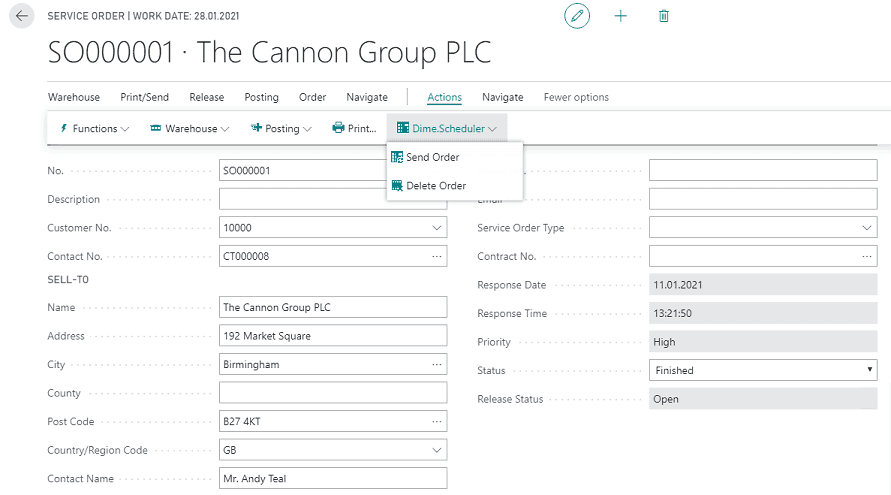
The following actions are available on the service order:
- Send service order
- Delete service order
Creating service orders
The flow is straightforward: create a service order, run the send to Dime.Scheduler action, and the connector gathers all the relevant data about the service order and its work items and sends it across. It pulls from four entities to build the graph:
- Service header
- Service item lines
- Customer
- Contact
Dime.Scheduler maintains the relationship between a service header and a service item line: the service header maps to a Job, and each service item line maps to a Task record. When a service order has multiple lines, those lines link to the same job, so once planned they trace back to the same service order.
This is the default behavior. When switched off, the Send Service Header as Task field lets you ignore the service item lines and map the service header to a task. Instead of a 1:N relationship, this feature flag enforces a 1:1 relationship. Otherwise, and if Send Lines with Service Header is enabled, the behavior described above applies.
When you send the service order to Dime.Scheduler, those tasks are created.
Beyond the tasks themselves, more setup connects a field of the service header or item to an appointment's visual indicators. A category can reflect a service item's repair status, or a service header's service order type or service zone code. That is the default behavior, but it is easy to BYOBL (Bring Your Own Business Logic) and point an appointment's color-coded indicator at other fields instead. Other settings tweak the default, such as default duration service line, which sets the default duration of an appointment when you drag the task to the planning board.
Planning service orders
The open task grid shows the work that needs to be planned. Planning a service item is the visual move the whole module is built for: drag the task onto the right timeslot for the right resource, and the service order is registered. How that appointment is processed back in Business Central depends on the task level you configured in this module, header level or service item level, and it may also create timesheets if that switch was turned on.
One caveat to keep in mind:
- When a service order is marked as 'Finished' in Business Central, Dime.Scheduler will not process any other incoming appointments.
Repair status
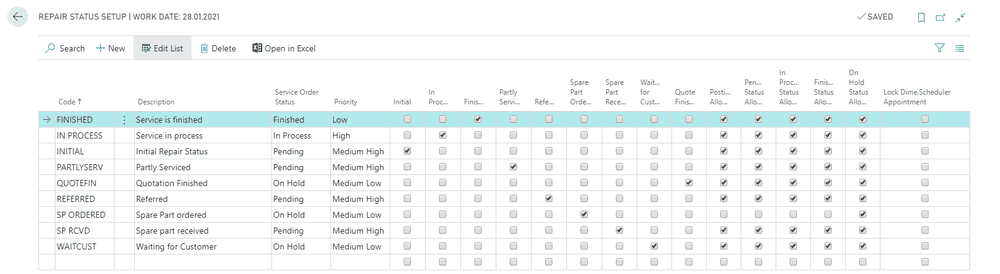
The standard BC "Repair Status Setup" page has been extended with one new field: Lock Appointment. This lets you fix the planning based on the status of the order in Business Central, so once an order reaches a given status its appointments can no longer be moved.