Sales Orders

A sales document in Business Central tells you what was sold and when it is due, but not who is going to deliver it or when they are free. The FastTrack solutionFastTrack solutionOne module of the Business Central or NAV connector that makes a kind of record plannable, such as service orders or production routing. Each has its own enable switch in the FastTrack wizard. for Sales Planning closes that gap: it lets you schedule resourcesResourceAn entity that can carry out work - a person, vehicle, tool, or room - that you schedule on the planning board. against BC sales documents on a visual planning boardPlanning boardThe main graphical scheduling surface where dispatchers drag tasks onto resources across a timeline. and keep the dates on both sides in sync, so the planner works in one place instead of reconciling two.
In practice this means you can assign multiple resources across different dates and times onto a single sales document. Plan those resources in Dime.Scheduler and the solution writes them back as resource lines on the document; let an appointmentAppointmentA task scheduled to a resource for a specific period - the scheduled instance you see on the planning board. slip and the relevant date on the sales document can move with it, driven by the first and last planned task. The flow also runs the other way: if you enter resource lines on the document in BC before sending it over, those lines come across as planned tasksPlanned taskAn appointment together with the resources assigned to it - the full picture of what will be done, by whom, and when., so a planner can pre-assign resources up front and refine them later on the board.
Setup
Enable sales planning solution
Turn the FastTrack solution on by selecting Enable Sales planning. Everything below depends on it.
Configure sales planning
How the document is broken down into work is the first choice. Select Send Sales Header as Task to create a single taskTaskA unit of work that belongs to a job. It appears in the open task list until it is scheduled to a resource. for the whole document, or Send Tasks with Sales Header to create one task per sales line.
By design, only sales lines of type item are sent to Dime.Scheduler, however this can be modified if required.
The rest of the configuration tunes how planning flows back to BC:
-
When a planner drags a task from open TasksOpen taskA task that has not been scheduled yet. It waits in the open task list to be placed on the planning board. onto a resource, the appointment defaults to a duration of 1 hour. Enter a different value in
Default Duration Sales Taskto override it. -
Select
Send Resources with Orderif you want resource lines entered on the sales document in BC to be created as planned tasks in Dime.Scheduler when you send the document. -
Select
Create Resource Linesif you want resource lines on the sales document to be created and updated based on the planned tasks in Dime.Scheduler. This differs from assembly order planning, where resource lines are always created or updated. -
Use
Update Dateto choose which date on the sales document is updated based on the planned tasks in Dime.Scheduler. Choosing a date on the sales line is only applicable whenCreate Resource Linesis selected. The options are:- Blank: no date is updated
- Shipment Date (H): on the sales header (H) is updated
- Promised Delivery Date (H): on the sales header (H) is updated
- Shipment Date (L): on the sales line (L) is updated
- Planned Shipment Date (L): on the sales line (L) is updated
- Planned Delivery Date (L): on the sales line (L) is updated
Updates are validated so other dates might be updated as well.
Usage
Watch the video below for a short introduction to this module in Dime.Scheduler:
Actions
The default actions on this page have been extended with the following items.
List Actions
See common actions for an overview of the list actions for this type.
Card actions
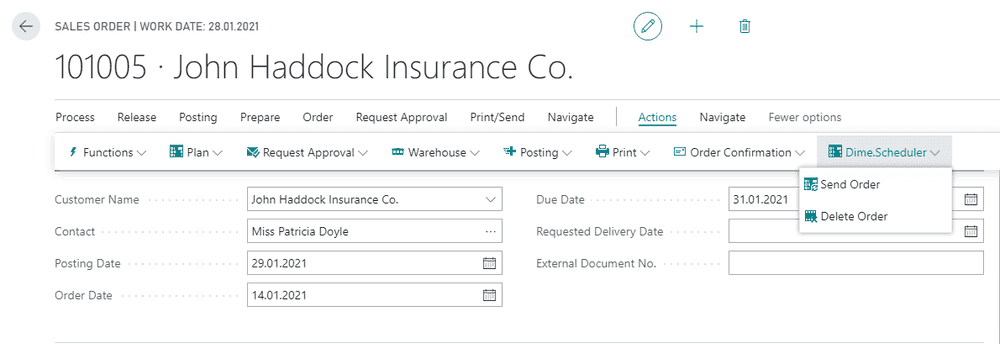
Two actions are added to the sales order card: Send order and Delete order.
Creating sales orders
When you create a sales orderSales orderA Business Central sales document. The sales planning solution lets you schedule resources against its lines and keeps the dates on both sides in sync. and run the send to Dime.Scheduler action, the connectorConnectorAn integration that links Dime.Scheduler to a back-office system, routing data in and scheduling decisions back out. gathers everything relevant about the order and its work items and ships it across. That payload is built from the sales header, the sales lines, the customer, the contact, and the ship to address, so the planner sees not just what to do but where and for whom.
Dime.Scheduler keeps the structure of the document intact: the sales header is captured at the Job level, while each sales line maps to a Task record. When a sales order has multiple lines, those lines all hang off the same job, so once planned they still trace back to the one order.
This is the default behavior. When switched off, the Send Sales Header as Task field allows you to ignore the sales lines and map the sales header to a task. Instead of a 1:N relationship, this feature flag enforces a 1:1 relationship. With this option, it's also possible to send resources as appointments to Dime.Scheduler, given that the Send resource with order setup flag is switched on. Otherwise, and if the Send Lines with Sales Header is enabled, the behavior as described above will be applied.
When you send the sales order to Dime.Scheduler, these tasks are created.
Further global setup tweaks the default behavior of sales headers, such as default duration sales line, which sets the default duration of an appointment when you drag the task to the planning board.
Planning sales orders
The open task grid lists the work that still needs to be planned. To schedule a sales item, drag the task onto the right timeslot for the right resource on the planning board. That single action registers the plan.
Behind the scenes a resource line is created automatically on the sales order in Business Central, holding the details of the appointment you just planned. The resource line and the Dime.Scheduler appointment stay linked, so any later change to the appointment is reflected in BC automatically and immediately. The planner never touches BC to keep it current.
This is the default behavior. This can be switched off by disabling the Create resource lines setup flag.
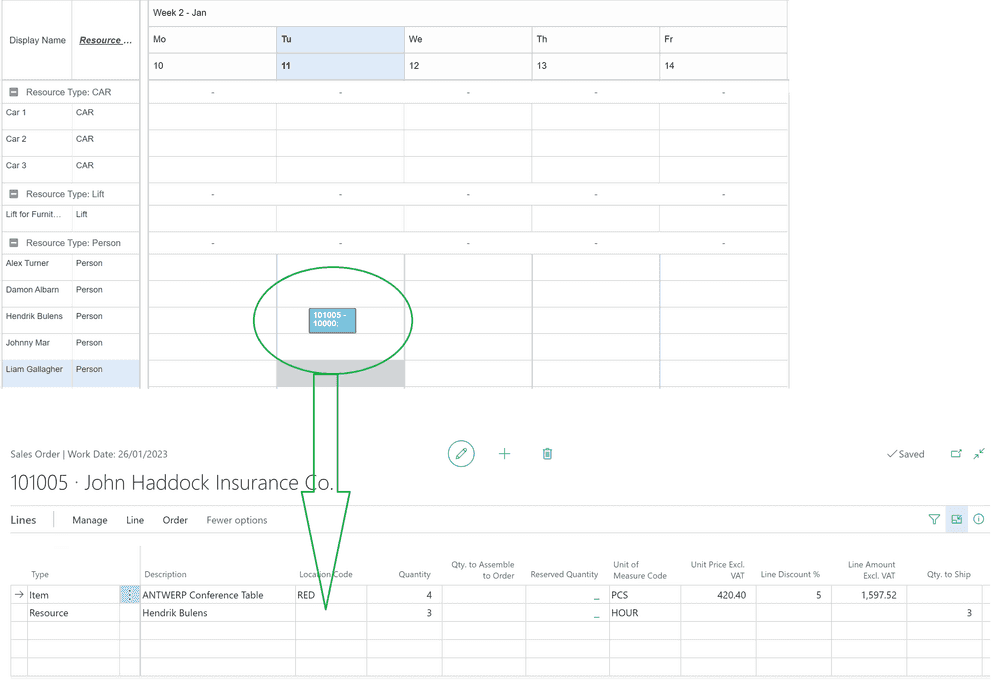
Scheduling an appointment can also drive a date on the document, depending on the Update Date setting described in Configure sales planning. Those dates are the shipment date or promised delivery date on the header, and the shipment date, planned shipment date, or planned delivery date on the line.
The net effect is that Dime.Scheduler builds on standard Business Central functionality and adds the visual scheduling layer on top, so the planner gets a board to work on while BC stays the system of record.