Production Orders
Production ordersProduction orderA Business Central manufacturing order with routing lines. The production routing solution puts those lines on the planning board against work and machine centers while BC’s own rules still hold. already carry their own logic in Business Central: routing lines, work and machine centerMachine centerA machine under a Business Central work center. Like work centers, machine centers become resources when production routing planning is enabled. allocations, and the calculations that tie every step together. What BC does not give the planner is a picture. The FastTrack solutionFastTrack solutionOne module of the Business Central or NAV connector that makes a kind of record plannable, such as service orders or production routing. Each has its own enable switch in the FastTrack wizard. for production orders supplies that picture, putting routing on the planning boardPlanning boardThe main graphical scheduling surface where dispatchers drag tasks onto resources across a timeline. where it can be seen, dragged, and rescheduled while every BC rule still holds. In practice it does three things:
- Visualize and plan routing lines via drag and drop, using and respecting all the BC business logic.
- Create resourcesResourceAn entity that can carry out work - a person, vehicle, tool, or room - that you schedule on the planning board. in Dime.Scheduler from the standard BC work centerWork centerA Business Central manufacturing capacity unit. The production routing solution creates resources from work centers instead of the Resource table. and machine center tables.
- Update the categoryCategoryA visual indicator (a color) applied to appointments to classify or label them. or time markerTime markerA visual indicator on an appointment, separate from its category, used to flag a status or condition at a point in time. of the planned taskPlanned taskAn appointment together with the resources assigned to it - the full picture of what will be done, by whom, and when. in Dime.Scheduler automatically when the production order status changes, so a glance at the board tells you where each order stands.
Setup

The wizard turns the solution on and decides how status is surfaced.
Enable production orders solution
Select Enable Production Routing planning to turn on the FastTrack solution.
Configure production orders
In Show Order Status as, choose how Dime.Scheduler should reflect a production order status change made in BC on the planned task(s). You can drive either the category or the time marker, or leave it blank if you don't want the order status shown at all.
The video below shows this setting in action. It uses service orders, but the capability is the same for this module:
Usage
Watch the video below for a short introduction to this module in Dime.Scheduler:
Actions
The default actions on this page have been extended.
List Actions
See common actions for an overview of the list actions for this type.
Card actions
Two actions are added to the production order card: Send order and Delete order.
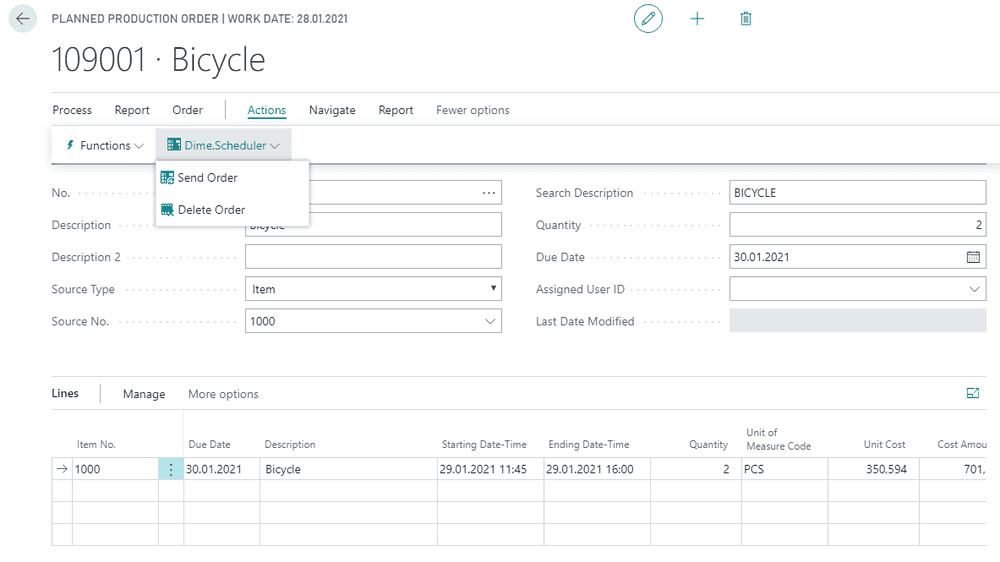
Creating production orders
The flow is straightforward. Create a production order, run the send to Dime.Scheduler action, and the connector gathers everything about the order and its work items and ships it across. Three entities make the trip:
- Production orders
- Production order lines
- Production order routing lines
Dime.Scheduler keeps the relationship between an order and its lines intact, mapping each level onto its own record type. The production order is captured at the Job level, the production order line at the Task level, and each production order routing line becomes an Appointment. When an order has several lines, those lines all link back to the same job, so once they are planned they still trace to the production order they came from.
Here is where this module parts ways with the others. Sending the order creates the tasks, but the appointments are not yours to place by hand: they are created automatically from within Business Central. Dime.Scheduler leans on the production and routing rules in BC to build the planning, so the moment you send a production order, the appointments are already on the board.
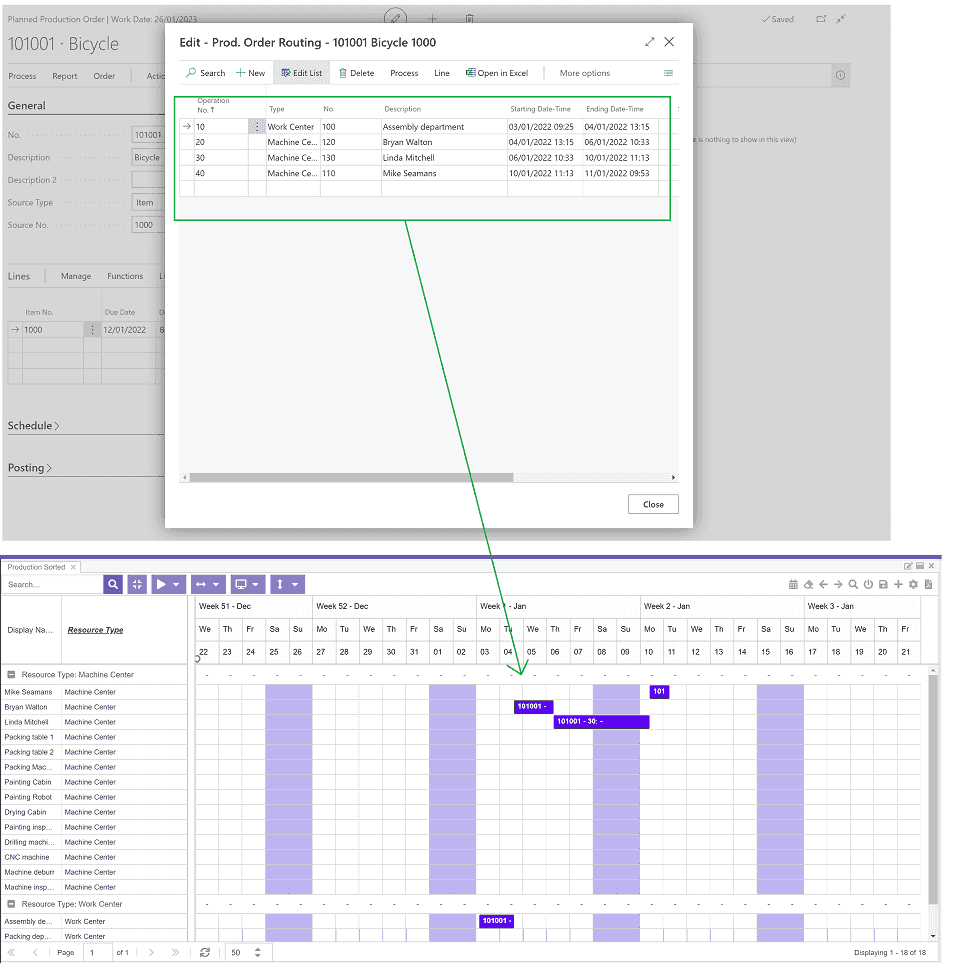
Planning production orders
For the same reason, there are no open tasksOpen taskA task that has not been scheduled yet. It waits in the open task list to be placed on the planning board. waiting in the open tasks grid for you to drag onto the board. Business Central already knows which machine and work centers are allocated to each task, so Dime.Scheduler simply visualizes the planning that BC produced rather than asking you to assemble it.
That link runs both ways. Because each production order routing line corresponds directly to an appointment, moving an appointment is handed straight back to the production routing engine in Business Central, which validates the change and recalculates the rest of the order routing when it needs to. In the example below, shifting one appointment ripples through the other steps in the production order.
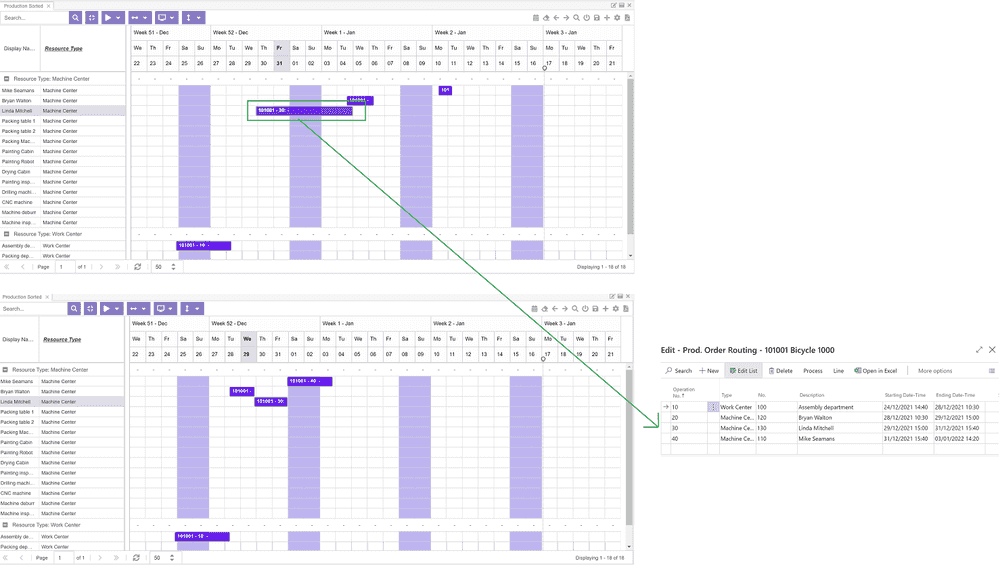
In short, Dime.Scheduler keeps standard Business Central functionality in charge and adds visual scheduling on top of it.