Jobs
A jobJobA high-level container, comparable to a project, that bundles related tasks together with common information such as customer, billing, and address. in Business Central knows what work has to happen and what it may cost, but not who does it or when. That is the gap this module closes. It sets up a bidirectional flow between the jobs/projects module in Microsoft Dynamics 365 Business Central and Dime.Scheduler, so the same job a project manager budgets in BC becomes something a planner can drag onto a timeline, and every scheduling decision flows straight back as job planning linesJob planning lineThe Business Central record that books a resource on a project (job) task. Planning a project task in Dime.Scheduler creates or updates one.. This page covers enabling the module, deciding how jobs turn into tasksTaskA unit of work that belongs to a job. It appears in the open task list until it is scheduled to a resource., and planning them on the planning boardPlanning boardThe main graphical scheduling surface where dispatchers drag tasks onto resources across a timeline. or the Gantt chartGantt chartA timeline view for long-term project planning, showing tasks, durations, dependencies and milestones..
The two videos below show the two ends of that spectrum: quick ad-hoc planning, and long-term project planning with dependencies.
Ad-hoc planning
Long-term project planning
Setup
The FastTrack WizardFastTrack wizardThe setup wizard inside Business Central or NAV that connects it to Dime.Scheduler and switches on the modules to plan from. It writes the source app and creates the source types for each enabled module. is where you set the defaults for how jobs cross over into Dime.Scheduler. These are starting points: most can be overridden per project later, so you are configuring what happens when nobody says otherwise, not locking anything in.

Enable jobs solution
Nothing flows until the module is on. Tick the Enable Job Planning switch to turn it on.
Creating tasks
The first decision is how granular the planning should be: is a job one thing to schedule, or a collection of smaller pieces? Two checkboxes set the default source in BC for creating tasks in Dime.Scheduler:
- To create a single task in Dime.Scheduler for the job: select
Send Job as Task. - To create a task for each job task line or job planning line: select
Send Tasks with Job.
These are defaults only. You can override them per project when a project calls for different settings (see Creating jobs below).
Default duration
When a planner drags a task from open tasksOpen taskA task that has not been scheduled yet. It waits in the open task list to be placed on the planning board. onto a resource on the planning board, the planned taskPlanned taskAn appointment together with the resources assigned to it - the full picture of what will be done, by whom, and when. has to start somewhere, so it defaults to a duration of 1 hour. To use a different default, enter it in Default Duration Job Task.
Indicators
Color is how a planner reads a board at a glance, and the Default Category field decides which BC field drives the color of a planned task when it is dragged from open tasks onto a resource:
- Select a job posting group.
- Leave blank to use the default color (blue).
The video below shows this in action. It uses service orders, but the behavior is identical for jobs:
Filters
To let planners narrow jobs down to the person accountable for them, select Create Person Responsible Filter and enter the name users will see in Dime.Scheduler. The FastTrack Wizard creates the configuration for the Person Responsible Filter, and BC then sends the person responsible for each job to Dime.Scheduler.
Gantt planning
Some jobs are simple enough for the board; others are projects with dependencies and milestones that belong in the Gantt chart. Select Plan In Gantt Chart to plan jobs there. The scheduling mode can be one of:
- Normal
- Fixed Duration
- Effort Driven
- Dynamic Assignment
Timesheets
Select Update Time Sheet from Planning Board to have BC's time sheetTime sheet (Business Central)The Business Central record that registers hours per employee. Dime.Scheduler can fill it from the plan (planned time) or from released time entries (time registration); running both for the same work registers the hours twice. kept in step with the plan automatically: the resource's time sheet is created or updated whenever a task is allocated to a resource or a planned task is modified in Dime.Scheduler, so nobody re-enters hours by hand.
Usage
Actions
The default actions on this page are extended with the following items.
List Actions
See common actions for an overview of the list actions for this type.
Card actions
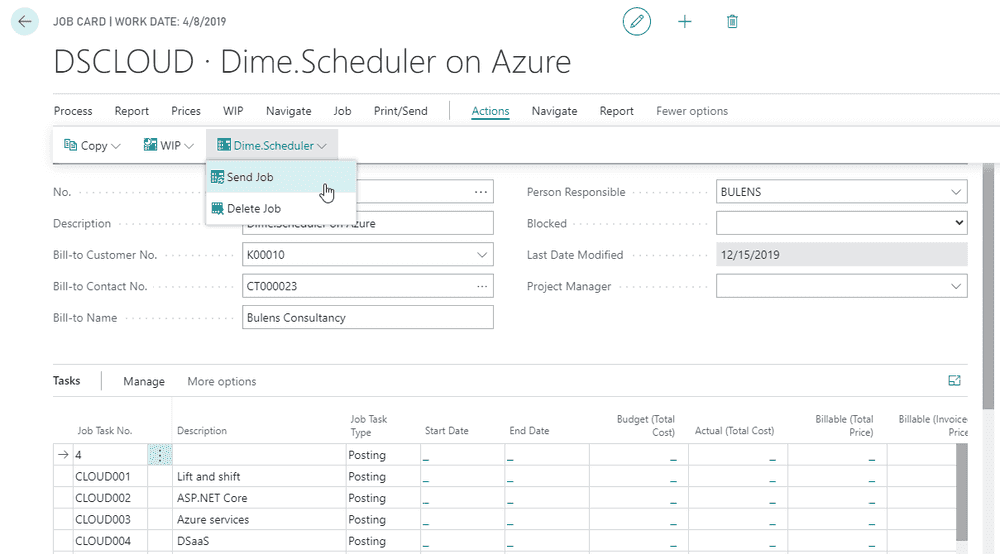
Two actions are added to the job card, Send job and Delete job, so a project manager can push or pull a single job straight from the card they are already looking at.
Creating jobs
The mechanism is straightforward: create a job, invoke the send to Dime.Scheduler action, and the connector gathers everything relevant about the job and its job tasks and sends it over. The entities it pulls together are the Job, its Job tasks and Job planning lines, plus the Customer and Contact behind it, so the planner sees the work and who it is for in one place.
As with the other modules, the general setup lets you connect a field of the job or item to an appointmentAppointmentA task scheduled to a resource for a specific period - the scheduled instance you see on the planning board.'s visual indicators. For example, a categoryCategoryA visual indicator (a color) applied to appointments to classify or label them. can reflect the job's posting group. That is the default, but you can BYOBL (Bring Your Own Business Logic) to Dime.Scheduler and use other fields as the source for an appointment's color-coded indicator. Further settings tune the defaults, such as default duration job task, which sets an appointment's duration when the task is dragged onto the planning board.
Beyond that, the connector adds a handful of settings that shape how a job behaves once it is in Dime.Scheduler:

Planning levels
Dime.Scheduler keeps the relationship between a job and its job tasks intact: the job itself is captured at the Job level, while job tasks map to Task records. When a job has multiple lines, those lines all link back to the same job, so once planned they trace back to where they came from.
That relationship is configurable through three planning levels:
- Job
- Job task
- Job planning line
Choose Job for a 1:1 relationship, where the task simply is the job. Choose either of the others to use the job tasks or the job planning lines as the tasks in Dime.Scheduler, which is what you want when a single job needs to be planned in pieces.
Budget level
A job is rarely an open-ended commitment, and the budget is how that limit is enforced. It works much like the planning level, but its job is to cap the budget: the maximum time the task is allowed to be scheduled for.
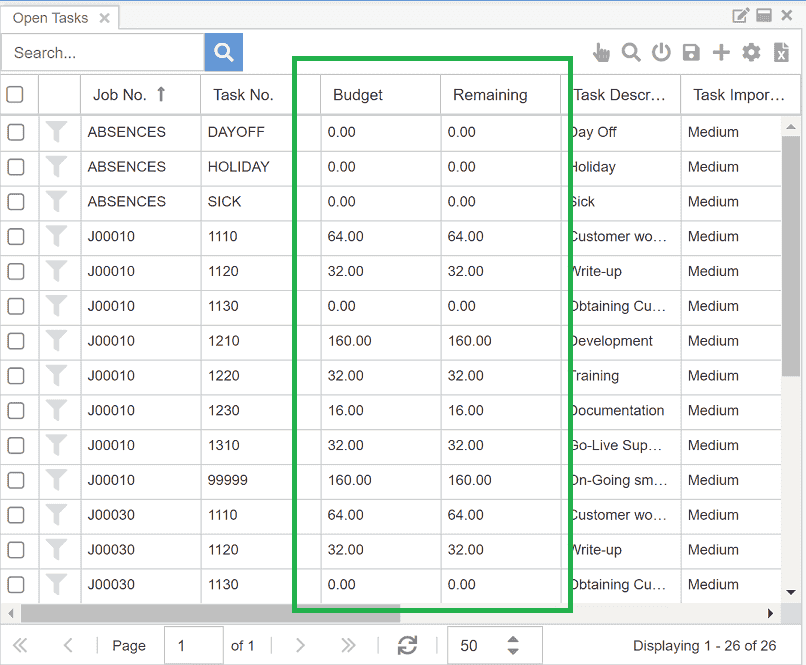
The budget is expressed in time, and a task is not meant to be scheduled beyond it. Every time an appointment for the task is created, updated, or deleted, the remaining budget is recalculated. When it hits zero the task is considered closed and drops off the open tasks list, so planners stop seeing work that is already fully scheduled.
There are four levels, each reading the budget from a different place:
-
Job: the
Planning Budgetfield is used.
-
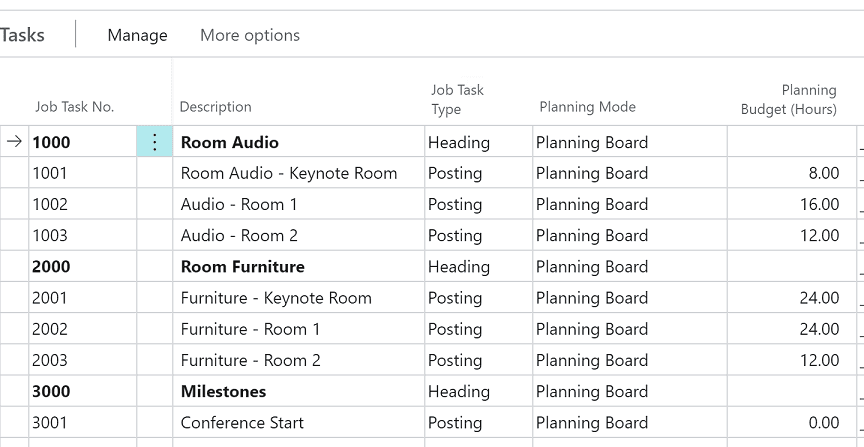
Job task: the planning budget column in the job tasks subsection is used.
-
Job planning line: the quantity field determines the task's budget.

-
Infinite: there is no limit, so the task never disappears from the open task list until the project is completed.
Planning status
The Planning status controls whether a job is even open for planning, and has three states:
- Open
- Planning
- Completed
An Open job is unconfirmed; a Completed job has been fully scheduled and finished. Only jobs set to Planning show up in the Dime.Scheduler open tasks list, which keeps unconfirmed and finished work out of the planner's way.
Planning modes
Jobs can be scheduled in two components that serve very different purposes. Ad-hoc planning usually happens on the planning board, while long, complex projects with dependencies and milestones belong in the Gantt chart. The planning mode picks which one applies.
The two modes are exclusive. Set the mode to the planning board and the job is not available in the Gantt chart; set it to the Gantt chart and the planning board is off-limits for that task, so resource planning has to happen in the Gantt chart. Either way the records still appear in the open tasks list, but drag and drop is disabled when Gantt mode is in force.
Gantt Scheduling Mode
When Gantt mode is selected, an advanced setting controls how the project schedules itself:
- Normal
- Fixed duration
- Effort-driven
- Dynamic assignment
Consult the Gantt chart docs to learn what each mode does.
Planning behavior
Scheduling a task in Dime.Scheduler has to leave a trace in Business Central. The planning behavior decides what that trace is:
- Create a budget job planning line
- Create a billable job planning line
- Create a budget and billable job planning line
- Do nothing
Planning jobs
There are two ways to schedule jobs, the planning board and the Gantt chart, each targeting a different planning type. Once planned, both are processed in exactly the same way:
- The open task grid holds the work waiting to be planned. To plan a task, drag it onto the right timeslot for the right resource on the planning board. That single drag registers a task for the job.
- Gantt chart project tasks also appear in the open task list but cannot be dragged to the board. The planner opens the project in the Gantt chart and assigns resources there. On save, Dime.Scheduler generates the appointments and sends them to Business Central.
Behind the scenes, a job planning line for the job, job task, or job planning line is created automatically in Business Central according to the job's planning settings. That line carries the details of the appointment you just planned, and the two stay tied together: any change to the appointment is reflected in Business Central automatically and immediately.
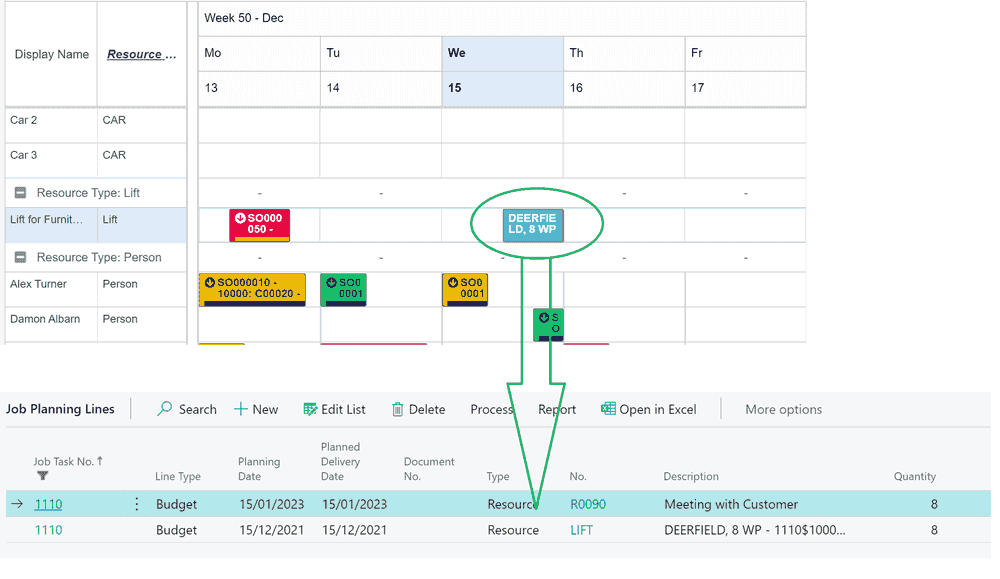
When the budget is set on the job planning line, the budget planning line's quantity drops by the same amount as the appointment scheduled on the planning board. In the example above, the original budget was 16 hours; after scheduling a task, 8 hours remain.
You can also tie the planning to the time sheets module in Business Central. With the Update Time Sheet Service flag active, the connector inserts, updates, or removes a time sheet entry on its own.
In short, this module builds on standard Business Central jobs and adds the visual, drag-and-drop scheduling layer they lack.