General
The FastTrack wizard gets a connection running fast, but it deliberately leaves two switches off the happy path. Both live on the 'Dime.Scheduler Setup' page, and both decide how Business Central behaves when planning data and order data fall out of sync:
- Check appointments on delete
- Notify appointment errors
This page explains what each one does and when you want it on.
You can find the wizard by looking for Dime.Scheduler Setup in the search bar.

Check appointments on delete
Picture the everyday slip: someone removes an order from Business Central that still has planning sitting in Dime.Scheduler. Delete it blindly and that planning is gone with it. With this switch on, Business Central stops you instead:
The specified job JOB12345 cannot be deleted because it is associated with existing appointments. Please remove the appointments first, or retry this command with CheckAppointments set to 0.
The message already names the lever. Behind it, Dime.Scheduler's API exposes a CheckAppointments flag on both the job and task delete endpoints, which decides whether to confirm it is safe to remove the record before any planning data is lost:
- When set to true, the message above is thrown and the job is not removed from Dime.Scheduler.
- When switched off, the job is removed along with all underlying tasks and planned appointments.
The global Check appointments on delete setting is what the Dime.Scheduler extension in BC reads, then passes along with every request to remove tasks and jobs. It applies globally, so you set the safe default once. When a particular flow needs to behave differently, you can override it with custom extensions built on top of Dime.Scheduler's extension in Business Central.
Notify appointment errors
Dime.Scheduler keeps a trail of every interaction it initiates with connected backoffice systems like Business Central, Exchange, and webhook connections. This audit trail is available inside Dime.Scheduler itself, and it is where you go to confirm that a piece of planning actually made it across.
There is a subtlety in what "made it across" means. When Dime.Scheduler posts data to the connected system, it marks that transaction as successful the moment the data is written to the Dime.Scheduler Appointments table, the staging table on the BC side. From there a routing table, the Dime.Scheduler Source Types list, invokes a code unit whenever a new item is added to the list. That happens on every insert, update, or removal of an appointment in Dime.Scheduler, and the code unit processes the planning information Dime.Scheduler provided.
The catch is that landing in the staging table is not the same as being processed, and processing can fail for many reasons. In the image below the assigned resource is missing a 'Unit of Measure':
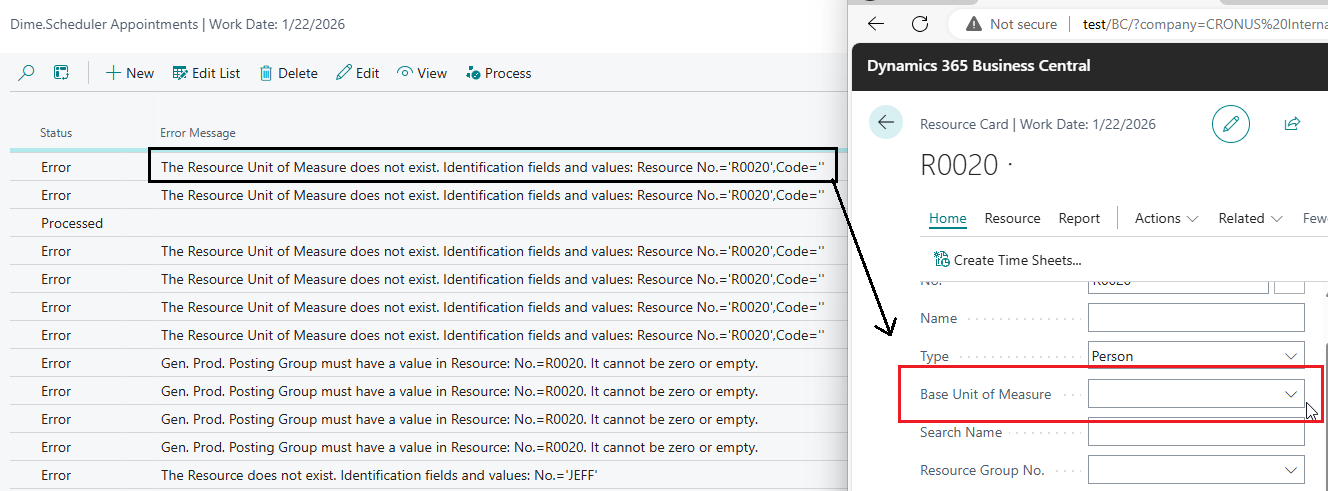
So the appointment carries the status Error in BC, even though Dime.Scheduler considers it sent successfully. Without any feedback, the planner is left wondering why the appointment never showed up in the expected tables. The staging table is there for diagnostics, but reading it is a developer's job, not a planner's.
That is the gap this switch closes. With 'Notify appointment errors' set to true, any error produced in BC is sent back to Dime.Scheduler as a 'Notification':
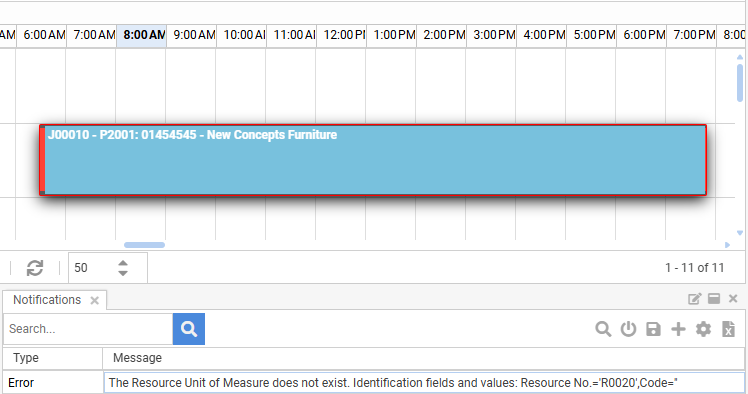
The failure now surfaces where the planner is already working, instead of going silent until someone digs through the staging table. Turning the switch on trades that confusion for a clear signal.
Here is how the transaction system works in Dime.Scheduler in tandem with Business Central. Step through the happy path on the USA tenant and then the failure case on the Canadian tenant:
USA tenant sends work
The USA Business Central tenant pushes its jobs, tasks, and resources into Dime.Scheduler. Every record is tagged with a Source App so it can be routed back to the right tenant later.