Filter value sources
A filter value only does its job if it actually reaches Dime.Scheduler. Document filter value sources are how you get it there: they tell Business Central where to look, and how to read, the filter values for every task and resource the connector sends. Without them, a filter group like 'Skills' or 'Department' is just an empty container. With them, BC walks the data graph behind each document and fills that container automatically.
Tasks and resources are generic terms within Dime.Scheduler and do not reflect any specific table in BC. As such, you can have multiple sources for both resources and tasks.
The setup is deliberately flexible about what happens when data is missing. You can set a default value and then override it once data is retrieved from tables further down in the hierarchy, which lets you set a value when nothing is defined in BC and a different value when something is. For instance, you can return "No" as the default when no skills are found for a task or resource, and "Yes" when skills are found.
Declare resource and task filter value sources
In Business Central, hit ALT + Q and open the 'Dime.Scheduler Doc. Filter Value Sources' administration page. Each row is a master source: it names a BC table and tells the connector whether that table feeds a task or a resource, and which fields identify it.
| Field, tab or group | Description |
|---|---|
| Table No. | Specifies the table number that is the source of the task or resource. |
| Comment | Free text for internal use. |
| Entity Type | Specifies whether the table refers to a task or resource in Dime.Scheduler. |
| Resource Key Field | Specifies the field that identifies the resource when Entity Type = Resource.This is the field sent to Dime.Scheduler as ResourceNo. |
| Job Key Field | Specifies the field that identifies the job when Entity Type = Task.This is the field sent to Dime.Scheduler as JobNo. |
| Task Key Field | Specifies the field that identifies the task when Entity Type = Task.This is the field sent to Dime.Scheduler as TaskNo. |
Because a task or resource is not tied to one BC table, you can declare as many sources as you need. The example below is part of the setup that ships with the standard connector: resources are pulled from the resources table as well as the work and machine centers, while planning is done for service item lines, sales lines, and so on.
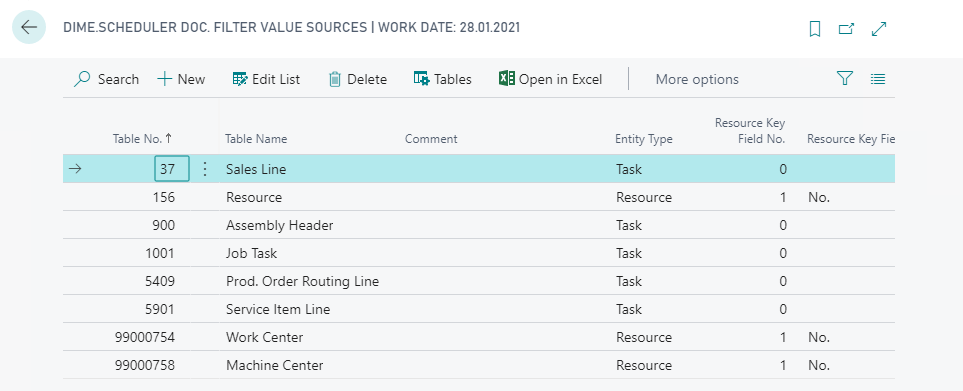
Declaring the master source is only the starting point. For every filter group the entity has values for, you then specify the source(s) and rules that fetch those values. You can link to any number of tables at any hierarchical depth, and for each table link you define how to retrieve its records and which filters and conditions apply.
Tables
In the ribbon of the 'Dime.Scheduler Doc. Filter Value Sources' list, select the 'Tables' menu item. This is a hierarchical list. The top-level item is the entity's base table and is created automatically. Each nested level underneath digs deeper into the entity's graph to declare more specific filter value sources, and Dime.Scheduler explores the entire graph when it builds filters for resources and tasks.
For each table you declare which table comes next and how its records are read:
| Field, tab or group | Description |
|---|---|
| Link to Table No. | Specifies the table number of the next table in the hierarchy. |
| Method | Specifies how the table is to be read:
|
Each table in the hierarchy is then shaped by four building blocks, covered in their own sections below:
- Links are the field(s) that connect the selected table with its parent. This is essentially a declarative relationship builder that defines how to navigate across the graph. For instance, you'll typically link the
Document No.field of a line with theNo.field of a header. - Filters limit the records retrieved from the selected table. For instance, you can generate a filter that only retrieves records that are not blocked.
- Conditions are filters on the parent table that decide whether the link applies at all. For instance, only link the line table (the parent) with the item table (the child) when the line type is of type item.
- Fields are the fields that supply a filter value. Here you can also specify default values and override behavior.
Links, filters and conditions cannot be defined for base tables.
Links
On this page, hit ALT + Q and look for 'Links', or select the 'Links' item in the ribbon. A link pairs a field on the parent with a field on the child so BC knows how to join the two; you can specify any number of links between them.
| Field, tab or group | Description |
|---|---|
| Link from Field No. | Specify the field from the parent table. |
| Link to Field No. | Specify the field from the child table to connect it with the field from the parent table (link from field no.). |
Filter
On this page, hit ALT + Q and look for 'Filters', or select the 'Filters' item in the ribbon. A filter narrows the records retrieved from the child table. You can specify any number of filters; be aware that all of them are applied at once.
| Field, tab or group | Description |
|---|---|
| Link from Field No. | Specify the field from the selected table, the child table, on which to apply the filter. |
| Value | Enter the filter value; this can be any value which is recognized as a filter by BC. Option values are recognized and autocompleted. |
Conditions
On this page, hit ALT + Q and look for 'Conditions', or select the 'Conditions' item in the ribbon. Conditions look almost identical to filters, but they act on the parent table and gate whether the link applies. You can specify any number of conditions, and again all of them are applied at once.
| Field, tab or group | Description |
|---|---|
| Link from Field No. | Specify the field from the parent table on which to apply the filter. |
| Value | Enter the filter value; this can be any value which is recognised as a filter by BC. Option values are recognised and auto-completed. |
Fields
On this page, hit ALT + Q and look for 'Fields', or select the 'Fields' item in the ribbon. This is where a table actually yields a filter value. The sections below cover each column in more detail.
Filter group
Specify the filter group for which to set a filter value.
Field number
Specify the field that contains the filter value. This is an optional field, which makes it possible to use any kind of value or source. For instance, a custom dimension can be used as a field; see the use dimensions for filter groups guide for more info.
Fixed value
Where the field number reads a value out of the data, a fixed value lets you supply one yourself, either as a default or as an outright override.
Value
A free text field where you can enter a fixed or default value. For example, for a sales order you might use a fixed value 'Sales' for the 'Department' filter group. Each sales order, and only a sales order, then applies this filter.
Behavior
The behavior options work in relation to the field number above and determine how, and if, the fixed value is used as the filter value:
- None: The fixed value is used as the filter value if no field number is set.
- Overrule: The fixed value always overrules the value from the field number; you can use this to set a specific value when a record exists for field number, regardless of the value of the field number
- Overrule when empty: The fixed value overrules the value from field number only when the field number is empty.
Value when not found
A free text field where you can specify a value for the filter value if no record exists for the field number. Combined with the overrule behavior of the fixed value, this is what lets you return a Yes/No or true/false (or any other value pair) depending on whether a record exists.
Hierarchy behavior
The fixed value settled disagreements within a single level; hierarchy behavior settles them between levels. If you have set a value for the same filter group higher up in the hierarchy, these options decide whether the current level overrides it.
They only come into play when the current level actually returns a filter value. If a field number is defined but no fixed value is entered and no record is found at the current level, then this level has no filter value to contribute and is simply ignored.
- None: The current level does not override a filter value that was set at a higher level in the hierarchy. The current level does set the filter value if no filter value was set for the filter group.
- Overrule: The current level always overrules a filter value that was set at a higher level in the hierarchy.
- Overrule when empty: The current level overrules an empty filter value that was set at a higher level in the hierarchy.
Example: Skills
Theory only goes so far, so walk through the skills entity that ships preconfigured with the standard connector. For a service item line, the hierarchy is set up like this:
.
├── Service Item Line
│    ├── Resource Skills
│        ├── Skill Code
Building this hierarchy is a matter of telling Business Central three things at each step: how the tables are linked (link), what data to retrieve (filter), and which fields to compare against the filter value list of the 'Skills' filter group (field). That filter group uses table 5955 as the source of its filter values, so the service item line graph needs a path to reach that same table, which here means going two levels deep.
To navigate from the service item line to the resource skills, the Links tell Business Central to use the 'Service Item No.' field and join it with the Resource Skill's 'No.' field. The Filter indicates that this level should only yield records of type 'Service Item'. No Fields are mapped here, since you'll use the field from the next level.
To navigate from the resource skill to the skill code, the Links section tells Business Central to use the Resource Skill's 'Skill Code' and join it with the Skill Code's 'Code' field. No filters are applied here, since there's already one set at the level above. To use the right filter value reference, add a Field entry and link it to the Skill's 'Description'.
In essence, the filter group generates values from a source table (table 5955 - skills), and you navigate the path of a service item to link the skills required for that work item to a corresponding value in the filter values list.
For instance, in Business Central table 5955 could contain the following list:
.
├── Skills
│    ├── NETWORKING
│    ├── DATABASE
│    ├── PROGRAMMING
│    ├── DEVOPS
A simple filter group uses the entire source, without any filters, to create filter values:
.
├── Filter Group: Skill
│    ├── NETWORKING
│    ├── DATABASE
│    ├── PROGRAMMING
│    ├── DEVOPS
Service item lines allow you to specify required skills:
.
├── Service Item Line: "Upgrade SQL Server"
│    ├── Resource Skills
│        ├── Skill Code: DATABASE
│        ├── Skill Code: NETWORKING
Without the setup described above, Dime.Scheduler can't connect the dots. With this configuration, it knows how to map and compare these tables and values, so it appends the two requirements from the filter group needed to carry out the work to service order item "Upgrade SQL Server".
This is about as simple as it gets. You might also split the skills table into several filter groups. For example, you could have a filter group called "System Admin Skills" and another named "Developer Skills", and allocate each skill to the right group. There is no right or wrong here; it is up to the customer to decide how to set up the filter groups.