Common actions
Nothing in Dime.Scheduler can be planned until it exists in Dime.Scheduler, and getting it there is the whole point of the back-officeBack officeThe ERP or business system Dime.Scheduler plans for - most often Microsoft Dynamics 365 Business Central. It owns the master data and remains authoritative over what it receives. connectorConnectorAn integration that links Dime.Scheduler to a back-office system, routing data in and scheduling decisions back out.. In Microsoft Dynamics 365 Business Central, that handoff happens through a small set of actions wired onto entity cards and onto the lists those entities live in. Learn these once and they behave the same everywhere they appear.
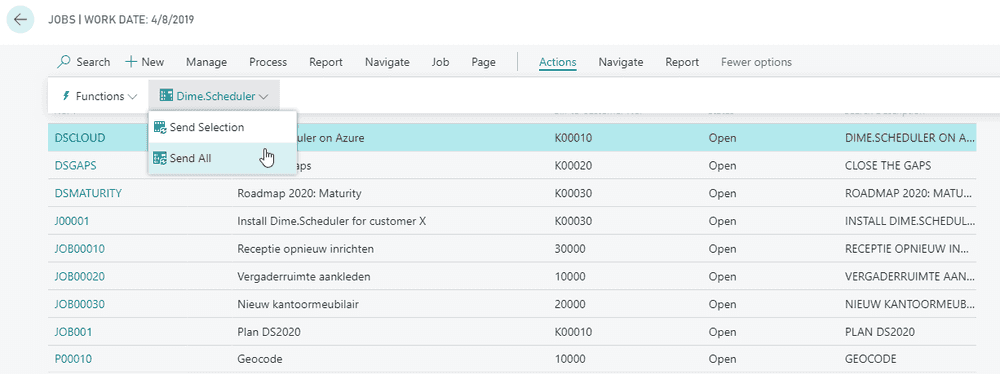
On a list, you work in bulk with two actions: Send selection (push only the rows you have selected) and Send all (push the entire list). Both are available on the following pages:
On a card, you work with a single record through two actions: Send entity and Delete entity.
Send record
You can send a record to Dime.Scheduler at any time, and you do not have to track whether it is new. If the record does not exist yet it is created; if it already does, it is updated. That makes the send action safe to repeat whenever something changes in BC.
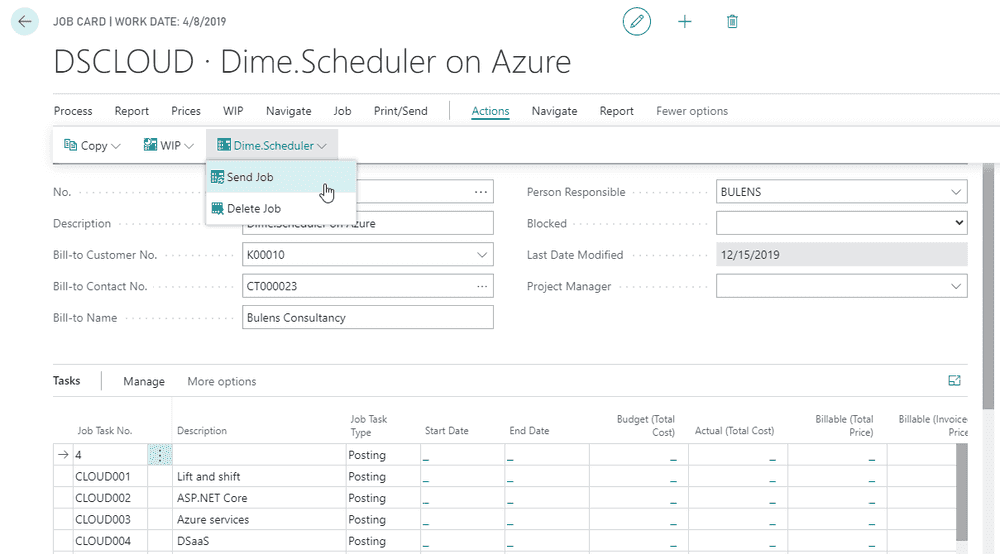
With the default behavior, each record in the tasks grid becomes a taskTaskA unit of work that belongs to a job. It appears in the open task list until it is scheduled to a resource. in Dime.Scheduler.
Send selected or all records
When you would rather push many records at once than open each card, work from the list. Click More Options, then Actions, and in the Dime.Scheduler menu choose to send the selected records or send all of them.
Delete record
Sending is reversible: you can pull an item back out of Dime.Scheduler even after it was sent earlier. Dime.Scheduler finds the right item to remove from the combination of SourceApp, SourceType, and the entity's No. field.
What happens next depends on whether anything has been planned against it. If no appointmentsAppointmentA task scheduled to a resource for a specific period - the scheduled instance you see on the planning board. exist, the action runs cleanly and removes the item and its associated tasks from Dime.Scheduler. If appointments have been planned, you may get an error telling you a planning exists, which is a deliberate guard against deleting work out from under a planner. To override that guard, switch off the Check Appointment on Delete flag on the Dime.Scheduler Setup pageDS SetupThe connector’s setup page in the back office (DS Setup in NAV, DS Connector Setup in Business Central). It holds the same settings as the FastTrack wizard, plus actions to send data manually. in BC.

Keep two things straight about what delete does and does not touch. Removing an item from Dime.Scheduler does not remove it from BC. The reverse is also true: removing an item in BC does not remove the corresponding item in Dime.Scheduler. That second case is the one to watch, because deleting an item in BC without also removing it from Dime.Scheduler leaves behind phantom jobsJobA high-level container, comparable to a project, that bundles related tasks together with common information such as customer, billing, and address., and Dime.Scheduler cannot write planning data back to a job that no longer exists in BC.