Establishing a connection with Dime.Scheduler
The FastTrack wizardFastTrack wizardThe setup wizard inside Business Central or NAV that connects it to Dime.Scheduler and switches on the modules to plan from. It writes the source app and creates the source types for each enabled module. is Business Central's way of answering one question: which Dime.Scheduler instance should this company talk to, and how should it identify itself? Once you've answered that on one page, the rest of BC's integration knows where to send its traffic, and the wizard moves on to the easy part - ticking off the modulesFastTrack solutionOne module of the Business Central or NAV connector that makes a kind of record plannable, such as service orders or production routing. Each has its own enable switch in the FastTrack wizard. you want to plan.
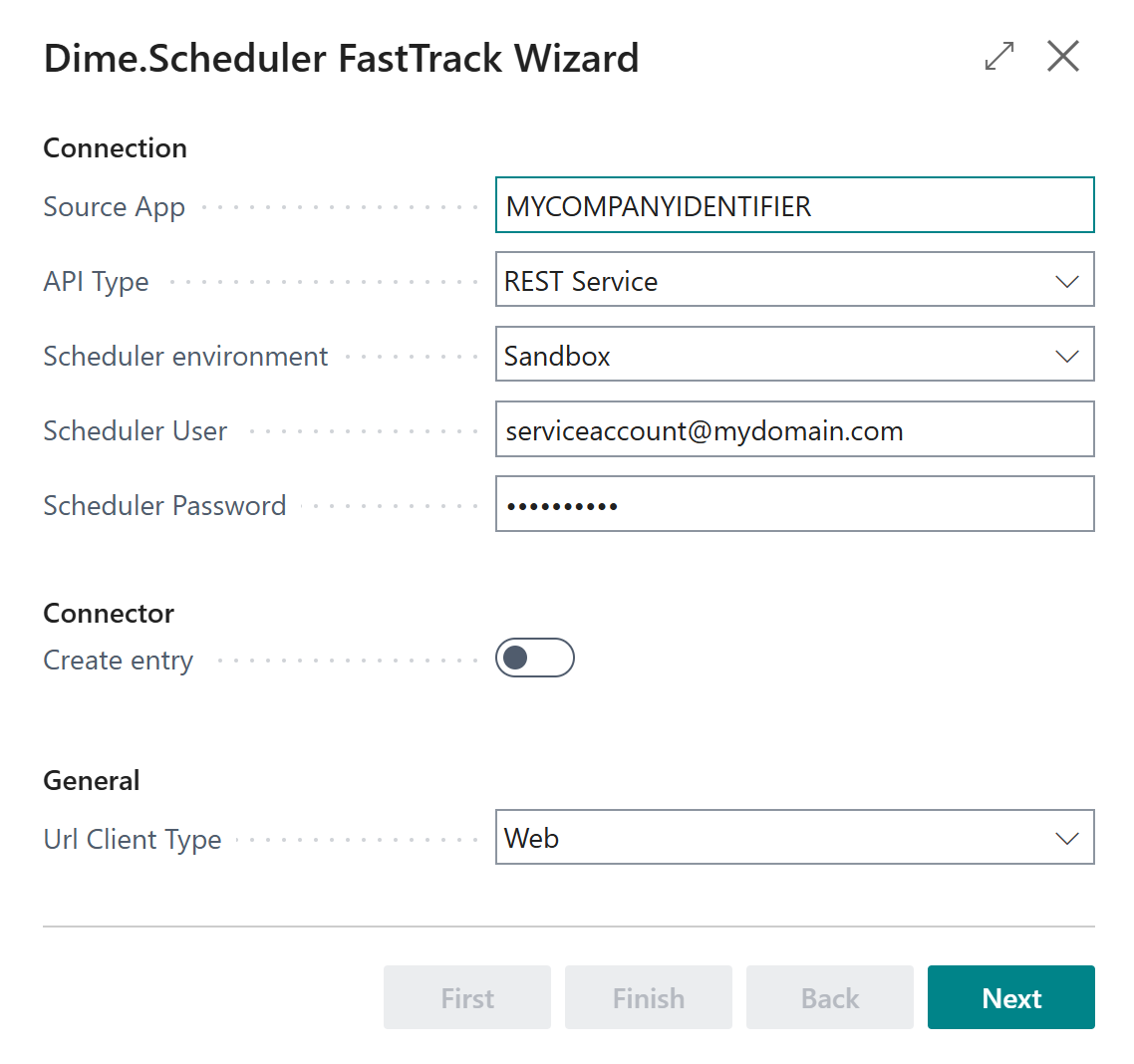
Open the wizard by searching for Dime.Scheduler FastTrack Wizard in Business Central.
Identifying this BC company
A single Dime.Scheduler installation can receive data from many places at once: multiple BC companies, multiple BC tenants, even other ERPs. For that to work without anyone stepping on anyone else, every record that arrives at Dime.Scheduler is tagged with a source application codeSource appAn identifier Dime.Scheduler attaches to data so it can route a change back to the correct back-office system. (SourceApp) - a short label that says "this came from over here, send any planning answers back to over here."
The wizard generates that code from the company name; you can change it to anything you like. The one rule is non-negotiable: if two companies, databases, or applications share a Dime.Scheduler tenant, they must use different SourceApp codes. Reuse one across two sources and Dime.Scheduler can no longer tell their records apart.
The back office is bound to a connector
Each back-office instance - a Business Central tenant, a CRM environment, an Excel sheet - is identified by a Source App. The connector is configured for that one Source App and nothing else, so Dime.Scheduler always knows which system any record came from.
When in doubt, keep the default.
Picking the right Dime.Scheduler
Dime.Scheduler is offered on two hosted environments: Production (app.dimescheduler.com) and SandboxSandboxThe separate Dime.Scheduler environment where upcoming features arrive before the production release. It has its own API host, sandbox.api.dimescheduler.com, so API clients target it explicitly. (sandbox.app.dimescheduler.com). Production is the paid environment where most customers live; Sandbox is a free environment for trials, training, and rehearsing a setup. If you're not sure which one you have, you almost certainly have Production - the environment field on the wizard is how you tell BC which one to talk to.
This is the Dime.Scheduler environment, not BC's. The two are unrelated - a sandbox BC company can talk to production Dime.Scheduler, and the reverse is just as common. Pick the wrong one here and the wizard will happily push your data into the other one, so it's worth a second look before you click on.
How BC authenticates
Dime.Scheduler accepts two flavors of credential. Use the first one.
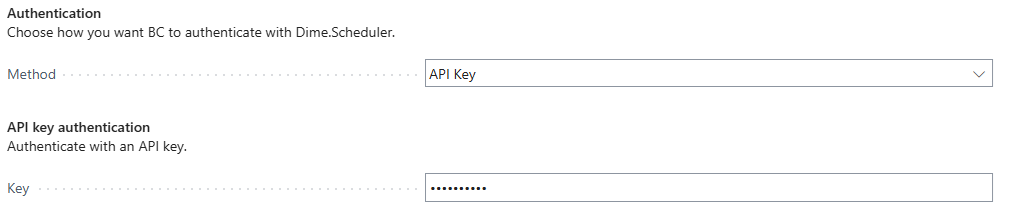
API key (recommended)
API keysAPI keyA credential that authenticates calls to the Dime.Scheduler API. The preferred way to integrate over the deprecated JWT flow. are the modern, scoped, revocable way for one system to authenticate against another. Create one in Dime.Scheduler, paste the value into the wizard, and you're done: no usernames, no passwords, and you can rotate or revoke the key later without disturbing any user account.
User / password
Use API keys instead. This method still works but is no longer recommended.
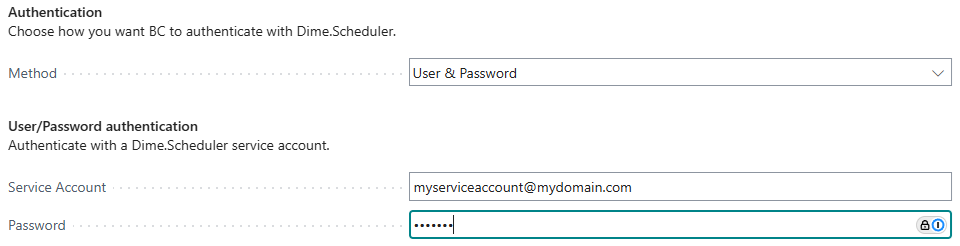
If you do go this route, the credentials must belong to a Forms user in Dime.Scheduler. Microsoft Entra ID users aren't supported by the integration services that handle this traffic.
Seeding the return path
The wizard only sets up the outbound channel - BC pushing to Dime.Scheduler. For the planning to flow back, Dime.Scheduler needs its own connectorConnectorAn integration that links Dime.Scheduler to a back-office system, routing data in and scheduling decisions back out. that knows how to reach this BC instance. You'll fill in the credentials for that connector on the next page, but the wizard offers to save you a few clicks by pre-creating the entry for you, already wired up to the right source app and environment.
Leave the seed a connector entry box ticked (recommended). On Business Central Cloud, also fill in the time zone field - Dime.Scheduler publishes appointmentsAppointmentA task scheduled to a resource for a specific period - the scheduled instance you see on the planning board. in UTC, and this is how it knows to translate them into your local time on the return trip.
Trying it
Click Next. The wizard immediately calls Dime.Scheduler with the credentials you supplied, and tells you what happened.
- Success means the outbound channel is live. If you ticked seed-a-connector-entry, a half-finished connector entry is now waiting for you on the Dime.Scheduler side, ready for its return-path credentials.
- Failure is almost always one of three things: the API key is wrong, the wrong environment is selected, or the BC instance can't reach the Dime.Scheduler URL at all (firewall, DNS, proxy). Recheck the settings; if they look right, escalate to whoever maintains your Dime.Scheduler tenant.
Next: configure modules
The connection is live. Now choose which modules to plan - click a module below, or head to the modules overview.
FastTrack is a quick-start utility. You can extend the standard extension to fit your vertical or custom solution - here's an example.