Outbound queue
Both features on this page are switched off by default. Existing installations keep behaving exactly as before until you turn them on.
Out of the box, every time someone in Business Central saves a jobJobA high-level container, comparable to a project, that bundles related tasks together with common information such as customer, billing, and address., moves a service orderService orderA Business Central service management document. The service order solution plans it as one task or as one task per service item line, and writes the assignment back as a resource allocation. allocation, or posts a routing line, the connectorConnectorAn integration that links Dime.Scheduler to a back-office system, routing data in and scheduling decisions back out. opens an HTTP call to Dime.Scheduler and waits for it to come back before the user's action completes. That is simple and it works, but it ties a user's click to a network round trip: the record stays locked while the call is in flight, the user waits, and if Dime.Scheduler happens to be unreachable at that exact moment the call is simply lost.
The outbound queueOutbound queueThe Business Central table where records headed for Dime.Scheduler wait when asynchronous processing is on. A job queue entry dispatches them a few minutes later and retries failures. breaks that coupling. It gives you two independent capabilities:
- Logging keeps the synchronous behavior but writes every call to a table first, so you have a permanent record of what BC sent, when, on whose behalf, and whether it succeeded.
- Asynchronous processing goes a step further and stops sending during the user's action altogether. BC writes a queue entry and returns immediately. A recurring BC job queueJob queueBusiness Central’s scheduler for background work. The connector relies on job queue entries to process the outbound queue and to synchronize master data without blocking users. entry picks the entries up a few minutes later and does the actual sending, retrying anything that failed.
The result is a snappier UI, fewer table locks, and calls that survive a temporary outage instead of disappearing.
Turning it on
Both switches live in an Outbound Queue group that appears in two places: the DS Connector SetupDS SetupThe connector’s setup page in the back office (DS Setup in NAV, DS Connector Setup in Business Central). It holds the same settings as the FastTrack wizard, plus actions to send data manually. page and the Dime.Scheduler FastTrack WizardFastTrack wizardThe setup wizard inside Business Central or NAV that connects it to Dime.Scheduler and switches on the modules to plan from. It writes the source app and creates the source types for each enabled module.. They hold the same four settings, so use whichever you happen to have open.
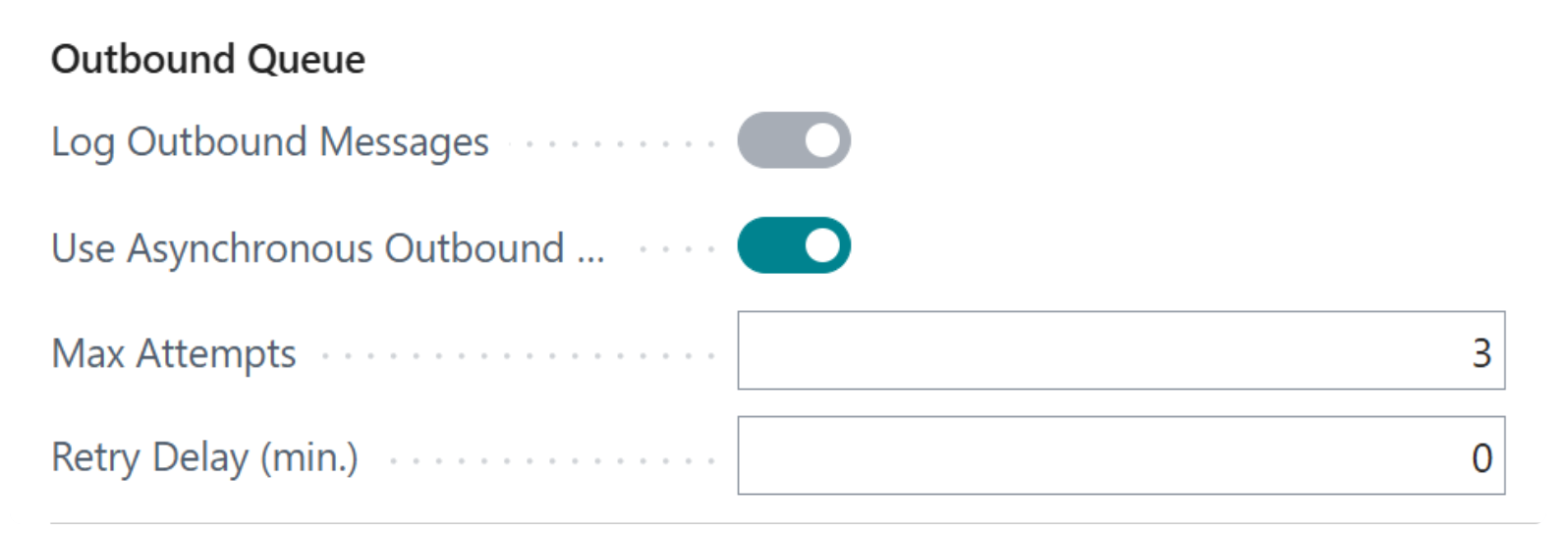
| Setting | What it does |
|---|---|
| Log Outbound Messages | Writes every outbound call to the outbound queue as a record of what was sent. Calls still go out immediately. |
| Use Asynchronous Outbound Queue | Stops sending during the user's action. Entries are written to the queue and sent later by the job queue. |
| Queue Max Attempts | How many times a failing entry is retried before the background job gives up on it. Defaults to 3. |
| Queue Retry Delay (min.) | How long a failed entry waits before it becomes eligible again. Defaults to 0, which means the next run picks it up straight away. |
The two toggles are not independent in one direction: asynchronous processing needs the queue to exist, so switching it on switches logging on with it and greys the logging field out, which is why Log Outbound Messages appears locked in the screenshot above. Logging on its own is perfectly valid, and it is the lower-risk way to start: you get the full audit trail without changing how or when anything is sent.
The job queue entry
Queue entries do not process themselves. Something has to run the DS Process Outbound Queue codeunit on a cadence, and in Business Central that something is a job queue entry. This is a different entry from the one that drives master data synchronization; the two are unrelated and run on their own schedules.
The connector creates it for you. If you enable asynchronous processing in the FastTrack Wizard, the wizard creates the entry as you move past that step. If you enable it on the DS Connector Setup page instead, use the Create Job Queue Entry action. Either way you get one entry, set to run every 5 minutes, and BC offers to open it straight away:
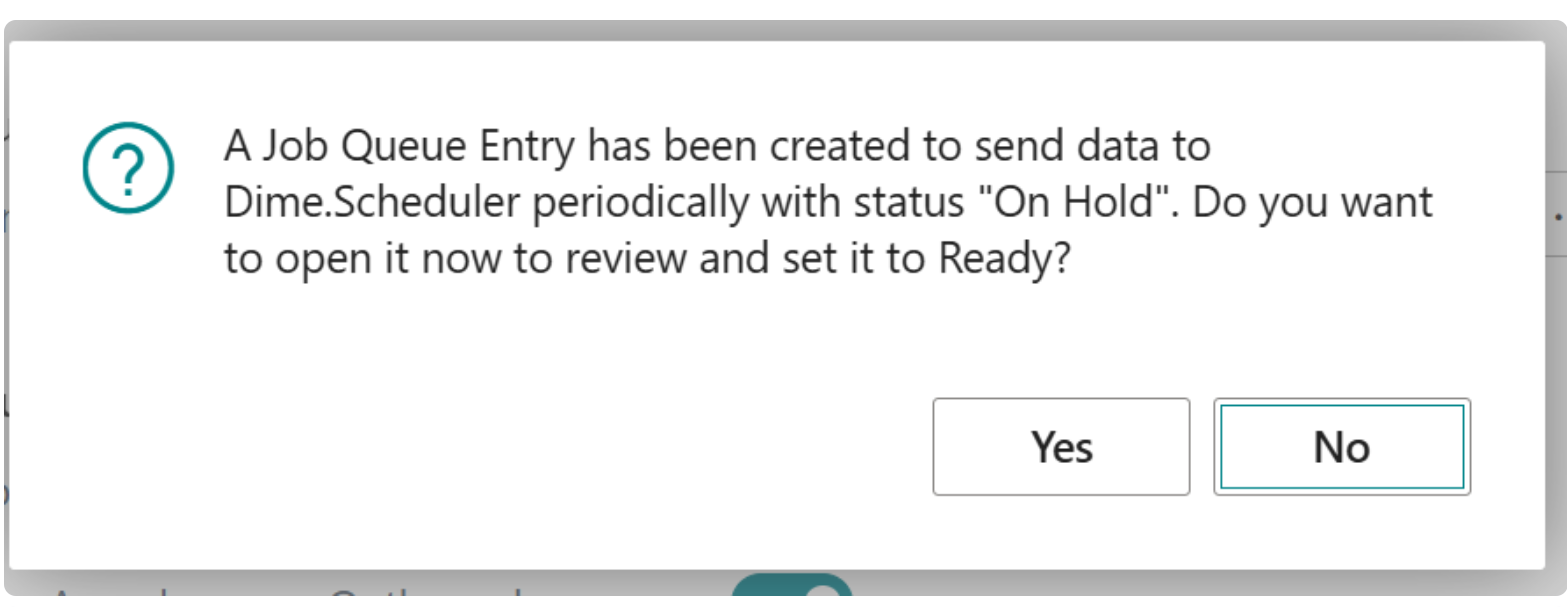
Two things to know about that entry:
- It is created On Hold. Nothing is processed until you set it to Ready, using the action of that name on the job queue entry card. This is deliberate, so that enabling the setting never starts pushing data at a moment you did not choose.
- The 5 minute interval is only a starting point. Change No. of Minutes between Runs on the entry itself. Shorter intervals mean planners see BC changes sooner; longer intervals batch more work per run.
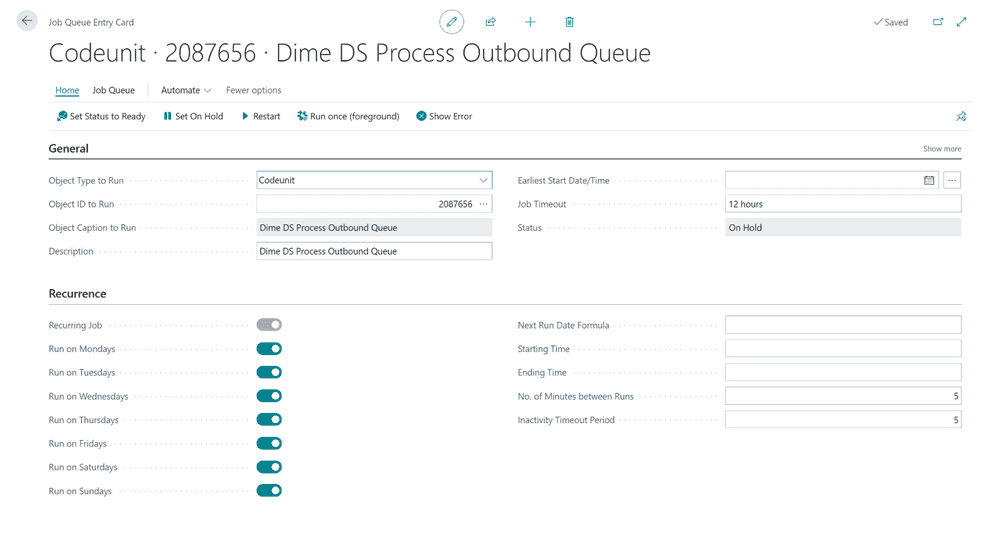
The Open Job Queue Entry action on the setup page takes you straight to it. If the entry was deleted at some point, that action tells you so, and Create Job Queue Entry makes a new one.
With asynchronous processing enabled and the job queue entry on hold, nothing reaches Dime.Scheduler. If planners report that BC changes have stopped arriving, this is the first thing to check.
Reading the queue
Search Business Central for Dime.Scheduler Outbound Queue to open the log. Every row is one call, newest first, and carries both the technical detail and enough business context to recognize what it was about: the procedure that was called, the source typeSource typeAn identifier that, together with the source app, tells Dime.Scheduler which back-office table a record belongs to. and record number, and where applicable the job, task, appointment and resource involved. The User ID column tells you whose action triggered it.
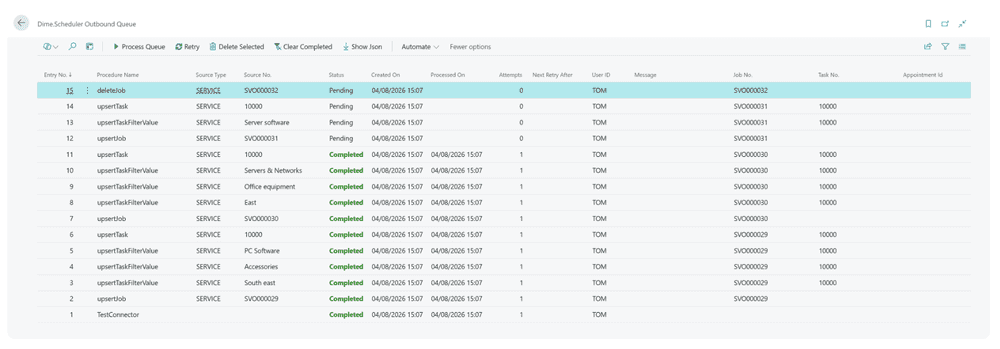
Each entry has one of four statuses:
| Status | Meaning |
|---|---|
| Pending | Written to the queue, not sent yet. |
| Processing | Currently being sent. |
| Completed | Successfully delivered to Dime.Scheduler. |
| Error | The call failed. The Message column holds the error text returned. |
Failed entries also carry Attempts and Next Retry After, which together explain what the background job will do next: it skips anything that has already used up its Queue Max Attempts, and anything whose retry time has not yet arrived. An entry that exhausted its attempts is not lost, it simply stops being retried automatically and waits for you.
From the page you can:
- Process Queue runs everything pending and failed right now, without waiting for the job queue. Run manually like this, it deliberately ignores the max attempts and retry delay limits, which makes it the natural thing to click after you have fixed whatever was causing the failures.
- Retry resets the selected entry back to Pending with its attempt count cleared, so the next background run treats it as new.
- Show Json downloads the exact payload that was or will be sent, which is usually the fastest way to understand why Dime.Scheduler rejected something.
- Clear Completed and Delete Selected clean up entries you no longer need.
Keeping the table from growing forever
If you log every outbound call, the queue table grows with every change your users make. On an active installation that adds up quickly, so plan for cleanup rather than discovering the problem later.
Business Central already has the mechanism: retention policies. The connector registers the outbound queue table (2087643) as an allowed table when it is installed or upgraded, along with a sensible default: delete entries that are Completed and whose Processed On date is more than 6 months old. Completed entries only, so nothing still waiting or in error is ever swept away.
Registering the table does not create the policy. To activate it, search for Retention Policies, add a new one, and select table 2087643. Adjust the retention period or the filter if six months is not the right answer for you.
Where this leaves you
If you only enable logging, nothing about the integration's timing changes. You simply gain a searchable history of everything BC sent, which is worth having on its own for troubleshooting.
If you enable asynchronous processing, the shape of the integration changes: BC stops waiting on Dime.Scheduler during user actions, and delivery becomes eventual rather than immediate, bounded by your job queue interval. For most deployments that trade is clearly worth it. If some part of your process genuinely depends on Dime.Scheduler being updated the instant a record is saved, keep that in mind when choosing the interval.