Back Office Connector
Appointment status
The back officeBack officeThe ERP or business system Dime.Scheduler plans for - most often Microsoft Dynamics 365 Business Central. It owns the master data and remains authoritative over what it receives. connectorConnectorAn integration that links Dime.Scheduler to a back-office system, routing data in and scheduling decisions back out. pushes appointmentsAppointmentA task scheduled to a resource for a specific period - the scheduled instance you see on the planning board. from Dime.Scheduler to the back office, and plenty can go wrong along the way: a server might be down or unreachable, blocked by a firewall, or running an incompatible software version. To make diagnosis easier, the Dime.Scheduler Back Office connector tags each appointment with a status code that points to the kind of problem it hit:
| Status | Description |
|---|---|
| Success | The record has been sent successfully to the back office |
| MBOC Publish Disabled | The connector is disabled - all records with this connector will be ignored. |
| MBOC Not Provided | The appointment is not linked to a task and job (which links to the MBOC setting) |
| Invalid MBOC Back Office System | The back office system type (e.g. CRM, NAV, BC) is not set. |
| Invalid MBOC Back Office Type | The back office system type is not recognized or valid. |
| Invalid MBOC URI | The connector's web service URI is empty. |
| Skipped | Set when an appointment is valid but not processed by the back office plugin, for example when an appointment has been processed with a later timestamp. |
| Failed | An unhandled exception occurred. |
Most of these errors come from the MBOC setup. To resolve them, make sure the data is configured correctly. See the connector setup guide for details.
Once the setup is correct, the only status you should expect to see is "Failed".
The exception's stack trace is recorded in the logs and in the details view of the web application, so you (and later, Dime.Scheduler's support team) can analyze the problem. For example, an error that starts with System.Web.Services.Protocols.SoapException: DifferentTableIdsMessage already hints at the cause: here it points to an invalid mapping of a code unit.
One caveat about the "Success" status: it only means the back office received the record. The record may still be invalid - only the business logic inside the back office system can determine that.
Administration portal
The Dime.Scheduler Back Office Plugin website lets you monitor all communication between Dime.Scheduler and the Dime.Scheduler Back Office Plugin (connector). It is usually installed on the same web server as the Dime.Scheduler Client application, but on a different port number. Check with your system administrator for the correct URL.
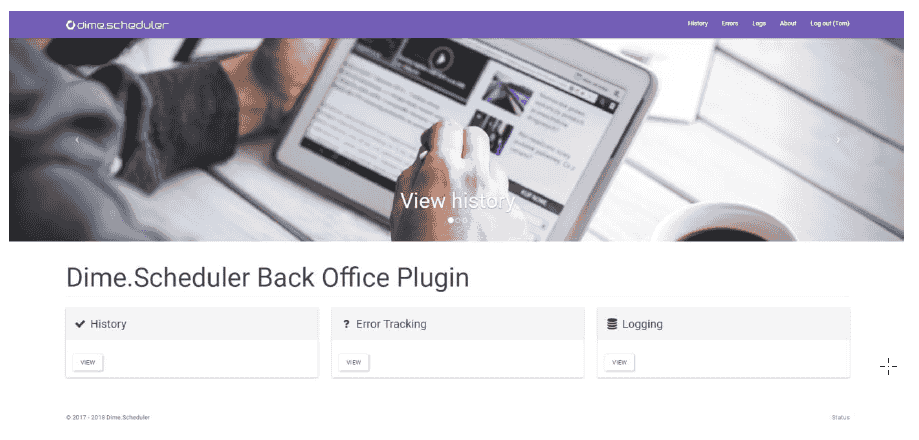
The website sits as a façade, or management application, between Dime.Scheduler and the back office, and shows the status of the connection between the two. It gives the administrator an overview of the appointments sent to the back office and a way to step in when an error occurs.
Authentication
This plugin uses a simple authentication and authorization mechanism. Local forms accounts secure the system.
Views
The website helps administrators monitor the connection between Dime.Scheduler and the back office. It is a management and reporting tool that supports diagnosing issues and provides the means to resolve them.
Appointments
The appointments view lists the appointments processed by the back office plugin. Here you can review their properties along with the status of each transactionTransactionThe recorded call Dime.Scheduler makes to a connected system when the planning changes. It counts as successful on an HTTP 200, which means the endpoint received it, not that the back office processed it..

By default, records are sorted in descending order by the date of the last transaction. To change the sort order, click any column header. To find a specific value (for example, all transactions for a given jobJobA high-level container, comparable to a project, that bundles related tasks together with common information such as customer, billing, and address.), click the filter icon and enter your filter criteria. Click the filter icon again to clear it.
Click the magnify button in the first column to open the details section.

The details section shows change tracking information and identification values for the back office application. Below this, the 'last activity' tab lists the transactions and their status. The MBOC Settings tab shows the connection details used to reach the back office application.
Transactions
The transactions view is similar to the appointments view, except it shows a flat list rather than a table grouped per appointment.
Error Tracking
Error Tracking shows transactions that were not sent successfully to the back office application. You can sort and filter the records as in the History list. In the details section, you can inspect the reason for the error and, if necessary, change the MBOC Settings before resending the transaction to the back office application.
 To act on many records at once, select them and use the "Archive All" or "Retry All" buttons to archive or resend the transactions to the back office application.
Logs
The logging view shows every message logged by the Dime.Scheduler Back Office application, which helps you spot issues.

Status
The Status screen, reachable via the link at the bottom-right of any page, indicates the state of the connection with the Dime.Scheduler Back Office Plugin Windows Service.

Automatic retry
When a transaction fails for any reason, it appears in the error list automatically. From there, you can retry it manually and adjust the MBOC settings if needed. Since Dime.Scheduler 2020.1.0, a timer job can do this for you: it queries every transaction with the 'Failed' status and runs it again.
This is an opt-in feature, so the CRON expression is empty by default. To enable it, open the appsettings.json file of the back office website and find the RetryJobCronExpression configuration item. Its value is a CRON expression. For example, "*/15 * * * *" means "At every 15th minute". Any value that follows the CRON syntax works here.
The Back Office website is optional
The back office plugin has two parts:
- The component that sends messages from Dime.Scheduler to the back office.
- The reporting dashboard.
The first is the Back Office Service, implemented as a Windows Service that continuously watches for new transactions in Dime.Scheduler's client application. The second is the Back Office Website.
To integrate Dime.Scheduler with the back office, you only need the Windows Service. The website is an optional feature, free of charge, for the benefit of Dime.Scheduler's administrators.