Configuration packages and quick start
Two pages in the admin centerAdmin centerThe page that lists every administration and settings screen with a search box, plus a strip of things needing attention such as failed transactions and license usage. move configuration around rather than editing it one setting at a time. The Configuration packages page turns the current tenant's setup into a file and applies such a file back. The Quick start wizard applies a ready-made template, or one of those files, to a tenant that has nothing yet. They are two ends of the same mechanism: one produces packagesSetup packageA portable JSON5 file describing a tenant’s configuration: profiles, layouts, users and settings. Also called a configuration package; it is composed, exported and applied from the Configuration packages page., the other consumes them.
The Configuration packages page
The Configuration packages page, reached from the admin center, is where packages are made and applied. It walks through four steps: pick what to include, review the profiles, review the layouts, then apply. From the same page you export the result as a file, and apply a file that came from another tenant.
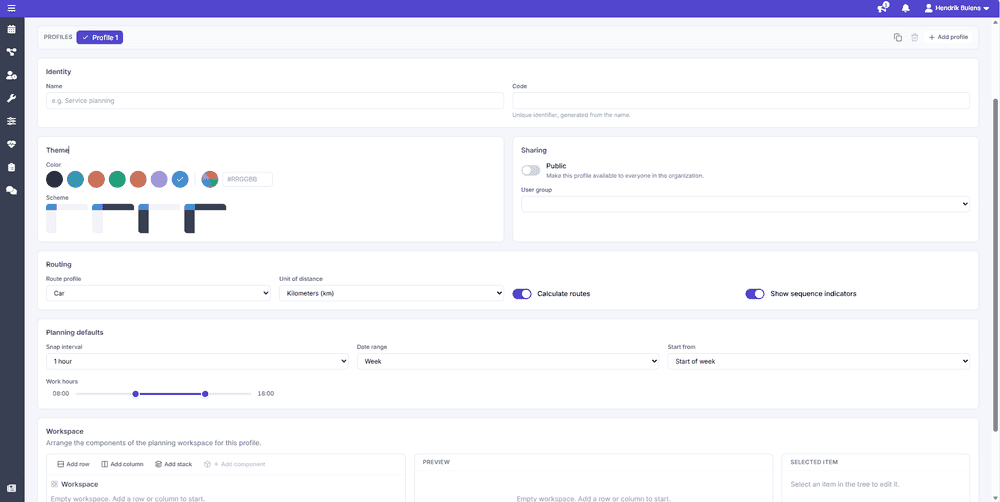 Reviewing a profile before it is packaged
That covers the two things people actually do with packages. Copying a configuration between two tenants is an export on one and an apply on the other. Keeping a configuration under version control is an export, a commit, and later an apply of the committed file. A fresh tenant can also take a package as its starting point through the quick start wizardQuick start wizardThe wizard that gives a new tenant a working setup by applying a ready-made profile template or a setup package, then walking through application setup, connectors and users. below.
Reviewing a profile before it is packaged
That covers the two things people actually do with packages. Copying a configuration between two tenants is an export on one and an apply on the other. Keeping a configuration under version control is an export, a commit, and later an apply of the committed file. A fresh tenant can also take a package as its starting point through the quick start wizardQuick start wizardThe wizard that gives a new tenant a working setup by applying a ready-made profile template or a setup package, then walking through application setup, connectors and users. below.
Starting a new tenant from a template
A fresh tenant has no profiles, which means a planner signing in has nothing to look at. The Quick start wizard exists for that moment. It walks through five steps, and only the first is really about templates. The rest gather the things a new tenant otherwise needs five separate pages for.
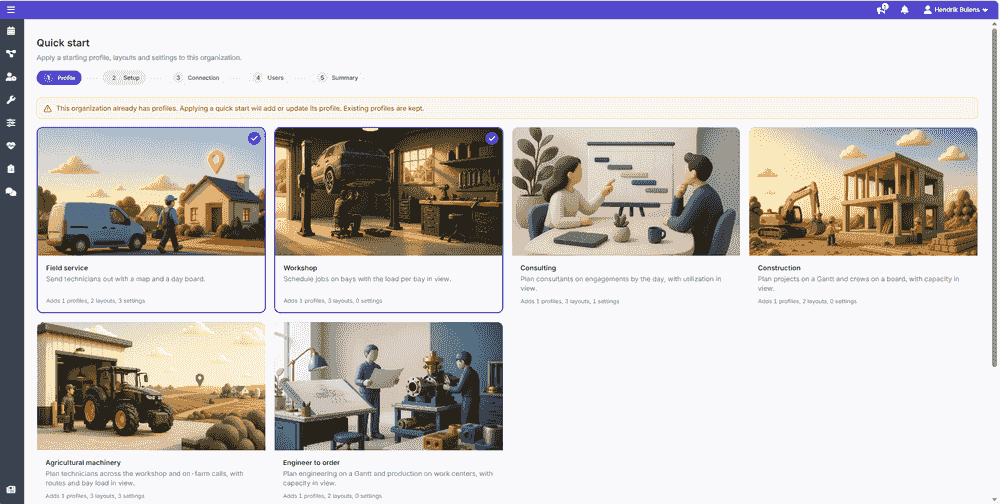 Picking a template
- Profile - pick one or more templates. Each is a planning profileProfileA saved snapshot of a user’s planning board configuration, including the chosen layout and view options. with its layoutsLayoutA saved arrangement of the planning board - visible resources, columns, and settings - that can be reused. and settings for a kind of work: field service, workshop, consulting, construction, agricultural machinery or engineer to order, and the card says what it adds. Applying a template is additive. If the organization already has profiles, the wizard tells you so: the template adds to them or updates its own, and existing profiles are kept rather than replaced.
- Setup - the application setup, so company name, time zone and the planning, map and mobile defaults are set in the same pass.
- Connection - the connectors and API keysAPI keyA credential that authenticates calls to the Dime.Scheduler API. The preferred way to integrate over the deprecated JWT flow. that link the tenant to its back officeBack officeThe ERP or business system Dime.Scheduler plans for - most often Microsoft Dynamics 365 Business Central. It owns the master data and remains authoritative over what it receives.. This step can be skipped and done later.
- Users - assign planners to the new profile and to the roles already set up for the organization.
- Summary - a recap of what the wizard changed, and where to go next: the planning view, or the admin center.
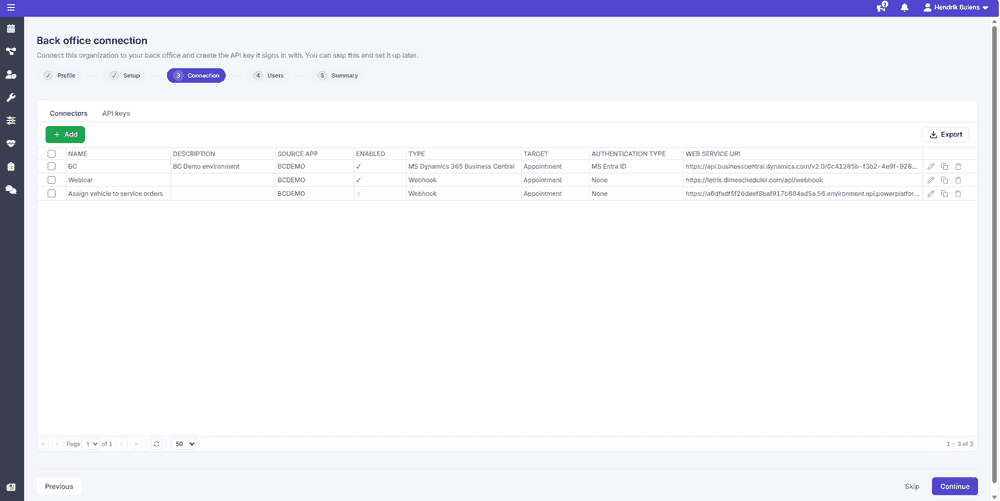 The back office connection step
 The summary
Below the templates sit two more cards. Start from a blank profile does what it says, and Import a package applies a configuration package file built on the Configuration packages page, so your own configuration can be the starting point rather than a shipped template. The wizard is reached from the admin center rather than the menu.
Packages flow in both directions: export one from Dime.Scheduler, or write one from scratch and apply it. Because the files are human-friendly, they store cleanly in version control and read well in a review.
Exporting from other pages
User-generated content
Two other pages can produce a package file without going through the Configuration packages page. From the user-generated contentUser-generated contentProfiles, layouts and filters that a user created and shared. The user-generated content page lets an administrator transfer their ownership before the user is removed. page, export a bundle that contains profiles and the default layouts of the components in those layouts.
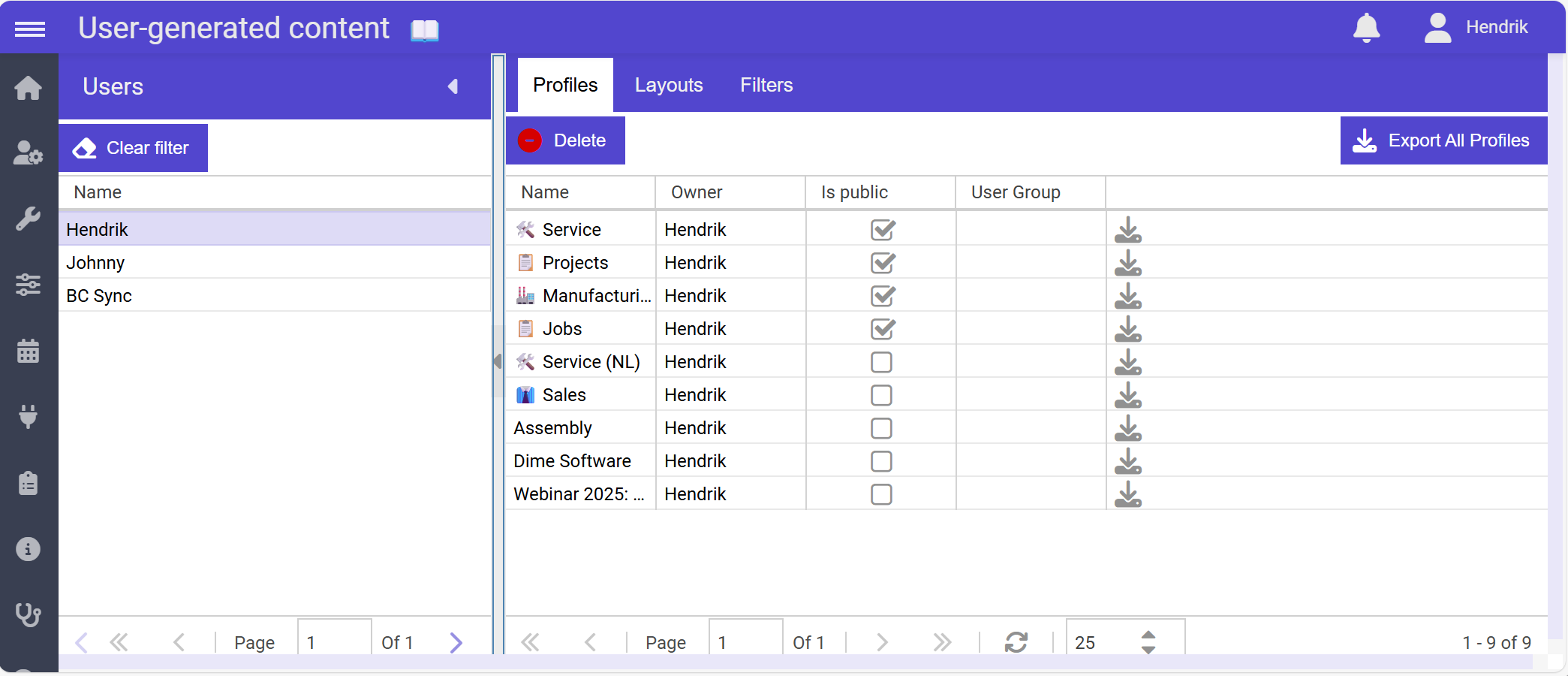
From there, apply the file on the Configuration packages page, or edit it by hand first.
System
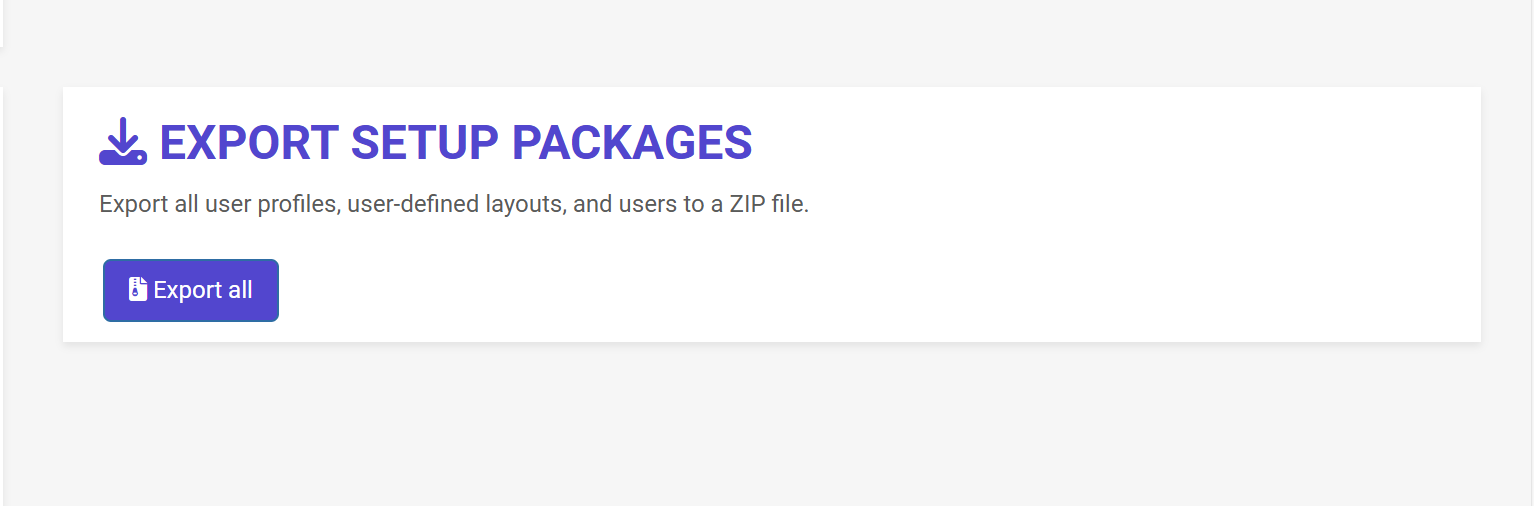
The System page has a button to export all supported non-transactional setup:
- Profiles
- Layouts
- Users
From there, apply the file on the Configuration packages page, or edit it by hand first.
Related
- Package format reference - what is inside the file, for editing one by hand.
- Admin center - where both pages are reached from.